> ## Documentation Index
> Fetch the complete documentation index at: https://help.pixwel.com/llms.txt
> Use this file to discover all available pages before exploring further.
# AI Insights
> How the AI Insights panel on the Orders report turns your filtered data into a few ranked, actionable findings — and the guardrails that keep its numbers honest.
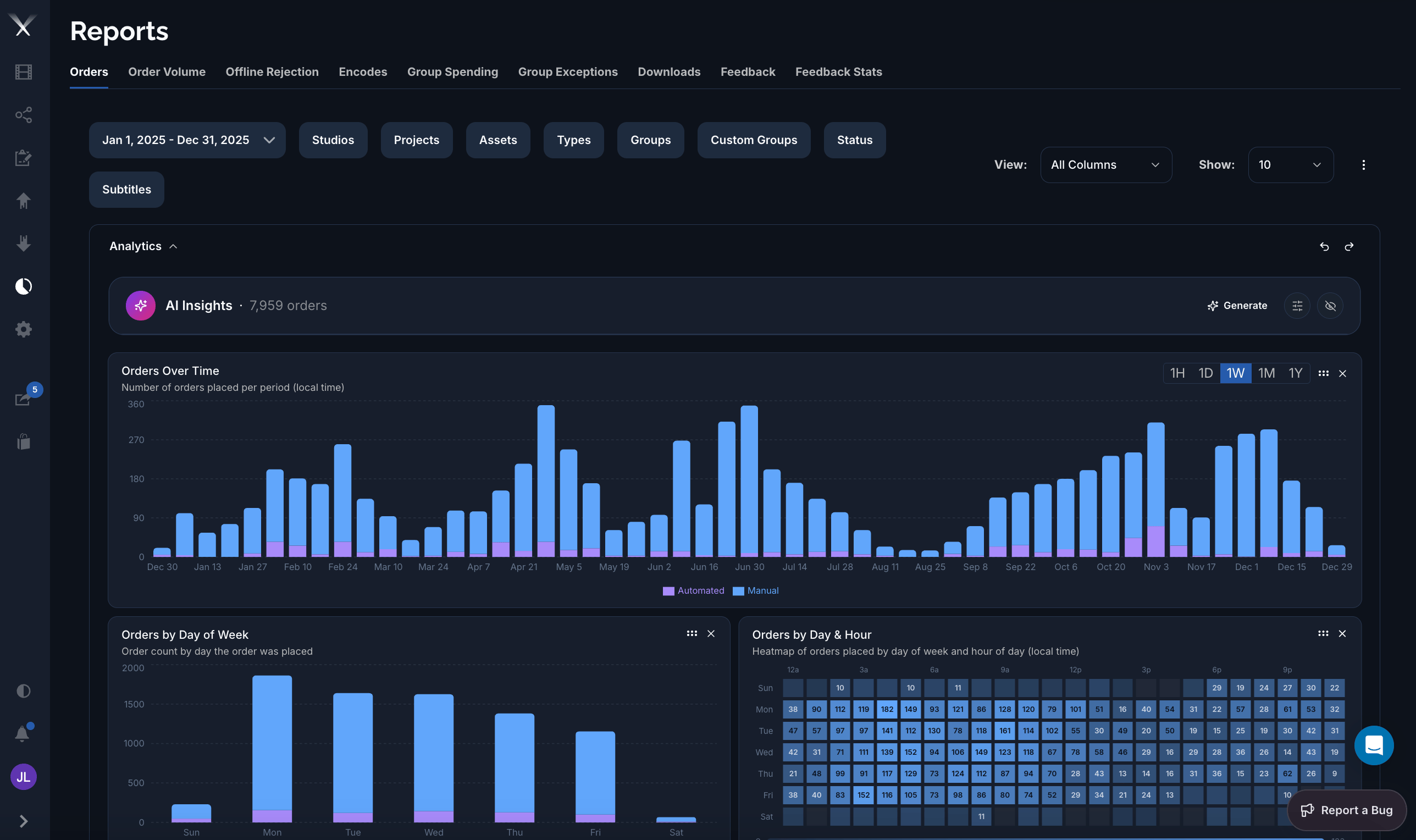
The **AI Insights** panel on the [Orders report](/features/reports) reads the data you're currently looking at and writes a short, plain-language analysis of it. Instead of staring at a chart, you press **Generate** and get two or three findings that each say what's happening, why, and what to do about it.
## Where it lives
Open **Reports → Orders**, set your filters and date range, and look at the **Analytics** panel. **AI Insights** sits at the top; click **Generate** to produce the analysis for exactly the data on screen.
 ## How it works
When you press **Generate**, Pixwel's system analyzes a snapshot of the **report you're viewing** and streams back the findings:
1. **It only sees your filtered, aggregated report.** The same totals and breakdowns the charts are built from — orders over time, and counts by studio, status, stage, language, type, group, and country, plus your top projects and assets. It reflects the filters and date range you've set; change them and regenerate to analyze a different slice.
2. **It analyzes, then ranks.** The agent looks for the trends, bottlenecks, and outliers that matter, then returns only the **2–3 most actionable** — not a long list.
3. **It returns structured cards.** Each insight comes back as a compact card, not a wall of text.
AI Insights works from the **aggregated numbers in your report** — the same figures the charts show. It isn't given free rein over the database, and it can't see data your account can't.
## What an insight looks like
Every insight follows the same shape:
* **Headline with the number** — the finding, led by the figure that makes it (e.g. "Orders up 38%, concentrated in FR and GER").
* **Driver** — one sentence on *why* it's happening ("driven by…", "concentrated in…").
* **Action** — one concrete next step (investigate, reassign, renegotiate, open capacity, update the brief).
* **Severity** — high / medium / low, so the urgent ones stand out.
* Optionally a **standout metric** and short **evidence** or **caveats**, included only when they change the decision.
The whole thing is oriented around the tensions you actually manage — **cost vs. quality**, **speed vs. approval rigor**, **source readiness vs. demand**, and **automation vs. manual control**.
## Tailor the analysis
Tell it who's reading so it calibrates depth:
* **Executive** — takeaways and dollars; budget exposure and territory risk, in a sentence or two.
* **Operations** — operational specifics: which order, vendor, stage, or asset is the bottleneck.
* **Analyst** — the data itself, precise, with drill-down paths.
Save persistent directions (your priorities, vocabulary, preferred depth) and the agent applies them to **every** analysis — for example "always quantify in EUR" or "focus on vendor turnaround."
Instead of the default summary, ask a specific question about the data on screen and it answers that.
## Why you can trust the numbers
The agent runs under strict rules designed to keep it honest:
* **It never invents data.** Every number in the output comes from your report — no estimated order counts, dollar figures, vendor names, or dates.
* **It does no mental math** and won't "round to make a point land."
* **It says "insufficient data" and stops** rather than guessing when the report can't support a claim.
* **Every number carries a comparison** (vs. the prior period, a peer territory or vendor, or the SLA target) and states the window — "up 22%" is never left to mean nothing.
* **It flags small samples** as directional rather than presenting them as firm.
## Limits
* **It only knows your report.** It won't pull in outside industry knowledge or data beyond what's in the current view.
* **Time-to-money needs cost data.** If your report doesn't include cost figures, it quantifies the time impact and stops short of the dollar impact.
* **Small samples are directional.** A pattern over a few dozen orders is flagged as such.
* Today it analyzes the **Orders** report; other reports may follow.
## How it works
When you press **Generate**, Pixwel's system analyzes a snapshot of the **report you're viewing** and streams back the findings:
1. **It only sees your filtered, aggregated report.** The same totals and breakdowns the charts are built from — orders over time, and counts by studio, status, stage, language, type, group, and country, plus your top projects and assets. It reflects the filters and date range you've set; change them and regenerate to analyze a different slice.
2. **It analyzes, then ranks.** The agent looks for the trends, bottlenecks, and outliers that matter, then returns only the **2–3 most actionable** — not a long list.
3. **It returns structured cards.** Each insight comes back as a compact card, not a wall of text.
AI Insights works from the **aggregated numbers in your report** — the same figures the charts show. It isn't given free rein over the database, and it can't see data your account can't.
## What an insight looks like
Every insight follows the same shape:
* **Headline with the number** — the finding, led by the figure that makes it (e.g. "Orders up 38%, concentrated in FR and GER").
* **Driver** — one sentence on *why* it's happening ("driven by…", "concentrated in…").
* **Action** — one concrete next step (investigate, reassign, renegotiate, open capacity, update the brief).
* **Severity** — high / medium / low, so the urgent ones stand out.
* Optionally a **standout metric** and short **evidence** or **caveats**, included only when they change the decision.
The whole thing is oriented around the tensions you actually manage — **cost vs. quality**, **speed vs. approval rigor**, **source readiness vs. demand**, and **automation vs. manual control**.
## Tailor the analysis
Tell it who's reading so it calibrates depth:
* **Executive** — takeaways and dollars; budget exposure and territory risk, in a sentence or two.
* **Operations** — operational specifics: which order, vendor, stage, or asset is the bottleneck.
* **Analyst** — the data itself, precise, with drill-down paths.
Save persistent directions (your priorities, vocabulary, preferred depth) and the agent applies them to **every** analysis — for example "always quantify in EUR" or "focus on vendor turnaround."
Instead of the default summary, ask a specific question about the data on screen and it answers that.
## Why you can trust the numbers
The agent runs under strict rules designed to keep it honest:
* **It never invents data.** Every number in the output comes from your report — no estimated order counts, dollar figures, vendor names, or dates.
* **It does no mental math** and won't "round to make a point land."
* **It says "insufficient data" and stops** rather than guessing when the report can't support a claim.
* **Every number carries a comparison** (vs. the prior period, a peer territory or vendor, or the SLA target) and states the window — "up 22%" is never left to mean nothing.
* **It flags small samples** as directional rather than presenting them as firm.
## Limits
* **It only knows your report.** It won't pull in outside industry knowledge or data beyond what's in the current view.
* **Time-to-money needs cost data.** If your report doesn't include cost figures, it quantifies the time impact and stops short of the dollar impact.
* **Small samples are directional.** A pattern over a few dozen orders is flagged as such.
* Today it analyzes the **Orders** report; other reports may follow.