> ## Documentation Index
> Fetch the complete documentation index at: https://help.pixwel.com/llms.txt
> Use this file to discover all available pages before exploring further.
# Shares
> How you make selected assets available to specific people — including external guests — with control over what they can see, download, and feed back on.
A **share** makes a selected set of [assets](/features/projects/assets) available to specific people. It's how you get work in front of colleagues, partners, and outside reviewers without giving them the run of the whole project.
## Who you can share with
* **Internal users and groups** — other people on the platform, by name or by team.
* **External guests** — people who aren't on Pixwel yet. If you have permission to invite guests, entering an unknown email address invites that person as a [guest](/features/user-roles) and emails them a link. Guests only ever see what's shared with them.
## Anonymous shares
Pixwel also supports **anonymous shares** — shares that recipients can open without an account or sign-in. Because they let assets reach anyone with the link, creating one is a restricted capability: only users whose group has been granted the anonymous-share permission can make them.
Anonymous sharing is permission-gated. If you don't see the option, your group hasn't been granted it — an administrator controls who can create anonymous shares.
## What you control
When you build a share, you decide what recipients can actually do:
* **Languages** — narrow the share to specific localized versions.
* **Usages and variants** — what kinds of files recipients can get (online, broadcast, theatrical/DCP, print) and variants like texted/textless or flattened/layered. These determine which files are downloadable.
* **Downloading** — whether recipients can [download](/features/downloads) the files at all, or only preview them.
* **Re-sharing** — whether recipients can pass the assets on without further approval.
* **Expiry** — when the share (or its feedback window) closes. After expiry it becomes read-only.
Previews shown to recipients are **watermarked** with the viewer's email address.
## Feedback and voting
A share can collect **feedback**. Recipients can vote an asset up or down, leave comments, and indicate whether they'd order a localized version — useful for gauging interest before committing to localization work. You can attach **questions** recipients answer before submitting, and set a date when feedback closes. Results feed the [feedback report](/features/reports).
## The Share Queue
You assemble a share in the **Share Queue** — a staging area where you collect assets, choose recipients, set languages, usages, and feedback options, then send. Until you send it, nothing leaves the platform.
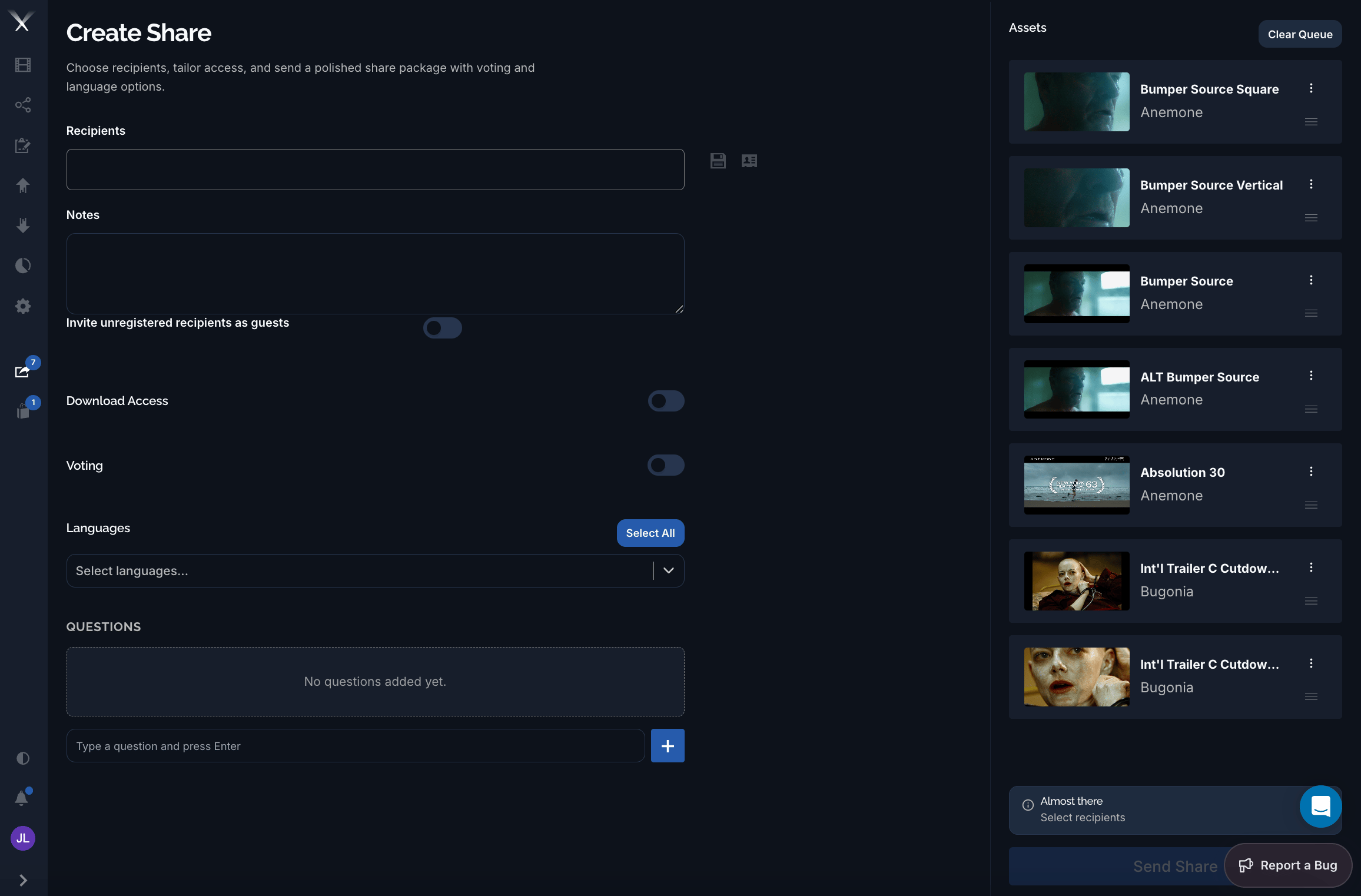 On the **Create Share** page you set the recipients and a note, then tailor access with toggles: **Invite unregistered recipients as guests**, **Download Access**, and **Voting**. Pick the **Languages** to include, and add any **Questions** recipients should answer. The queued assets appear in the **Assets** panel on the right — reorder or remove them, or **Clear Queue** to start over — and **Send Share** dispatches the package once you've chosen recipients.
Shares you've created appear under **Sent Shares**; shares others have sent you appear under **Received Shares**. You can edit a sent share's recipients, notes, and settings after it goes out.
Sharing is permission-controlled. What you're allowed to share, and whether recipients can download, depends on your group's [permissions](/features/user-roles) — an administrator sets these.
On the **Create Share** page you set the recipients and a note, then tailor access with toggles: **Invite unregistered recipients as guests**, **Download Access**, and **Voting**. Pick the **Languages** to include, and add any **Questions** recipients should answer. The queued assets appear in the **Assets** panel on the right — reorder or remove them, or **Clear Queue** to start over — and **Send Share** dispatches the package once you've chosen recipients.
Shares you've created appear under **Sent Shares**; shares others have sent you appear under **Received Shares**. You can edit a sent share's recipients, notes, and settings after it goes out.
Sharing is permission-controlled. What you're allowed to share, and whether recipients can download, depends on your group's [permissions](/features/user-roles) — an administrator sets these.