> ## Documentation Index
> Fetch the complete documentation index at: https://help.pixwel.com/llms.txt
> Use this file to discover all available pages before exploring further.
# Mounted Drive (WebDAV)
> Mount Pixwel as a read-only network drive and browse every studio, project, asset, and file as folders — ideal for syncing and automation.
**Beta.** The mounted drive is an early-access feature and isn't on production yet. Behavior may change before general release. The connection address is shared with beta participants — [contact Pixwel](mailto:platform@pixwel.com) to take part.
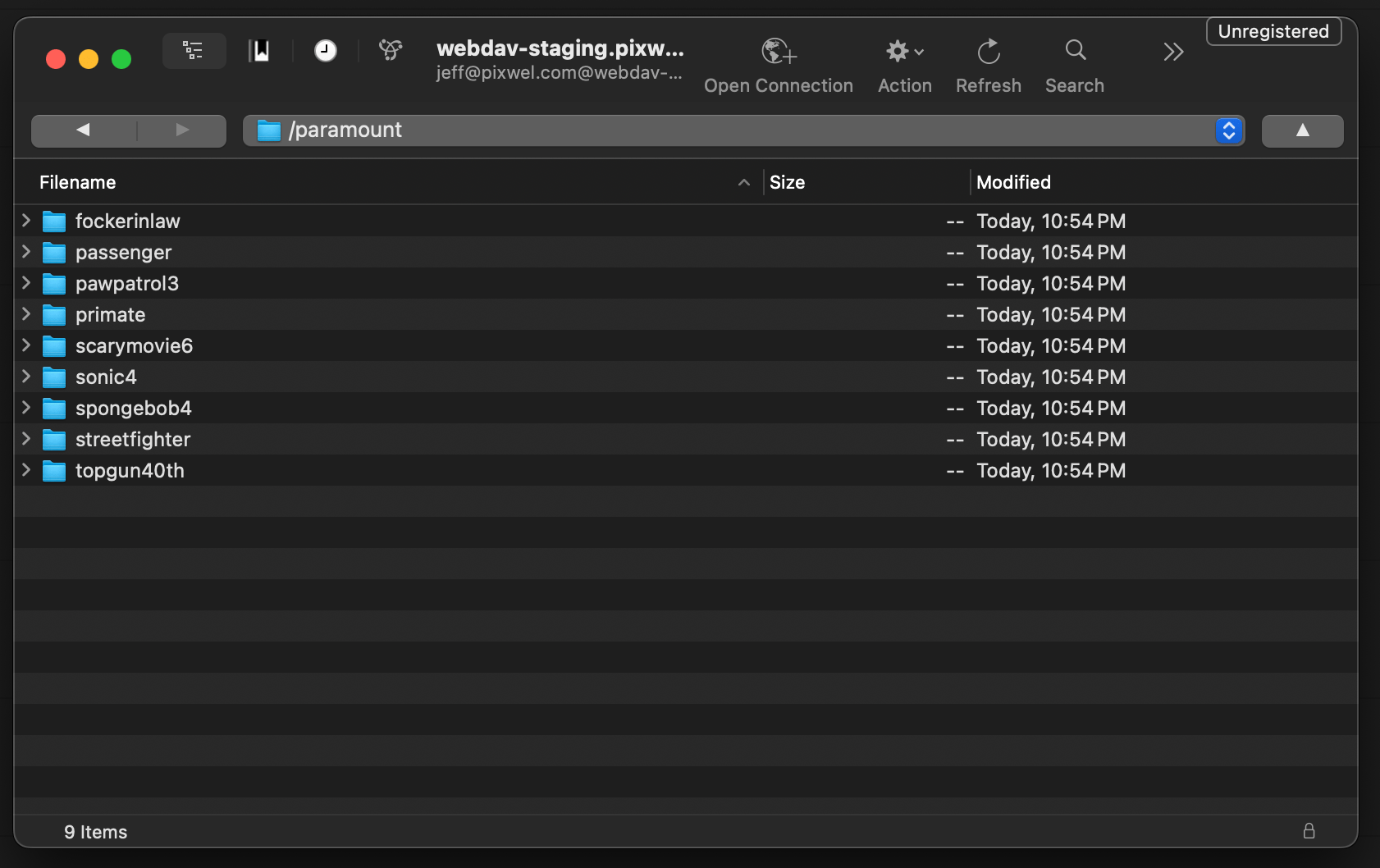
The **mounted drive** lets you connect Pixwel to your computer as a read-only network drive over **WebDAV**. Point Finder, Cyberduck, Mountain Duck, Windows Explorer, or `rclone` at it and your whole library shows up as folders:
```
studio / project / asset / file
```
Open a folder to drill in; open a file to download it. Everything you'd browse in the web app is there — scoped to exactly what your account can see — without opening a browser.
 ## Why it's useful
* **Automation.** Script against your files with `rclone` (or anything that speaks WebDAV) — list, copy, and sync without clicking through the UI.
* **Overnight syncing.** Deliverables often land while your team is asleep. A scheduled `rclone` job can pull new files the moment they're available, so they're waiting on your local storage or NAS by morning.
* **Familiar tools.** Drag files out of Finder or Explorer like any other drive — no separate download manager.
## Before you start
You'll need an **[API token](/features/preferences/api-tokens)** (a personal access token, prefixed `pat_`) — create one in Preferences. The drive uses HTTP Basic auth: put anything in the **username** field and paste your **token as the password**.
An API token carries your full account access. Don't share it, and only connect over `https://`.
## Connect
Pixwel provides the WebDAV **connection address** when you join the beta. Use it wherever the steps below show ``.
In Finder, press **⌘K**, enter `https://`, and paste your API token as the password.
Finder probes every folder eagerly, so the first visit to a large directory can pause. Cyberduck or Mountain Duck feel snappier.
New connection → **WebDAV (HTTPS)** → server `` → API token as the password. Mountain Duck mounts it as a true drive.
**This PC → Map network drive** → `https://` → API token as the password. The built-in client works but is slow on large directories.
```ini theme={null}
[pixwel]
type = webdav
url = https://
vendor = other
user = anything
pass = (run: rclone obscure pat_your_token)
```
Then browse and copy like any remote:
```bash theme={null}
rclone ls pixwel:studio/project/
rclone copy pixwel:studio/project/asset/file.mov ./downloads/
```
## What to expect
* **Read-only.** You can browse and download; you can't upload, rename, move, or delete through the drive.
* **Your permissions apply.** You see exactly the studios, projects, and assets your account has access to — the same as the web app.
* **Archived projects are hidden.**
* **Fast browsing.** Each folder loads the first time you open it and stays quick for a few minutes after. Opening an asset's files can take a few seconds the first time while sizes are read.
* **Direct downloads.** When you open a file it streams straight from storage at full speed — Pixwel just hands your client the download link.
## Automate overnight pulls
A scheduled `rclone` sync is the payoff. For example, mirror a project's new deliverables to local storage every morning:
```bash theme={null}
# cron: 6am daily — pull anything new since the last run
rclone copy pixwel:focus-features/anemone/ /mnt/deliveries/anemone/ \
--ignore-existing --transfers 8
```
Because downloads go straight to storage, large pulls run at native throughput.
## Limitations
* Read-only — no upload, rename, or delete.
* Mac Finder's eager folder-probing is the slowest experience; **Cyberduck is recommended**.
* A file's modified date reflects when it was created in Pixwel, not its storage timestamp.
* As a beta, the endpoint and behavior may change.
## Why it's useful
* **Automation.** Script against your files with `rclone` (or anything that speaks WebDAV) — list, copy, and sync without clicking through the UI.
* **Overnight syncing.** Deliverables often land while your team is asleep. A scheduled `rclone` job can pull new files the moment they're available, so they're waiting on your local storage or NAS by morning.
* **Familiar tools.** Drag files out of Finder or Explorer like any other drive — no separate download manager.
## Before you start
You'll need an **[API token](/features/preferences/api-tokens)** (a personal access token, prefixed `pat_`) — create one in Preferences. The drive uses HTTP Basic auth: put anything in the **username** field and paste your **token as the password**.
An API token carries your full account access. Don't share it, and only connect over `https://`.
## Connect
Pixwel provides the WebDAV **connection address** when you join the beta. Use it wherever the steps below show ``.
In Finder, press **⌘K**, enter `https://`, and paste your API token as the password.
Finder probes every folder eagerly, so the first visit to a large directory can pause. Cyberduck or Mountain Duck feel snappier.
New connection → **WebDAV (HTTPS)** → server `` → API token as the password. Mountain Duck mounts it as a true drive.
**This PC → Map network drive** → `https://` → API token as the password. The built-in client works but is slow on large directories.
```ini theme={null}
[pixwel]
type = webdav
url = https://
vendor = other
user = anything
pass = (run: rclone obscure pat_your_token)
```
Then browse and copy like any remote:
```bash theme={null}
rclone ls pixwel:studio/project/
rclone copy pixwel:studio/project/asset/file.mov ./downloads/
```
## What to expect
* **Read-only.** You can browse and download; you can't upload, rename, move, or delete through the drive.
* **Your permissions apply.** You see exactly the studios, projects, and assets your account has access to — the same as the web app.
* **Archived projects are hidden.**
* **Fast browsing.** Each folder loads the first time you open it and stays quick for a few minutes after. Opening an asset's files can take a few seconds the first time while sizes are read.
* **Direct downloads.** When you open a file it streams straight from storage at full speed — Pixwel just hands your client the download link.
## Automate overnight pulls
A scheduled `rclone` sync is the payoff. For example, mirror a project's new deliverables to local storage every morning:
```bash theme={null}
# cron: 6am daily — pull anything new since the last run
rclone copy pixwel:focus-features/anemone/ /mnt/deliveries/anemone/ \
--ignore-existing --transfers 8
```
Because downloads go straight to storage, large pulls run at native throughput.
## Limitations
* Read-only — no upload, rename, or delete.
* Mac Finder's eager folder-probing is the slowest experience; **Cyberduck is recommended**.
* A file's modified date reflects when it was created in Pixwel, not its storage timestamp.
* As a beta, the endpoint and behavior may change.