> ## Documentation Index
> Fetch the complete documentation index at: https://help.pixwel.com/llms.txt
> Use this file to discover all available pages before exploring further.
# Downloading Files
> How to download deliverables, where they land, how embargoes work, and how to request restricted OV files.
This guide covers getting files off the platform — the download itself, the Aspera transfer, embargoes, and restricted-file requests. For the broader feature, see [Downloads](/features/downloads).
## How to download files
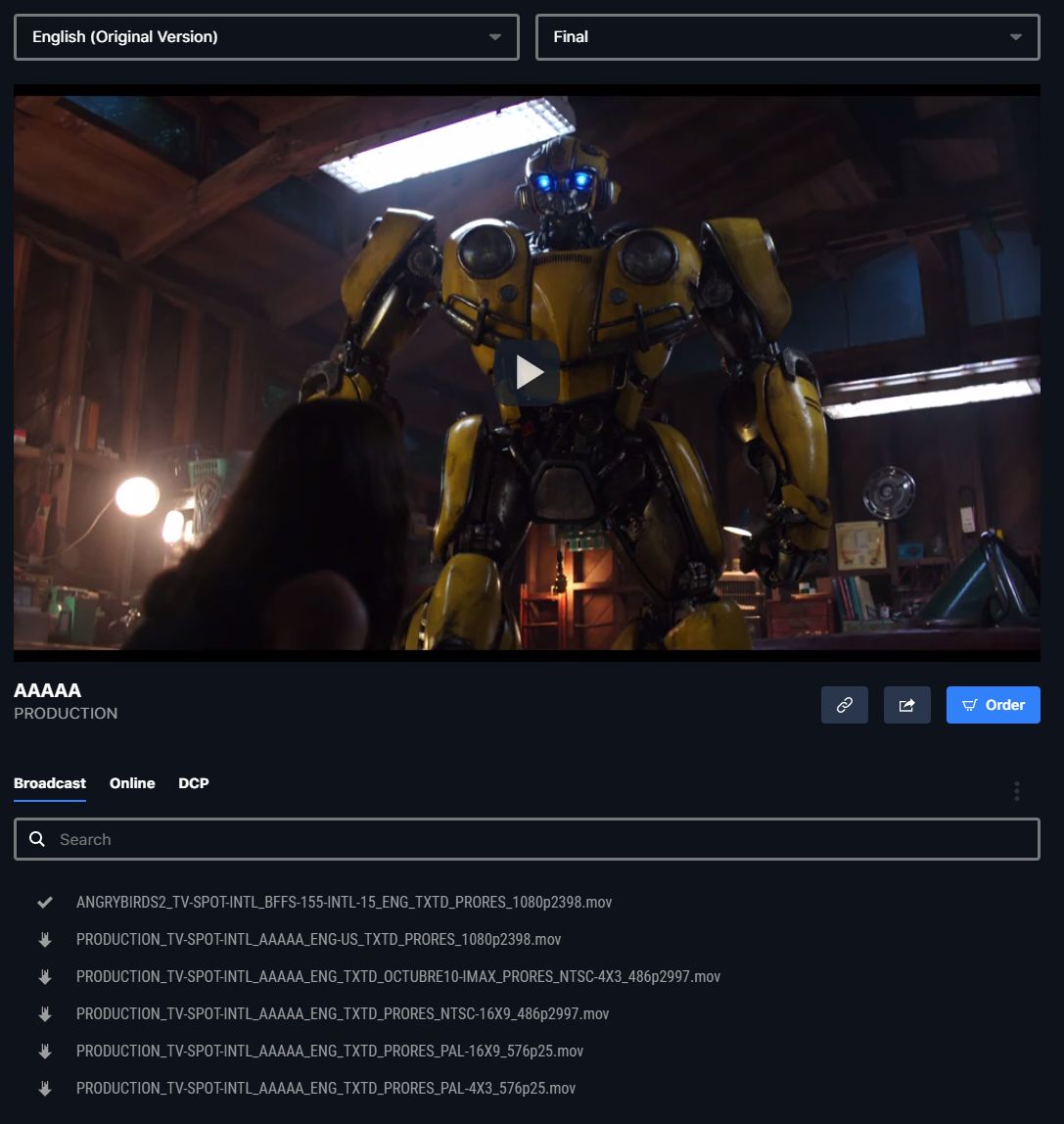
Find the [asset](/features/projects/assets) and open its preview.
At the top of the preview, choose your **language** and subtitle/dub option. The available **files** then appear in the lower half.
Click any file to start downloading immediately. A progress indicator sits next to each filename; click the **X** to cancel, and a checkmark shows when it's done.

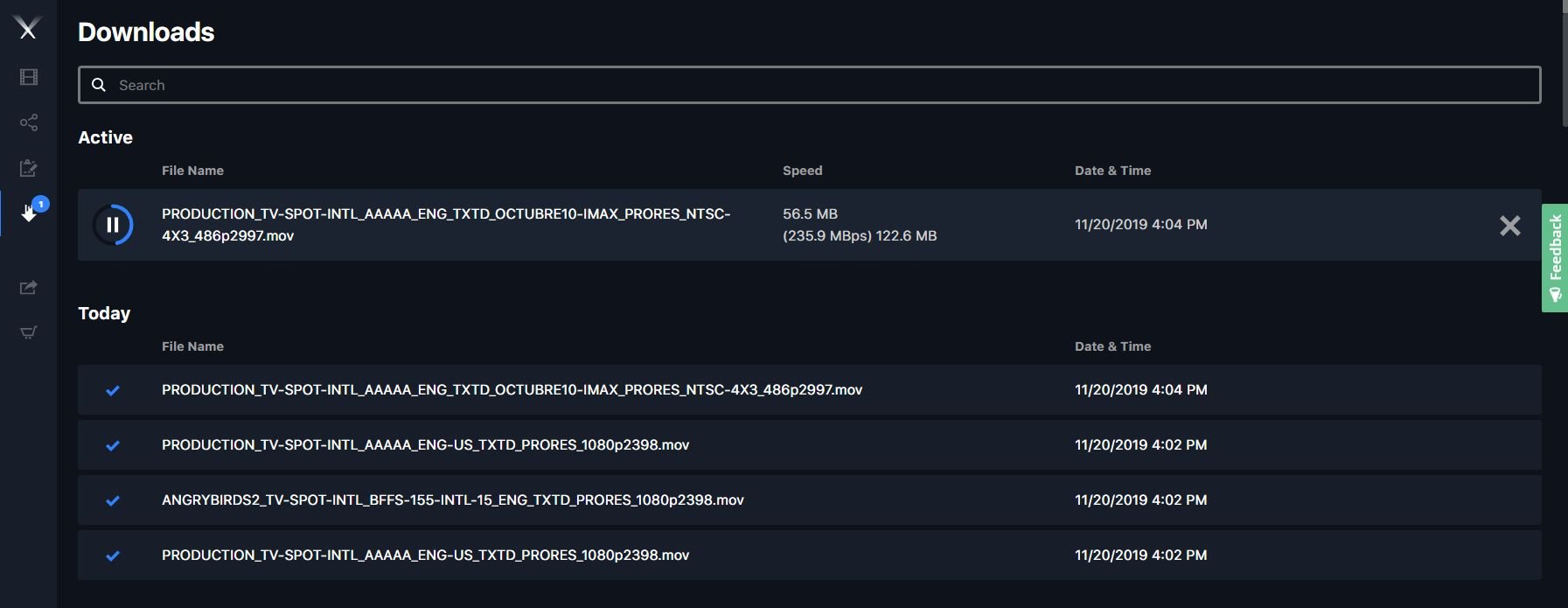
 Open the **Download Manager** from the left navigation bar to see your history and pause, resume, cancel, or search transfers.
 ## How long until files are downloadable
Once the Pixwel team receives files from the localization vendor, it usually takes **60 to 90 minutes** for them to appear on the platform.
## Where files download to (Aspera)
Downloads transfer via **Aspera Connect** and save, by default, to your system's **Downloads** folder, inside a subfolder named for the studio. To change the location:
* **Mac** — open Aspera Connect preferences → **Transfers** tab → **Browse** to a new location.
* **Windows** — open Connect preferences (cog icon at bottom-left, or right-click the Connect icon → **Preferences**) → **Transfers** tab. Choose **Save downloaded files to** and browse to a directory, or **Always ask me where to save downloaded files** to be prompted each time.
## How long until files are downloadable
Once the Pixwel team receives files from the localization vendor, it usually takes **60 to 90 minutes** for them to appear on the platform.
## Where files download to (Aspera)
Downloads transfer via **Aspera Connect** and save, by default, to your system's **Downloads** folder, inside a subfolder named for the studio. To change the location:
* **Mac** — open Aspera Connect preferences → **Transfers** tab → **Browse** to a new location.
* **Windows** — open Connect preferences (cog icon at bottom-left, or right-click the Connect icon → **Preferences**) → **Transfers** tab. Choose **Save downloaded files to** and browse to a directory, or **Always ask me where to save downloaded files** to be prompted each time.
 If you're hitting connectivity or transfer problems, Pixwel publishes Aspera technical documentation (network ports and requirements) as a PDF — ask support for the link. See also [Aspera Desktop](/features/aspera-desktop).
## Downloading without Aspera
You **don't need any Aspera software to download** — Aspera just makes large transfers faster and gives you progress and pause/resume. If you have neither [Aspera Desktop](/features/aspera-desktop) nor the Aspera Connect browser plugin, Pixwel automatically falls back to a **standard HTTPS download through your browser**, and the file still downloads.
What's different on the browser fallback:
* Your **browser's own download manager** handles the file — there's no in-app **Active Transfers** entry, progress, speed, or pause/resume.
* There's **no transfer acceleration**, so very large files are slower than over Aspera.
* Files download **one at a time** (no bulk/zip).
* The download link is **short-lived** (about 20 minutes). Start the download promptly; if it stalls or the link expires, just click the file again to get a fresh one.
| Capability | Aspera Desktop | Aspera Connect (plugin) | No Aspera (browser) |
| ------------------------------ | :------------: | :---------------------: | :-----------------: |
| Downloads work | ✓ | ✓ | ✓ |
| Accelerated transfer | ✓ | ✓ | — |
| In-app progress, pause, resume | ✓ | ✓ | — |
| Nothing to install | — | — | ✓ |
For large files, lots of files, or unreliable connections, install [Aspera Desktop](/features/aspera-desktop) (or the Aspera Connect plugin) — you'll get faster, resumable transfers with full progress control. For the occasional small file, the browser fallback is fine.
## Embargoed files
An [embargo](/glossary) holds a file until a release date.
* An embargoed file shows a **padlock icon** and can't be downloaded yet.
* Hover the filename to see the **embargo date and time**.
* When the embargo lifts, the padlock becomes a **download arrow** and the file is available.
If you're hitting connectivity or transfer problems, Pixwel publishes Aspera technical documentation (network ports and requirements) as a PDF — ask support for the link. See also [Aspera Desktop](/features/aspera-desktop).
## Downloading without Aspera
You **don't need any Aspera software to download** — Aspera just makes large transfers faster and gives you progress and pause/resume. If you have neither [Aspera Desktop](/features/aspera-desktop) nor the Aspera Connect browser plugin, Pixwel automatically falls back to a **standard HTTPS download through your browser**, and the file still downloads.
What's different on the browser fallback:
* Your **browser's own download manager** handles the file — there's no in-app **Active Transfers** entry, progress, speed, or pause/resume.
* There's **no transfer acceleration**, so very large files are slower than over Aspera.
* Files download **one at a time** (no bulk/zip).
* The download link is **short-lived** (about 20 minutes). Start the download promptly; if it stalls or the link expires, just click the file again to get a fresh one.
| Capability | Aspera Desktop | Aspera Connect (plugin) | No Aspera (browser) |
| ------------------------------ | :------------: | :---------------------: | :-----------------: |
| Downloads work | ✓ | ✓ | ✓ |
| Accelerated transfer | ✓ | ✓ | — |
| In-app progress, pause, resume | ✓ | ✓ | — |
| Nothing to install | — | — | ✓ |
For large files, lots of files, or unreliable connections, install [Aspera Desktop](/features/aspera-desktop) (or the Aspera Connect plugin) — you'll get faster, resumable transfers with full progress control. For the occasional small file, the browser fallback is fine.
## Embargoed files
An [embargo](/glossary) holds a file until a release date.
* An embargoed file shows a **padlock icon** and can't be downloaded yet.
* Hover the filename to see the **embargo date and time**.
* When the embargo lifts, the padlock becomes a **download arrow** and the file is available.
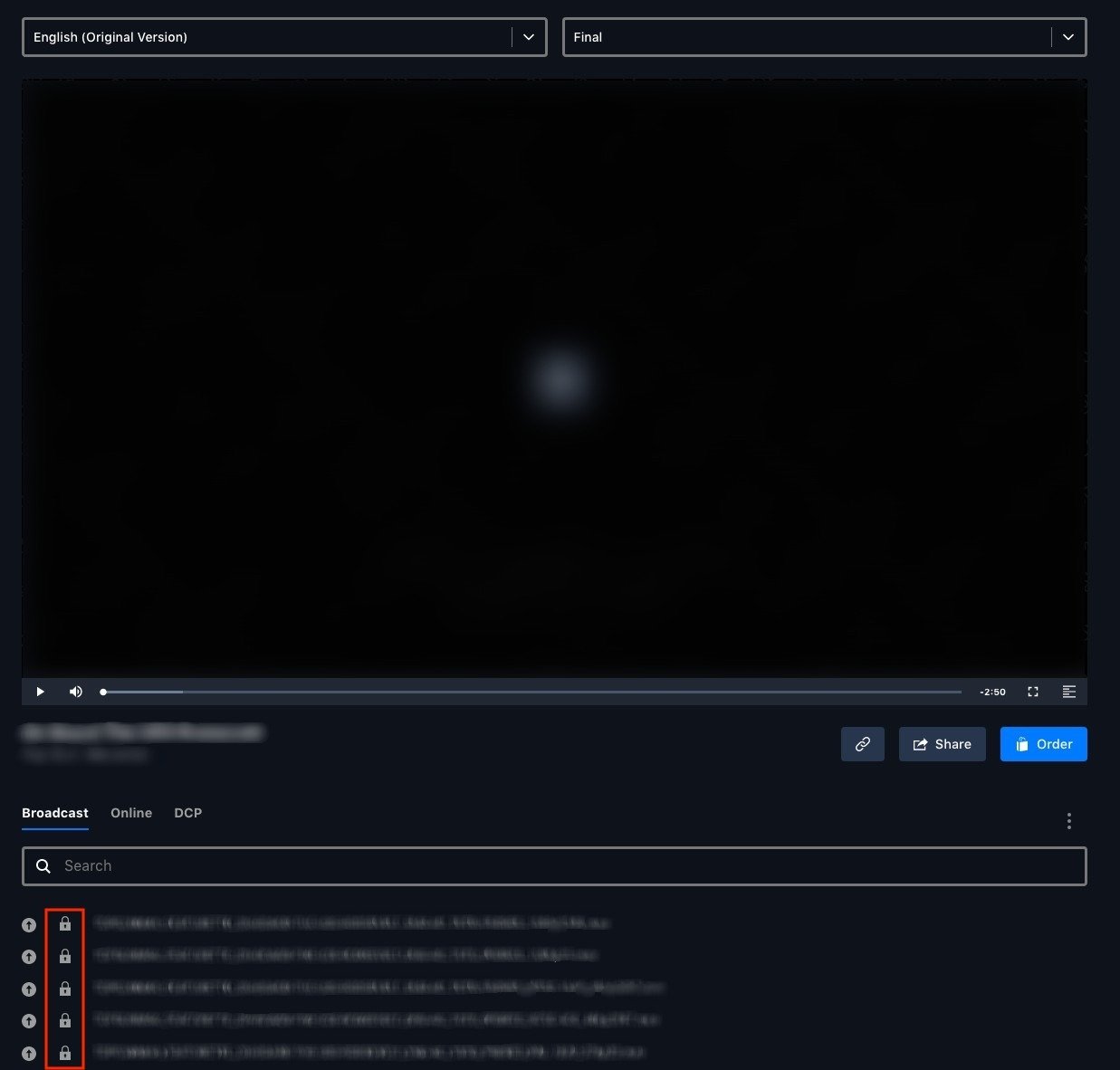

 If you believe a file was **locked in error** and you need it before the embargo lifts, contact support.
## Restricted OV texted / textless files
Downloading **OV** English **texted** and **textless** files usually needs Head Office approval. To request them, email **[platform@pixwel.com](mailto:platform@pixwel.com)** with:
* The **asset titles** and their **URLs**
* The **specs** — texted, textless, or both; broadcast, online, or both; and any special transcoding
* A **business justification** — why you need them, who the recipient vendor/partner is, and the intended usage
Files are released only once Head Office approves.
If you believe a file was **locked in error** and you need it before the embargo lifts, contact support.
## Restricted OV texted / textless files
Downloading **OV** English **texted** and **textless** files usually needs Head Office approval. To request them, email **[platform@pixwel.com](mailto:platform@pixwel.com)** with:
* The **asset titles** and their **URLs**
* The **specs** — texted, textless, or both; broadcast, online, or both; and any special transcoding
* A **business justification** — why you need them, who the recipient vendor/partner is, and the intended usage
Files are released only once Head Office approves.