> ## Documentation Index
> Fetch the complete documentation index at: https://help.pixwel.com/llms.txt
> Use this file to discover all available pages before exploring further.
# Notifications
> How Pixwel's in-app and email notifications work, and how to turn email updates on or off.
Pixwel keeps you posted on activity that matters to you — orders moving through their stages, embargoes lifting, and new assets being uploaded — both inside the app and by email.
## In-app notifications
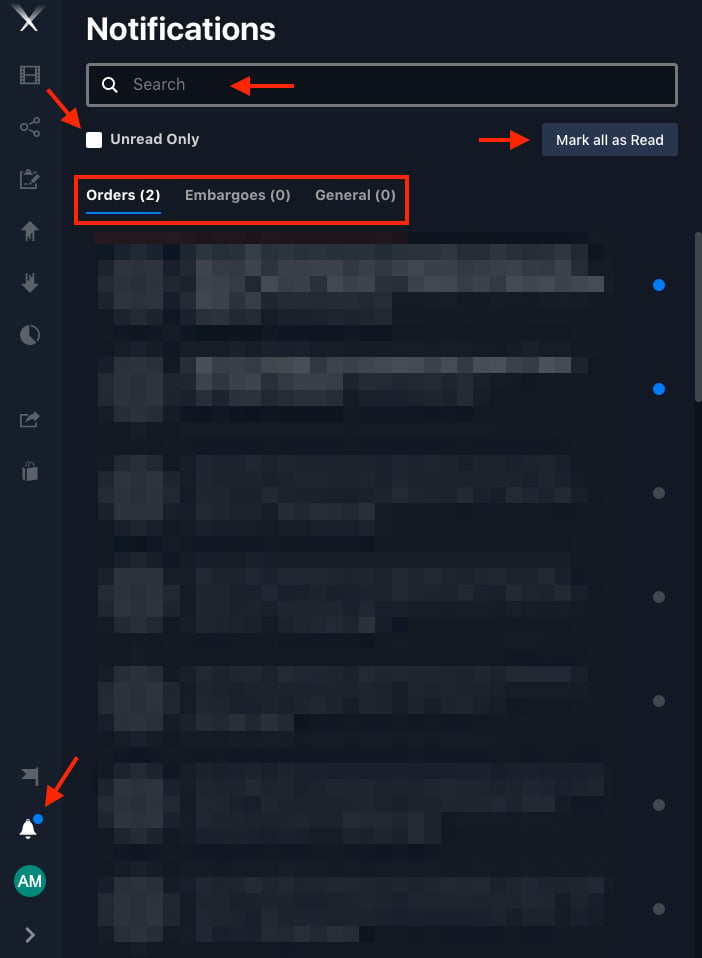
Click the **bell icon** above your user profile to open the **Notifications panel**. Notifications are organized into tabs:
* **Orders** — updates on your [work requests](/features/work-requests).
* **Embargoes** — when an [embargoed](/glossary) file's restriction changes.
* **General** — other updates, such as asset uploads.
Within a tab you can **search** for a specific notification, tick **Unread Only** to filter to what you haven't seen, and use **Mark all as Read** to clear them.
 ## Email notifications
Email notifications tell you by email whenever a project or work order is updated, or a share is received.
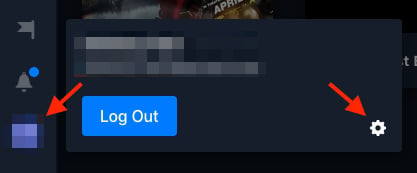
Click your **user profile** at the bottom-left, then the settings gear (⚙️) to open **Preferences**.
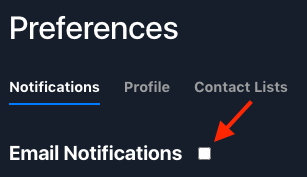
Open the **Notifications** tab and tick **Email Notifications**.
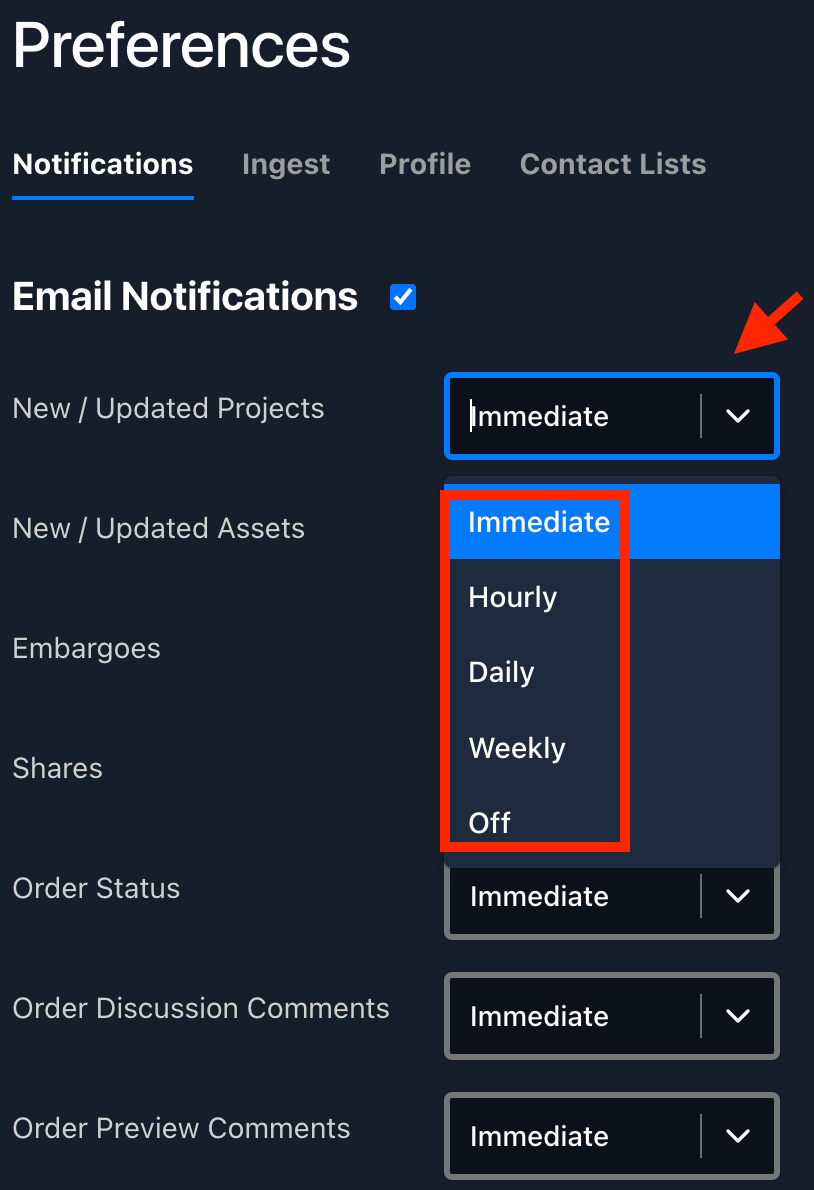
Choose how often you want emails from the dropdown.
Click **Save Preferences**.
## Email notifications
Email notifications tell you by email whenever a project or work order is updated, or a share is received.
Click your **user profile** at the bottom-left, then the settings gear (⚙️) to open **Preferences**.
Open the **Notifications** tab and tick **Email Notifications**.
Choose how often you want emails from the dropdown.
Click **Save Preferences**.
 To stop receiving emails, untick **Email Notifications** and save again.