> ## Documentation Index
> Fetch the complete documentation index at: https://help.pixwel.com/llms.txt
> Use this file to discover all available pages before exploring further.
# Placing & Managing Orders
> How to place a work request, choose deliverables and tags, track it through its stages, and update it after submission.
A [work request](/features/work-requests) (an **order**) is how you ask for localized versions of an [asset](/features/projects/assets). This guide covers placing one, choosing what gets made, and managing it through to delivery. For subtitling and translation tools, see [Subtitling & translation](/guides/subtitling).
## Placing an order
Find the asset in your preferred language and click **Order Localized Version** at the bottom-right of the preview. An **Order Queue** opens in the notification bar — add as many assets as you need before processing them together.
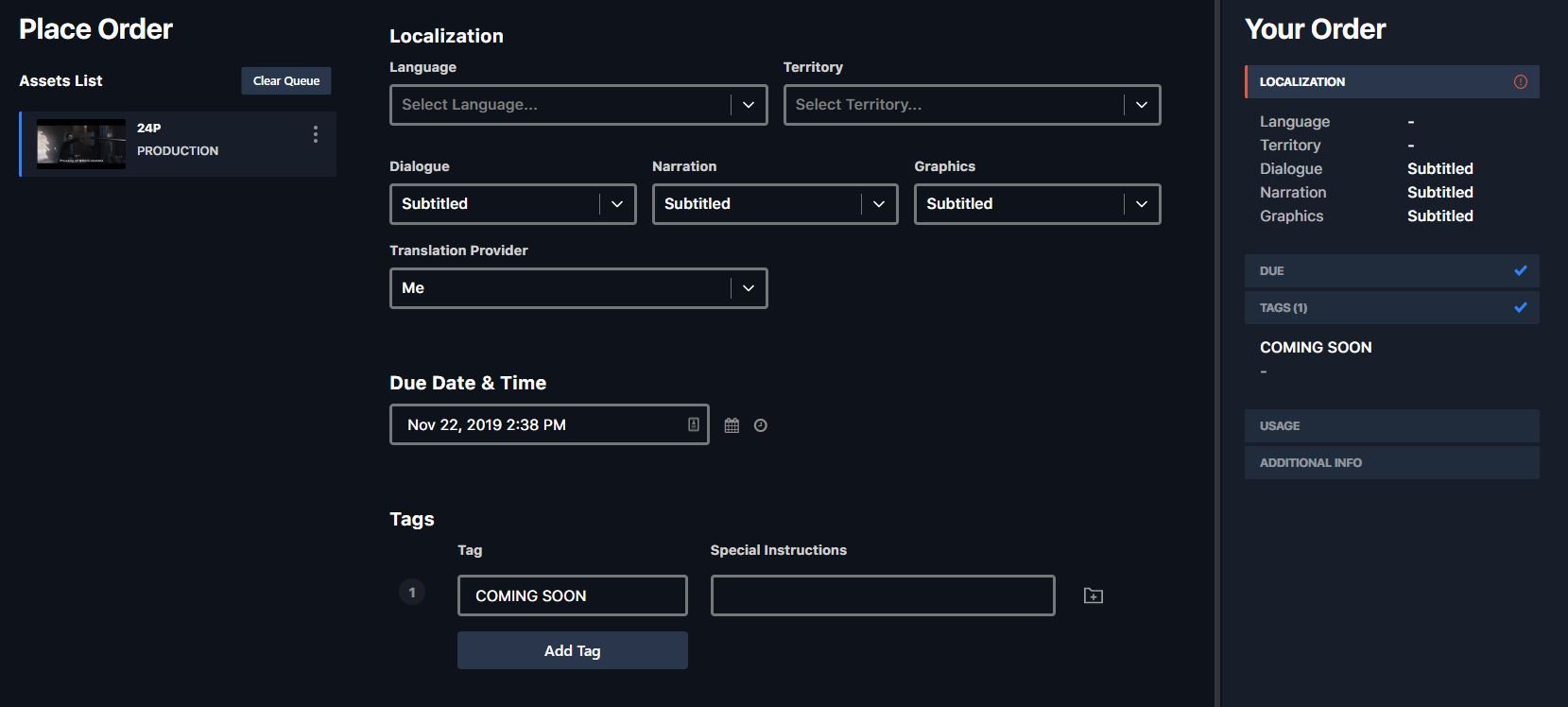
Queued items show on the left with the current asset highlighted (your previous settings carry over). Set **language and territory**, the **dialogue / narration / graphics** options, the **deadline**, **tags**, and other details. The platform won't let you submit until required fields are filled.
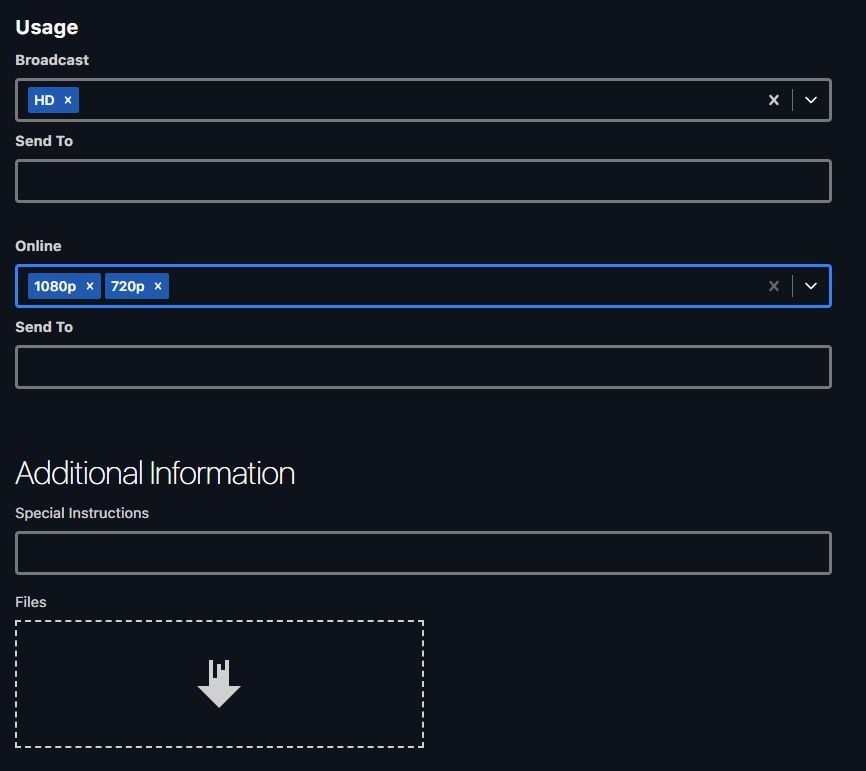
Select the file formats you need (see [Choosing encodes](#choosing-encodes)). If an outside party needs the finished files, add them in the **Send To** field.
Don't add yourself or anyone in your own group as a recipient.
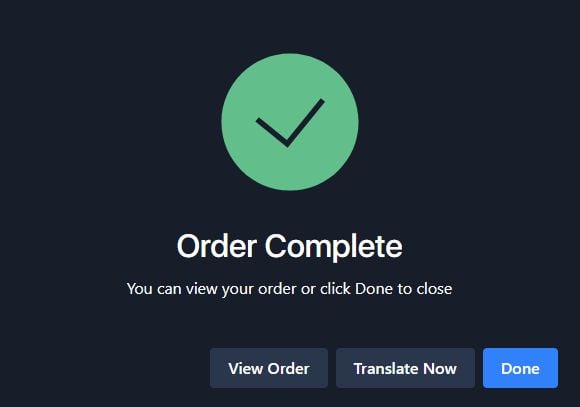
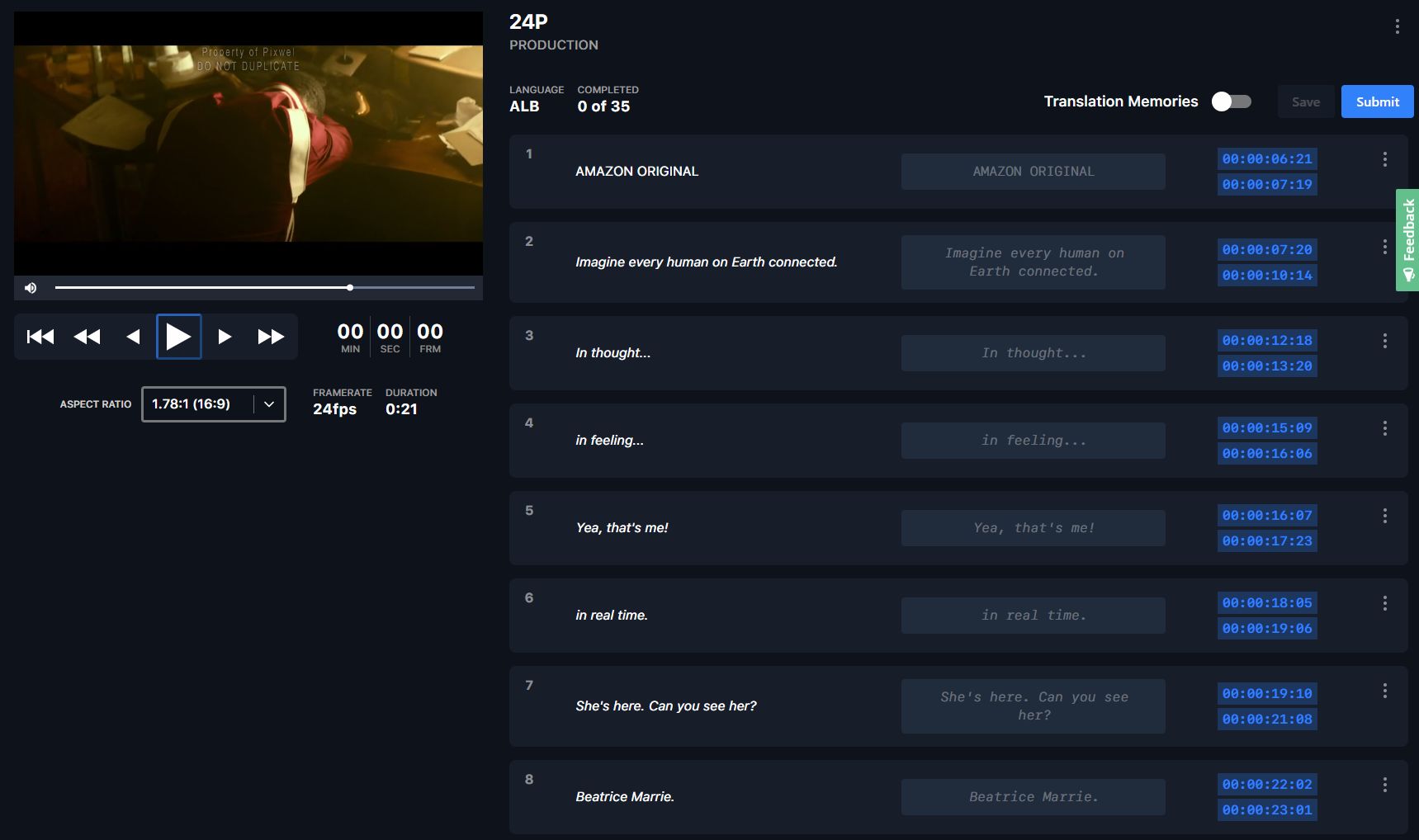
Review everything and click **Place Order**. If the order is subtitled, you can use the built-in translation tool now or defer translations (which may delay the order).

 Deadlines can't be set sooner than **24 hours** out — this gives vendors a realistic turnaround. If you need it faster, arrange an expedited timeline directly with your vendor.
## Choosing encodes
Pick deliverables by clicking a category and selecting one or more files — only what you select gets created.
| Category | Options | Typical choice |
| ------------- | ----------------------- | ------------------- |
| **Broadcast** | HD, SD 4:3, SD 16:9 | HD in most cases |
| **Online** | 1080p, 720p, 480p, 360p | 1080p in most cases |
| **Square** | 1080p | — |
| **Vertical** | 1920p | — |
| **4x5** | 1350p | — |
Only files selected from these options are created. Files requested in **special instructions** are **not** made. 1080p online files are fine for YouTube, Facebook, etc. — special social-network encodes aren't necessary.
## Tags
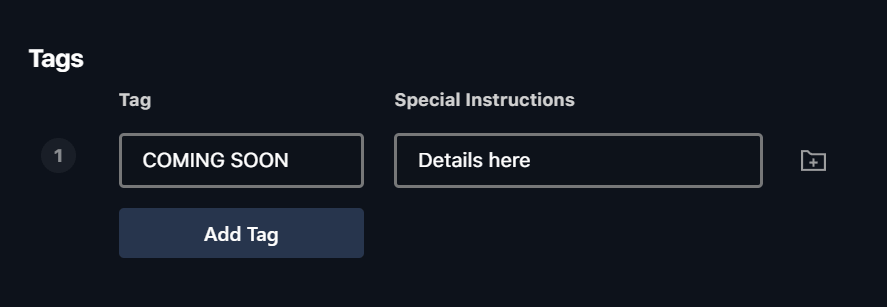
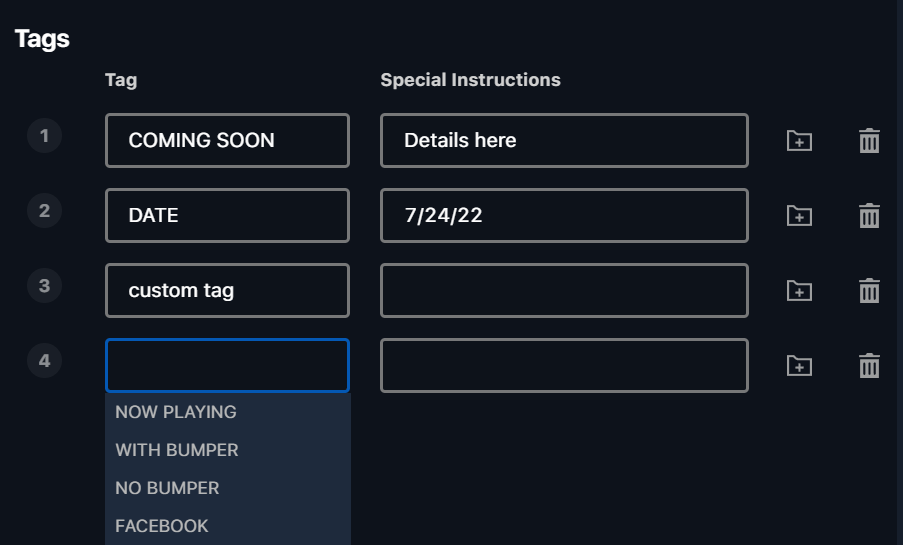
Every order needs at least **one [tag](/glossary)** — even for a single version. Tag names are built into the final file names, so deliverables are easy to identify.
* Type the tag name in the **Tags** section and click **Add Tag**.
* Create **one tag for every version** you need (for example a `COMING SOON` tag).
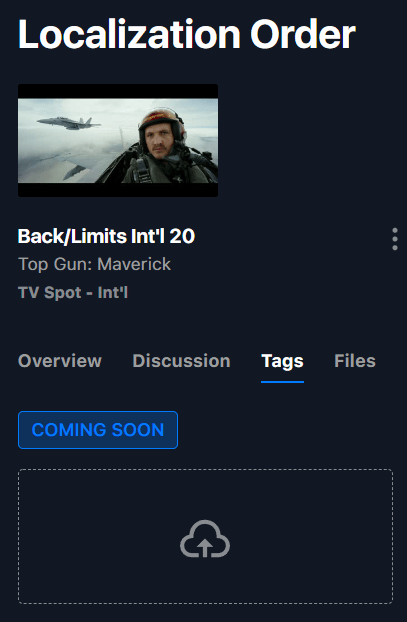
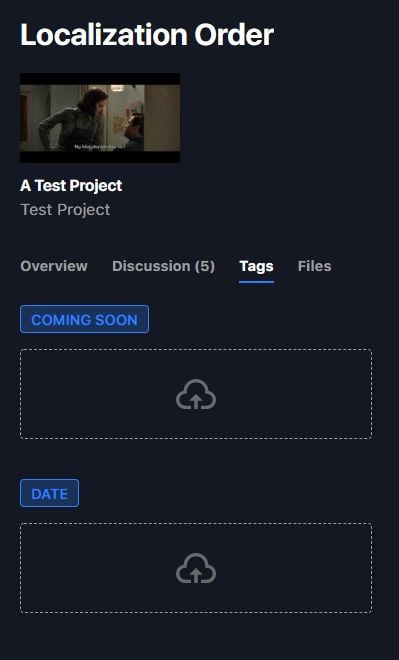
* Edit or add tags after submission from the **Tags** tab of the work request.
Deadlines can't be set sooner than **24 hours** out — this gives vendors a realistic turnaround. If you need it faster, arrange an expedited timeline directly with your vendor.
## Choosing encodes
Pick deliverables by clicking a category and selecting one or more files — only what you select gets created.
| Category | Options | Typical choice |
| ------------- | ----------------------- | ------------------- |
| **Broadcast** | HD, SD 4:3, SD 16:9 | HD in most cases |
| **Online** | 1080p, 720p, 480p, 360p | 1080p in most cases |
| **Square** | 1080p | — |
| **Vertical** | 1920p | — |
| **4x5** | 1350p | — |
Only files selected from these options are created. Files requested in **special instructions** are **not** made. 1080p online files are fine for YouTube, Facebook, etc. — special social-network encodes aren't necessary.
## Tags
Every order needs at least **one [tag](/glossary)** — even for a single version. Tag names are built into the final file names, so deliverables are easy to identify.
* Type the tag name in the **Tags** section and click **Add Tag**.
* Create **one tag for every version** you need (for example a `COMING SOON` tag).
* Edit or add tags after submission from the **Tags** tab of the work request.
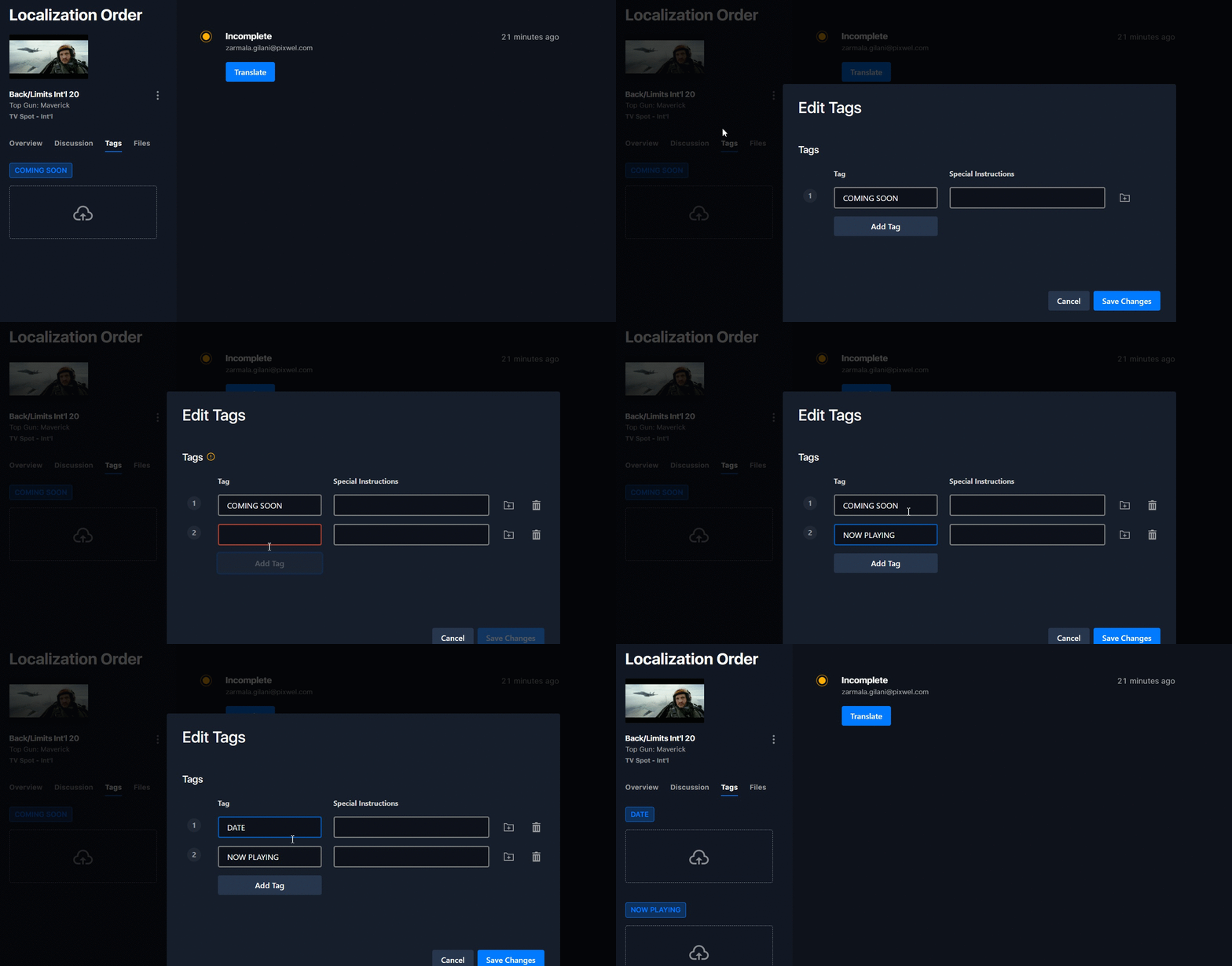 Don't request tags in **Special Instructions** — tags requested there won't be actioned.
## Dedicated / Localized
Choosing **Dedicated / Localized** (rather than subtitled or OV) means a fully localized deliverable:
* **Dialogue & narration** are **dubbed** into the target language.
* **Graphics** are **completely replaced** with your translation and given full graphic treatment — not just an overlay.
The result looks natively produced for the target audience.
Don't request tags in **Special Instructions** — tags requested there won't be actioned.
## Dedicated / Localized
Choosing **Dedicated / Localized** (rather than subtitled or OV) means a fully localized deliverable:
* **Dialogue & narration** are **dubbed** into the target language.
* **Graphics** are **completely replaced** with your translation and given full graphic treatment — not just an overlay.
The result looks natively produced for the target audience.

 ## Special transcodes and split audio
* **Special transcode** (outside standard deliverables) — describe it in **special instructions** and attach a **spec sheet** in the work request's file upload section (resolution, bars/end card, max size, format, duration, frame rate). If no spec sheet exists, give as much detail as possible.
* **Localized split audio** (dubbed dialogue/narration stems) — Pixwel doesn't host these; request them from your **localization vendor** directly.
## Special transcodes and split audio
* **Special transcode** (outside standard deliverables) — describe it in **special instructions** and attach a **spec sheet** in the work request's file upload section (resolution, bars/end card, max size, format, duration, frame rate). If no spec sheet exists, give as much detail as possible.
* **Localized split audio** (dubbed dialogue/narration stems) — Pixwel doesn't host these; request them from your **localization vendor** directly.
 ## Leaving notes and comments
Two places to give feedback:
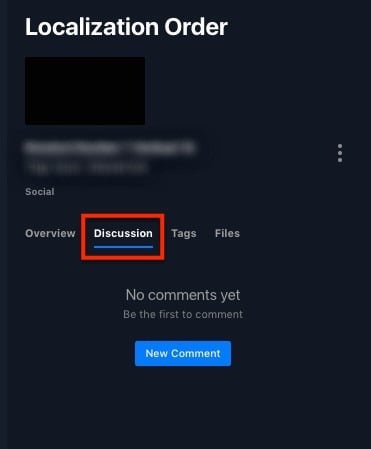
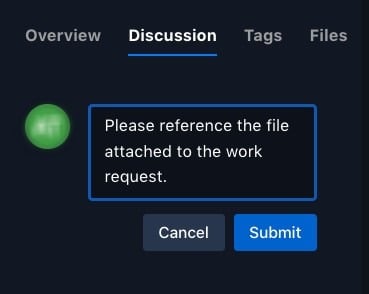
* **Discussion tab** — general comments between you and the vendor. Click **New Comment**, then **Submit**. (Not for offline-approval notes.)
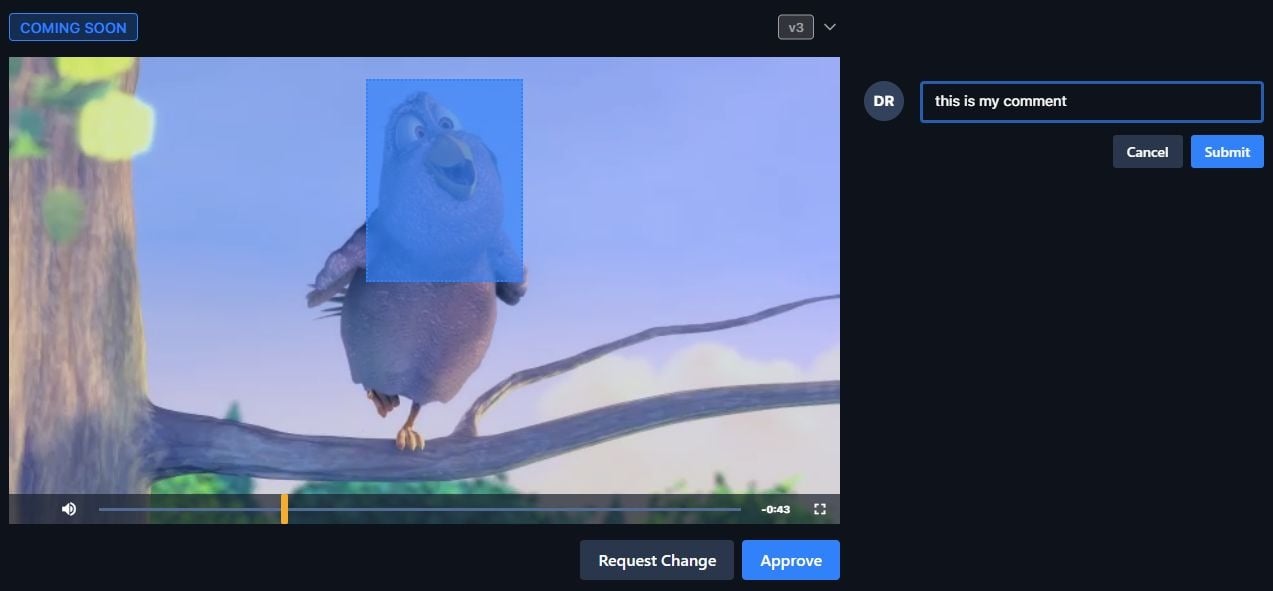
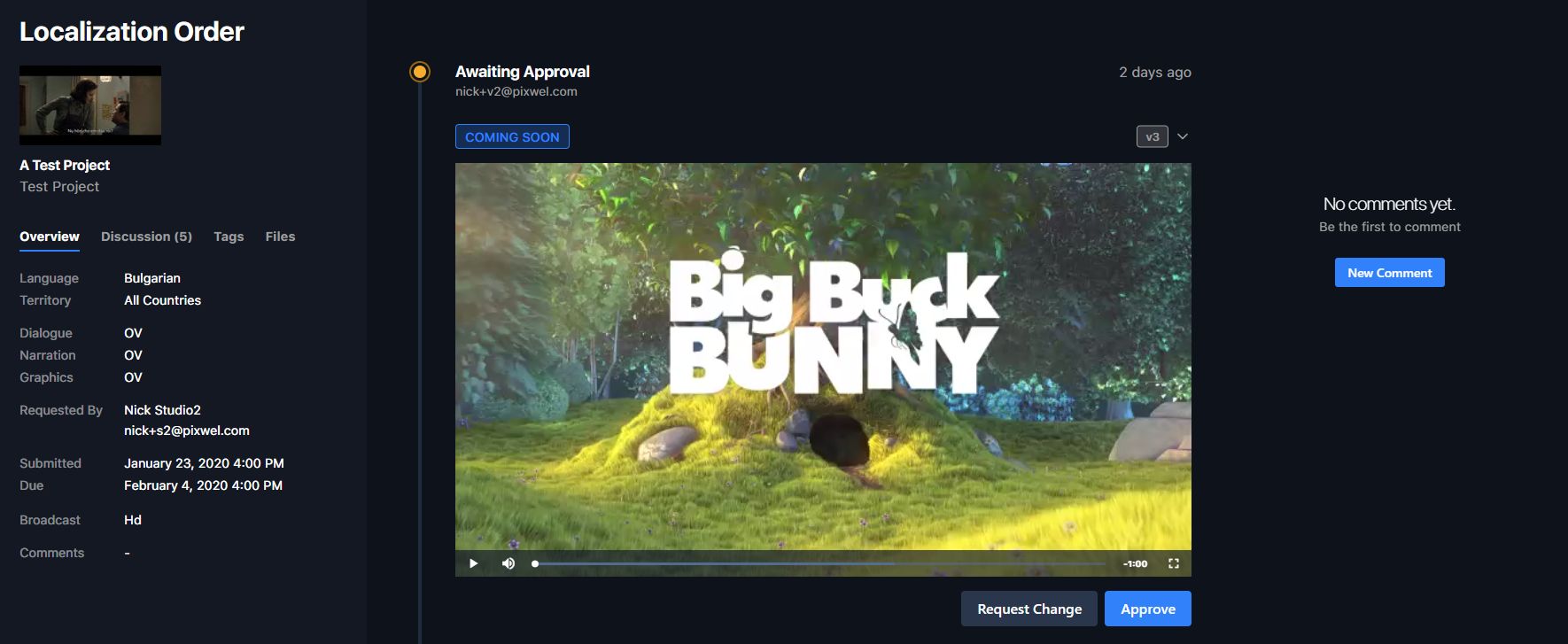
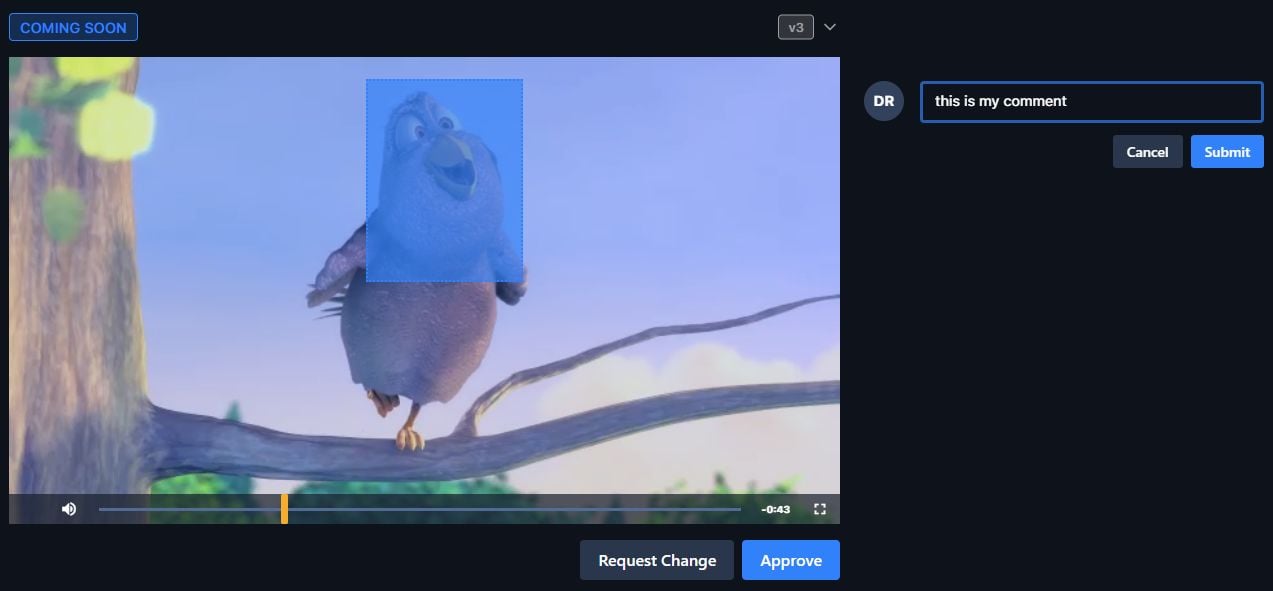
* **Offline review** — from the timeline view, click **New Comment** for a revision. Add a text comment, or click **Request Change**, pause the preview, and drag across the frame to highlight an area before submitting. Annotations are saved alongside the content and are clickable.
## Leaving notes and comments
Two places to give feedback:
* **Discussion tab** — general comments between you and the vendor. Click **New Comment**, then **Submit**. (Not for offline-approval notes.)
* **Offline review** — from the timeline view, click **New Comment** for a revision. Add a text comment, or click **Request Change**, pause the preview, and drag across the frame to highlight an area before submitting. Annotations are saved alongside the content and are clickable.
 ## Managing your orders
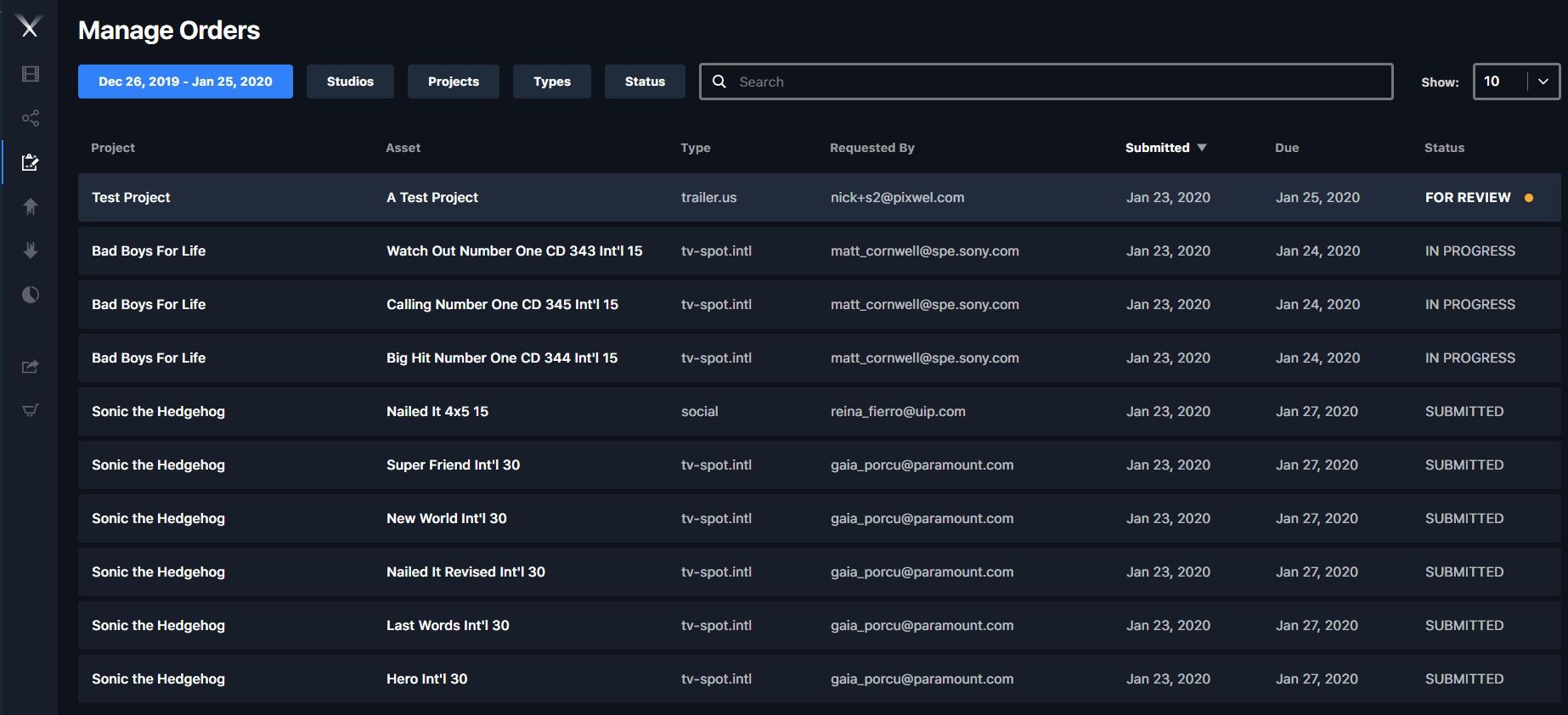
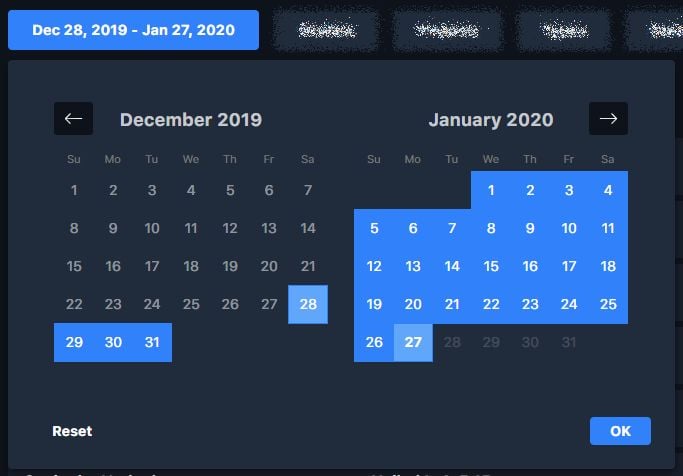
Open **Manage Work Requests** from the side toolbar. By default it shows the last 30 days; switch between your own and **My Group(s)** requests, filter by project/asset type/status, adjust the date range, and search.
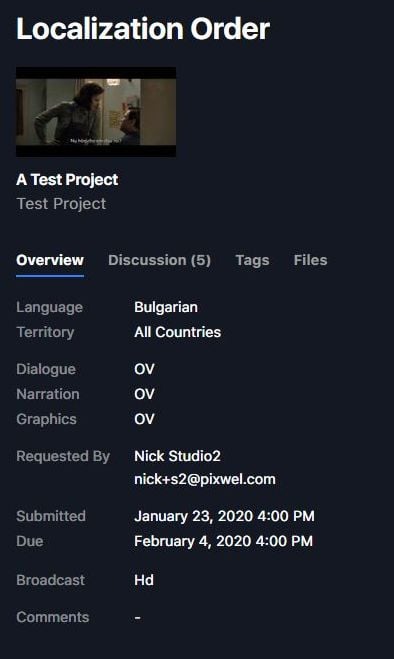
Opening an order gives you four tabs:
| Tab | What it's for |
| -------------- | ------------------------------------------------------------------------ |
| **Overview** | All order details. |
| **Discussion** | General comments with the vendor. |
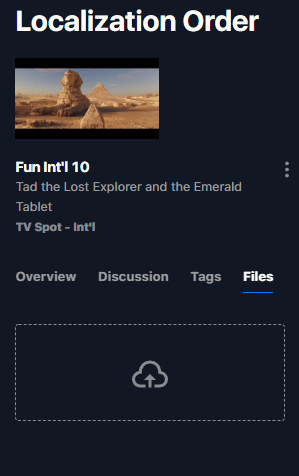
| **Tags** | Upload files for individual tags (localized narration, custom graphics). |
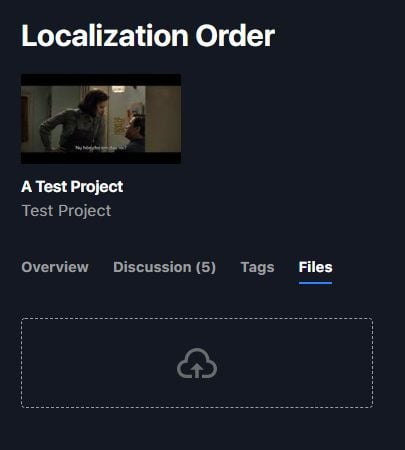
| **Files** | Upload vendor resources not tied to a specific tag. |
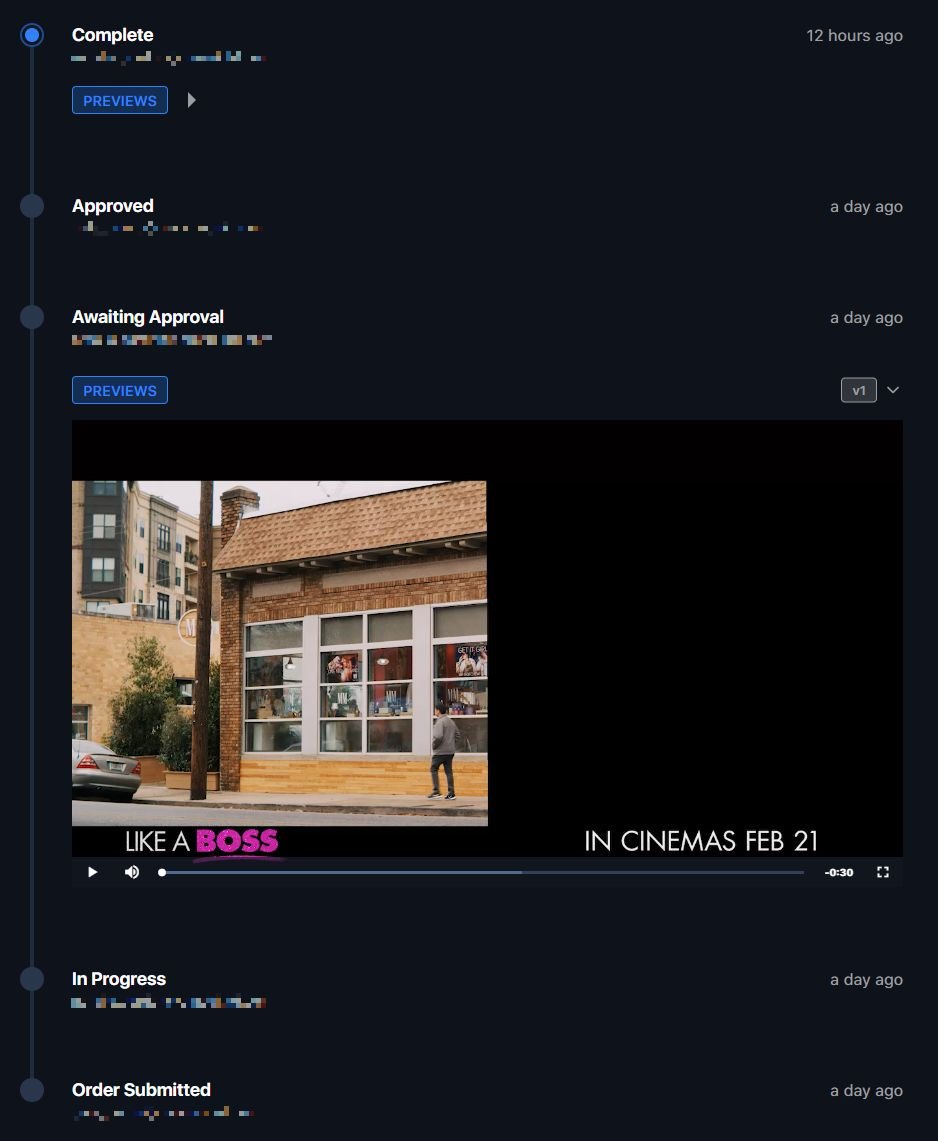
A timeline shows production status. When an order reaches **Awaiting Approval**, you can preview each [offline](/glossary) and approve or comment.
## Managing your orders
Open **Manage Work Requests** from the side toolbar. By default it shows the last 30 days; switch between your own and **My Group(s)** requests, filter by project/asset type/status, adjust the date range, and search.
Opening an order gives you four tabs:
| Tab | What it's for |
| -------------- | ------------------------------------------------------------------------ |
| **Overview** | All order details. |
| **Discussion** | General comments with the vendor. |
| **Tags** | Upload files for individual tags (localized narration, custom graphics). |
| **Files** | Upload vendor resources not tied to a specific tag. |
A timeline shows production status. When an order reaches **Awaiting Approval**, you can preview each [offline](/glossary) and approve or comment.



 ## Order statuses
A work request moves through these statuses (see also [Work Requests](/features/work-requests#the-stages-of-a-work-request)):
| Status | Meaning |
| ------------------------ | ----------------------------------------------------------------------------------------- |
| **Cancelled** | The user cancelled the order. |
| **Incomplete** | Submitted but missing something — usually subtitle translations. |
| **Order Submitted** | Successfully submitted to the vendor. |
| **Awaiting Materials** | The vendor has the order but needs more material/info from the territory before starting. |
| **In Progress** | The vendor has started work. |
| **Translation Approved** | A territory user approved the assigned translator's translations. |
| **Awaiting Approval** | The vendor uploaded a checker (offline) for review. |
| **Approved** | The user approved the preview. |
| **Rejected** | The user rejected the preview and asked for changes. |
| **Complete** | The vendor delivered the localized master(s). |
## Updating an existing order
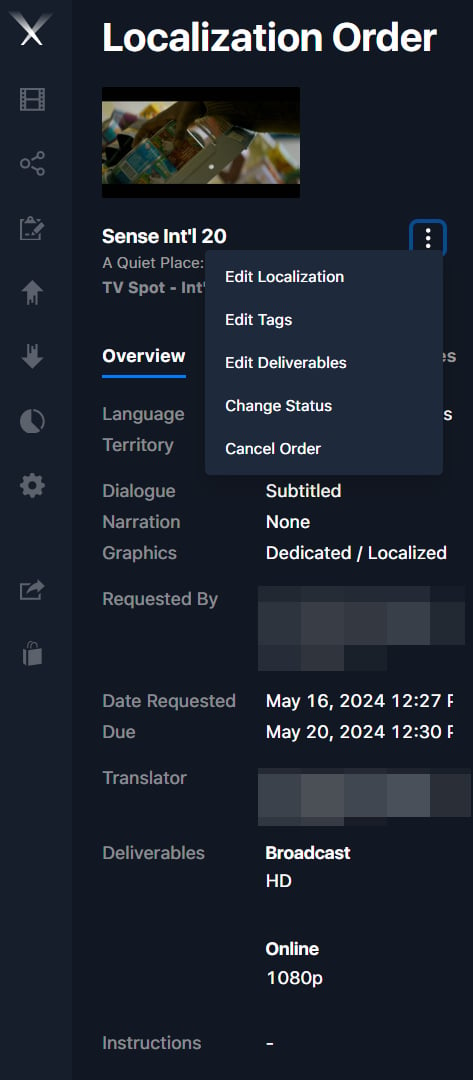
Edit an order from the **⋮** menu next to the spot's thumbnail in the work request. What you can change depends on status:
## Order statuses
A work request moves through these statuses (see also [Work Requests](/features/work-requests#the-stages-of-a-work-request)):
| Status | Meaning |
| ------------------------ | ----------------------------------------------------------------------------------------- |
| **Cancelled** | The user cancelled the order. |
| **Incomplete** | Submitted but missing something — usually subtitle translations. |
| **Order Submitted** | Successfully submitted to the vendor. |
| **Awaiting Materials** | The vendor has the order but needs more material/info from the territory before starting. |
| **In Progress** | The vendor has started work. |
| **Translation Approved** | A territory user approved the assigned translator's translations. |
| **Awaiting Approval** | The vendor uploaded a checker (offline) for review. |
| **Approved** | The user approved the preview. |
| **Rejected** | The user rejected the preview and asked for changes. |
| **Complete** | The vendor delivered the localized master(s). |
## Updating an existing order
Edit an order from the **⋮** menu next to the spot's thumbnail in the work request. What you can change depends on status:
 | Status | What you can change |
| -------------------------- | -------------------------------------------------------------------------------------- |
| **Incomplete / Submitted** | Everything, until the vendor acknowledges it. |
| **In Progress** | Only **tags** and **deliverables**; localization changes need the vendor to revert it. |
| **Awaiting Approval** | Only **existing** tags and deliverables; major changes need vendor reversion. |
| **Approved / Complete** | Nothing — place a new order for additional needs. |
| **Cancelled** | Nothing — cancellation can't be reversed; place a new order. |
Major changes to dialogue, narration, graphics, or translations always require the vendor to revert the request manually.
## When will my files be ready?
When the vendor marks the order **Complete**, you get an in-app notification (and an email, if you've opted in). The platform then needs **60–90+ minutes** to generate all deliverables, depending on file size and system load. Once ready, download them from the work request or the [asset page](/features/projects/files).
| Status | What you can change |
| -------------------------- | -------------------------------------------------------------------------------------- |
| **Incomplete / Submitted** | Everything, until the vendor acknowledges it. |
| **In Progress** | Only **tags** and **deliverables**; localization changes need the vendor to revert it. |
| **Awaiting Approval** | Only **existing** tags and deliverables; major changes need vendor reversion. |
| **Approved / Complete** | Nothing — place a new order for additional needs. |
| **Cancelled** | Nothing — cancellation can't be reversed; place a new order. |
Major changes to dialogue, narration, graphics, or translations always require the vendor to revert the request manually.
## When will my files be ready?
When the vendor marks the order **Complete**, you get an in-app notification (and an email, if you've opted in). The platform then needs **60–90+ minutes** to generate all deliverables, depending on file size and system load. Once ready, download them from the work request or the [asset page](/features/projects/files).