> ## Documentation Index
> Fetch the complete documentation index at: https://help.pixwel.com/llms.txt
> Use this file to discover all available pages before exploring further.

# Running Reports

> How administrators run and export reports, including the Group Spending report.

[Reports](/features/reports) turn platform activity into data you can filter and export. This guide covers running them. Reports are permission-controlled — see [who can see them](/features/reports#who-can-see-them).

## Running a report

<Steps>
  <Step title="Open Reports">
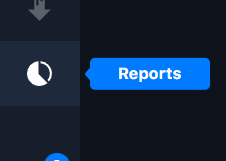
    Click the **pie-chart icon** in the left navigation bar.
  </Step>

  <Step title="Pick a report type">
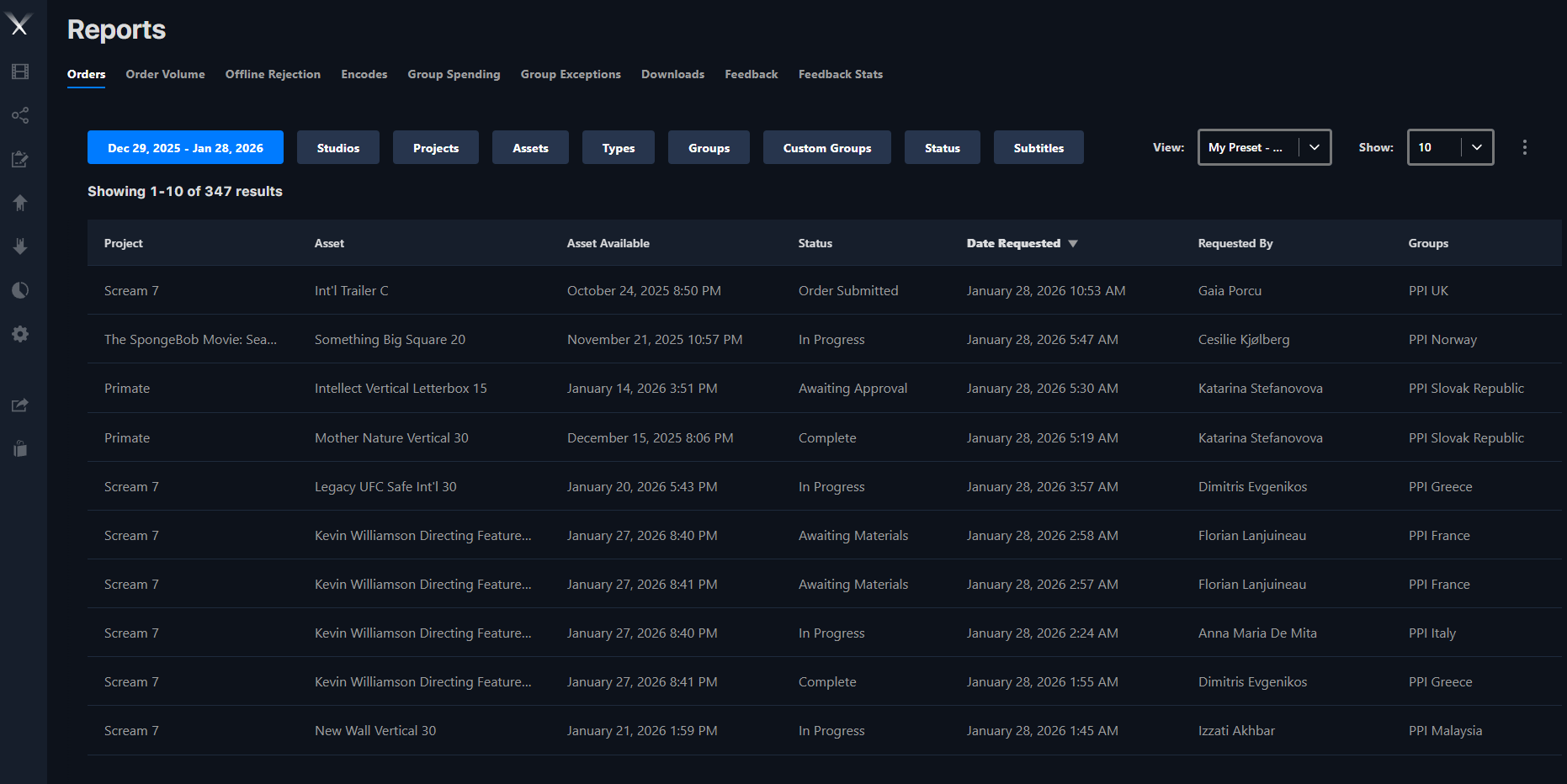
    Choose a report from the tabs across the top (Orders, Downloads, Encodes, and so on).
  </Step>

  <Step title="Filter">
    Narrow the data with the available filters — **Date, Studios, Projects, Types, Groups, Users, Filetype, Status, Subtitles**. The filters offered depend on the report type.
  </Step>

  <Step title="Set the date range">
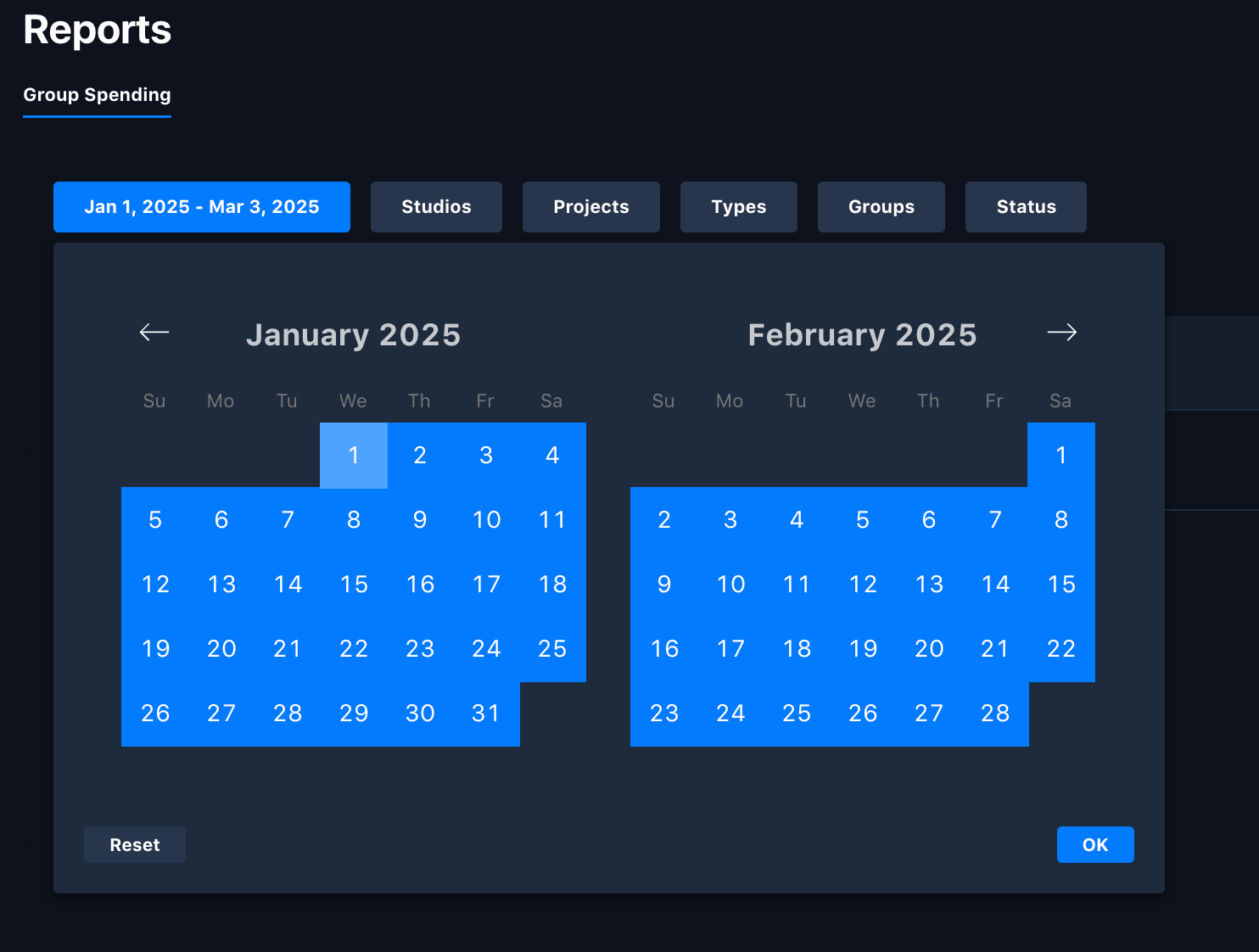
    Reports default to the past 30 days. Use the year/month/day pickers for a custom range.
  </Step>

  <Step title="Export">
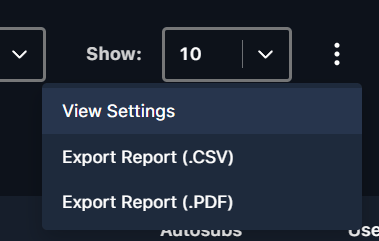
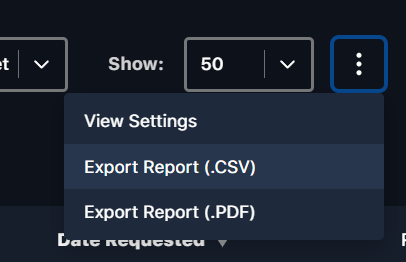
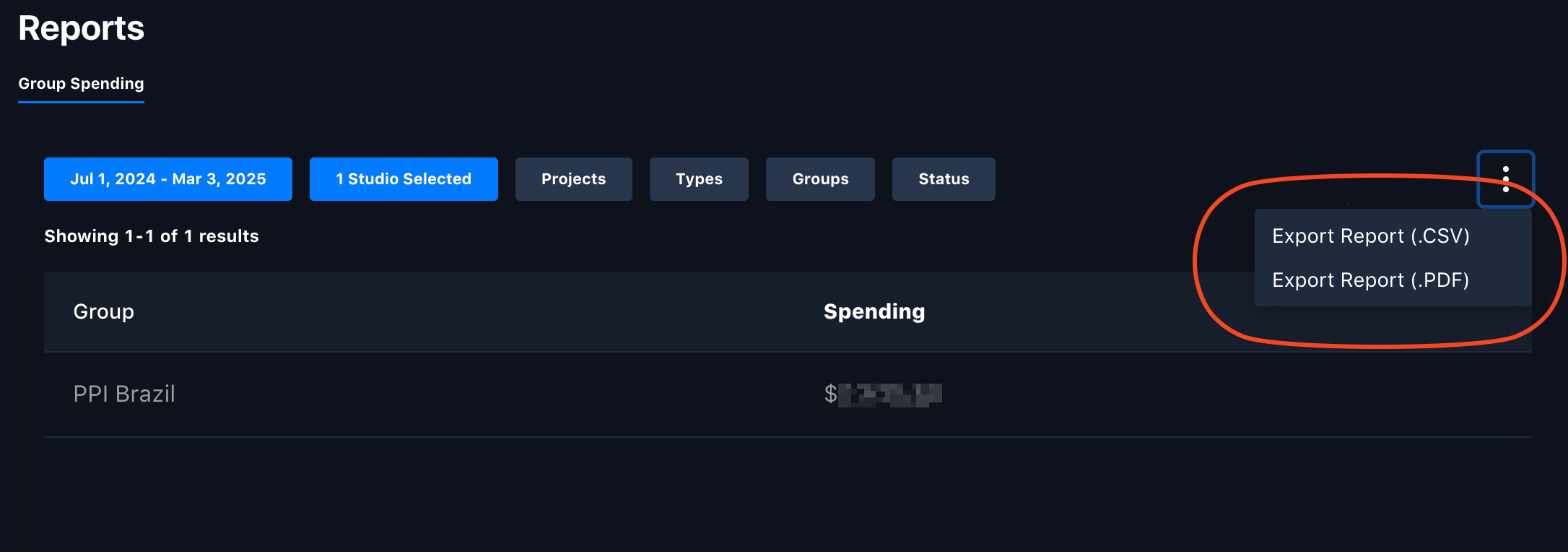
    Open the vertical ellipsis (**⋮**) menu and export as **.csv** or **.pdf**.
  </Step>
</Steps>

<Frame caption="Open Reports from the pie-chart icon in the left navigation bar.">
  <img src="https://mintcdn.com/pixwel/EzZene0sLkTaATKH/img/guides/run-reports-admin-1.png?fit=max&auto=format&n=EzZene0sLkTaATKH&q=85&s=853f77a86f51e56b5539347cdcf0d2b9" alt="The Reports area" width="226" height="161" data-path="img/guides/run-reports-admin-1.png" />
</Frame>

<Frame caption="Choose a report type from the tabs across the top.">
  <img src="https://mintcdn.com/pixwel/EzZene0sLkTaATKH/img/guides/run-reports-admin-2.png?fit=max&auto=format&n=EzZene0sLkTaATKH&q=85&s=e55a269c8bf183d089e558d3f2b49a17" alt="Report type tabs" width="1862" height="932" data-path="img/guides/run-reports-admin-2.png" />
</Frame>

<Frame caption="Narrow the data with the available filters.">
  <img src="https://mintcdn.com/pixwel/EzZene0sLkTaATKH/img/guides/run-reports-admin-3.png?fit=max&auto=format&n=EzZene0sLkTaATKH&q=85&s=542862b0da183f7a7e86df6c69d5a156" alt="Report filters" width="1004" height="118" data-path="img/guides/run-reports-admin-3.png" />
</Frame>

<Frame caption="Set a custom date range with the year, month, and day pickers.">
  <img src="https://mintcdn.com/pixwel/EzZene0sLkTaATKH/img/guides/run-reports-admin-4.png?fit=max&auto=format&n=EzZene0sLkTaATKH&q=85&s=6578b39248c8d86f8431743cb1ffd04d" alt="The report date-range picker" width="1230" height="80" data-path="img/guides/run-reports-admin-4.png" />
</Frame>

<Frame caption="Results update automatically as you change selections.">
  <img src="https://mintlify.s3.us-west-1.amazonaws.com/pixwel/img/guides/run-reports-admin-5.gif" alt="A report updating as filters change" />
</Frame>

<Frame caption="Export the report as CSV or PDF from the ⋮ menu.">
  <img src="https://mintcdn.com/pixwel/EzZene0sLkTaATKH/img/guides/run-reports-admin-6.png?fit=max&auto=format&n=EzZene0sLkTaATKH&q=85&s=ff3fb925f3851ffba5dd56d0aa8f76ee" alt="The export menu for a report" width="379" height="241" data-path="img/guides/run-reports-admin-6.png" />
</Frame>

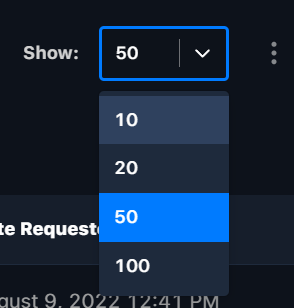
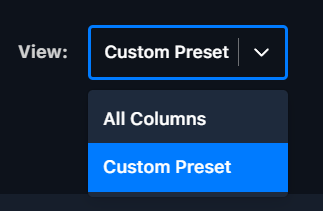
Results update automatically as you change selections. Use **⋮ → View Settings** to choose visible columns, save named **presets** (rename/delete them from the bottom-left), pick a preset from the **View** dropdown, and set rows per page with **Show**.
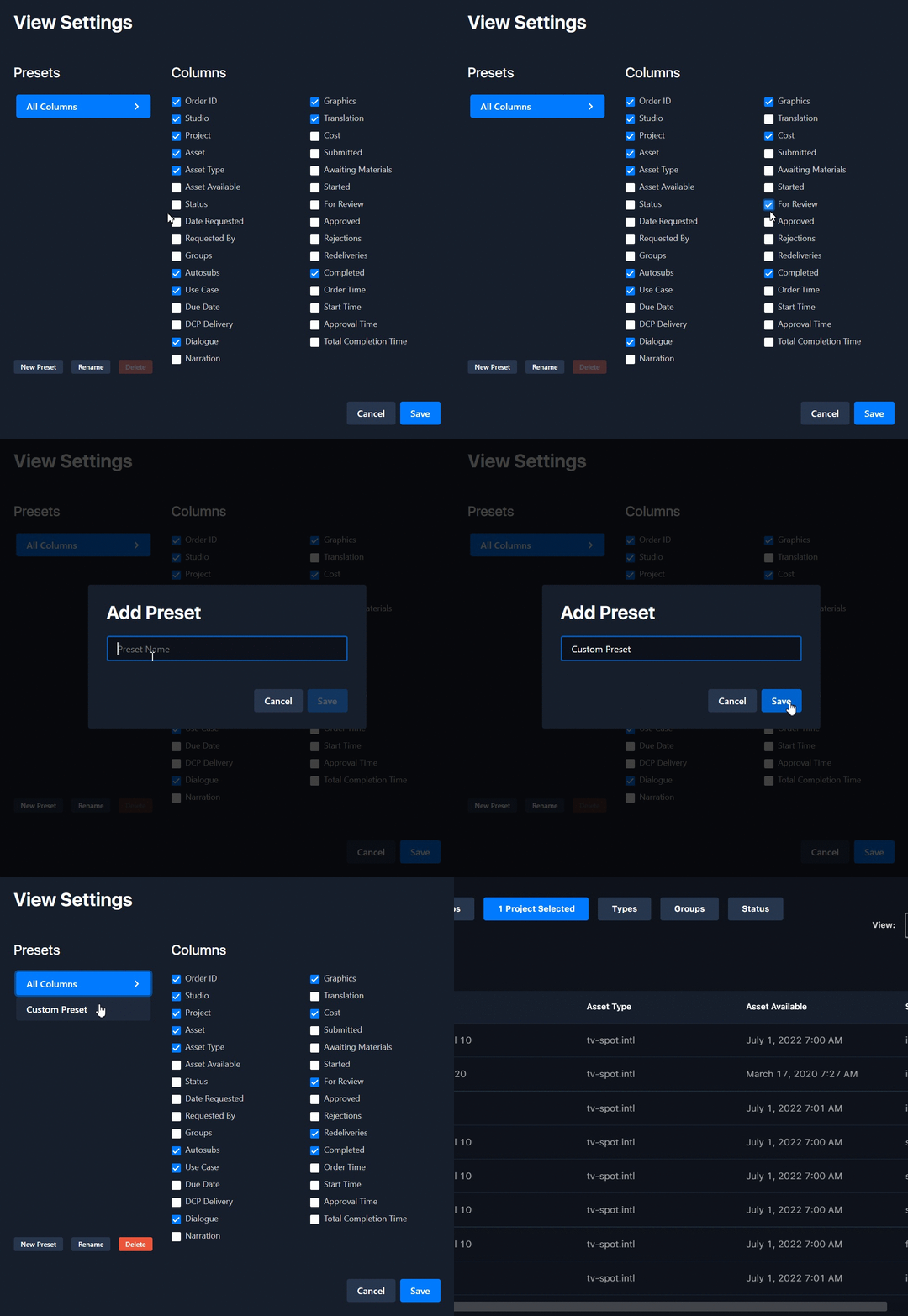
<Frame caption="View Settings: choose which columns are visible.">
  <img src="https://mintcdn.com/pixwel/EzZene0sLkTaATKH/img/guides/run-reports-admin-7.gif?s=c2372af1b435fbaa5dd4e2f66d471255" alt="Choosing visible columns in View Settings" width="979" height="946" data-path="img/guides/run-reports-admin-7.gif" />
</Frame>

<Frame caption="Save a named column preset to reuse later.">
  <img src="https://mintcdn.com/pixwel/EzZene0sLkTaATKH/img/guides/run-reports-admin-8.png?fit=max&auto=format&n=EzZene0sLkTaATKH&q=85&s=849cdc74747f91c814f864a610c0eda2" alt="Saving a column preset" width="323" height="211" data-path="img/guides/run-reports-admin-8.png" />
</Frame>

<Frame caption="Pick a saved preset from the View dropdown.">
  <img src="https://mintcdn.com/pixwel/EzZene0sLkTaATKH/img/guides/run-reports-admin-9.png?fit=max&auto=format&n=EzZene0sLkTaATKH&q=85&s=3b4048bfebfc687b2182e8407d33bcbf" alt="The View dropdown listing saved presets" width="294" height="308" data-path="img/guides/run-reports-admin-9.png" />
</Frame>

<Frame caption="Set how many rows show per page with Show.">
  <img src="https://mintcdn.com/pixwel/EzZene0sLkTaATKH/img/guides/run-reports-admin-10.png?fit=max&auto=format&n=EzZene0sLkTaATKH&q=85&s=a924b61ba09bb0bc242fb96628ac0ae4" alt="The rows-per-page control" width="406" height="262" data-path="img/guides/run-reports-admin-10.png" />
</Frame>

<Note>
  Custom column views are specific to a report type — a preset saved on one report can't be used on another.
</Note>

## Group Spending report

The **Group Spending** report tracks spend per group.

* **Date range** defaults to one full month ending today — adjust the calendar as needed.
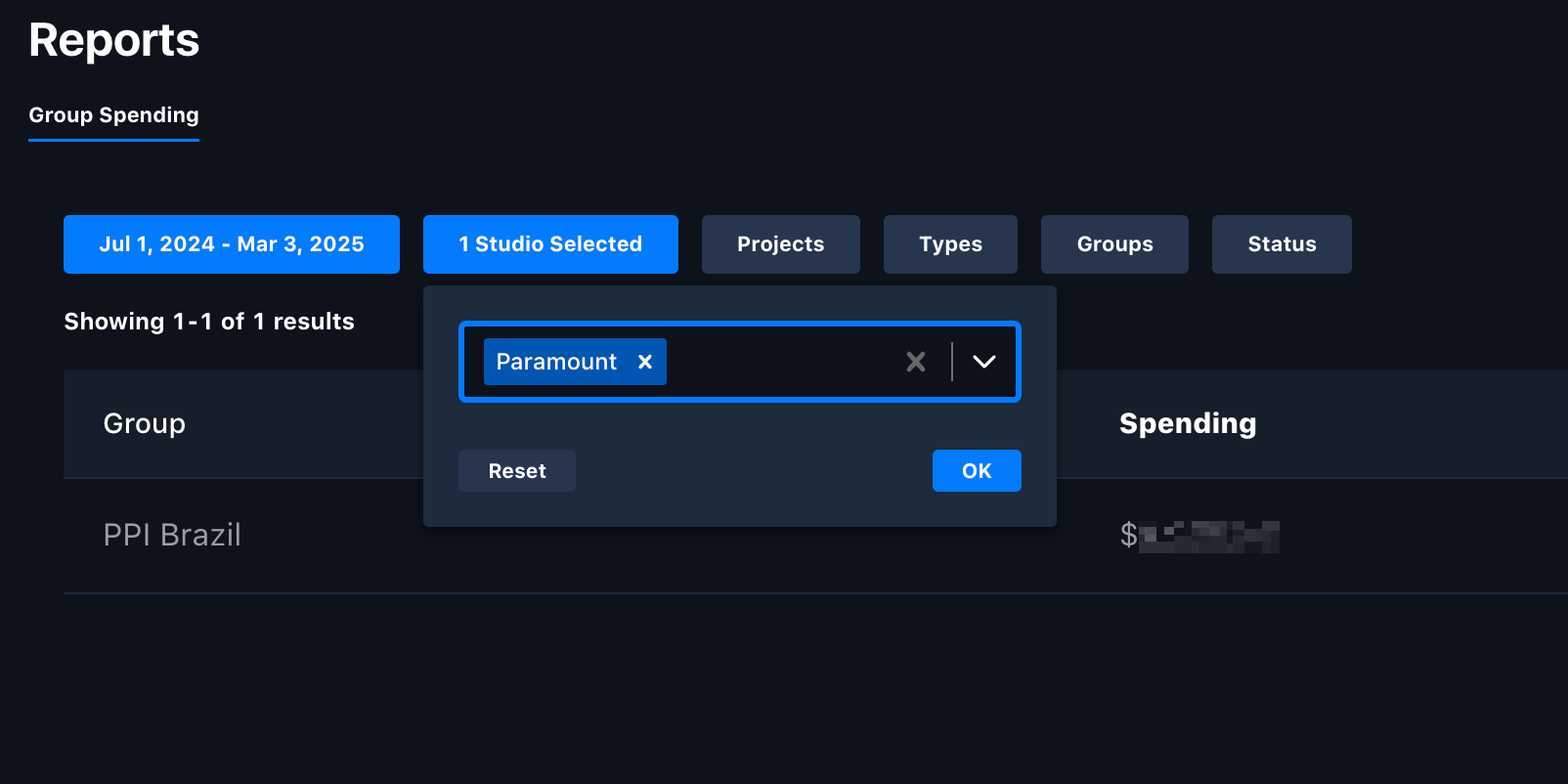
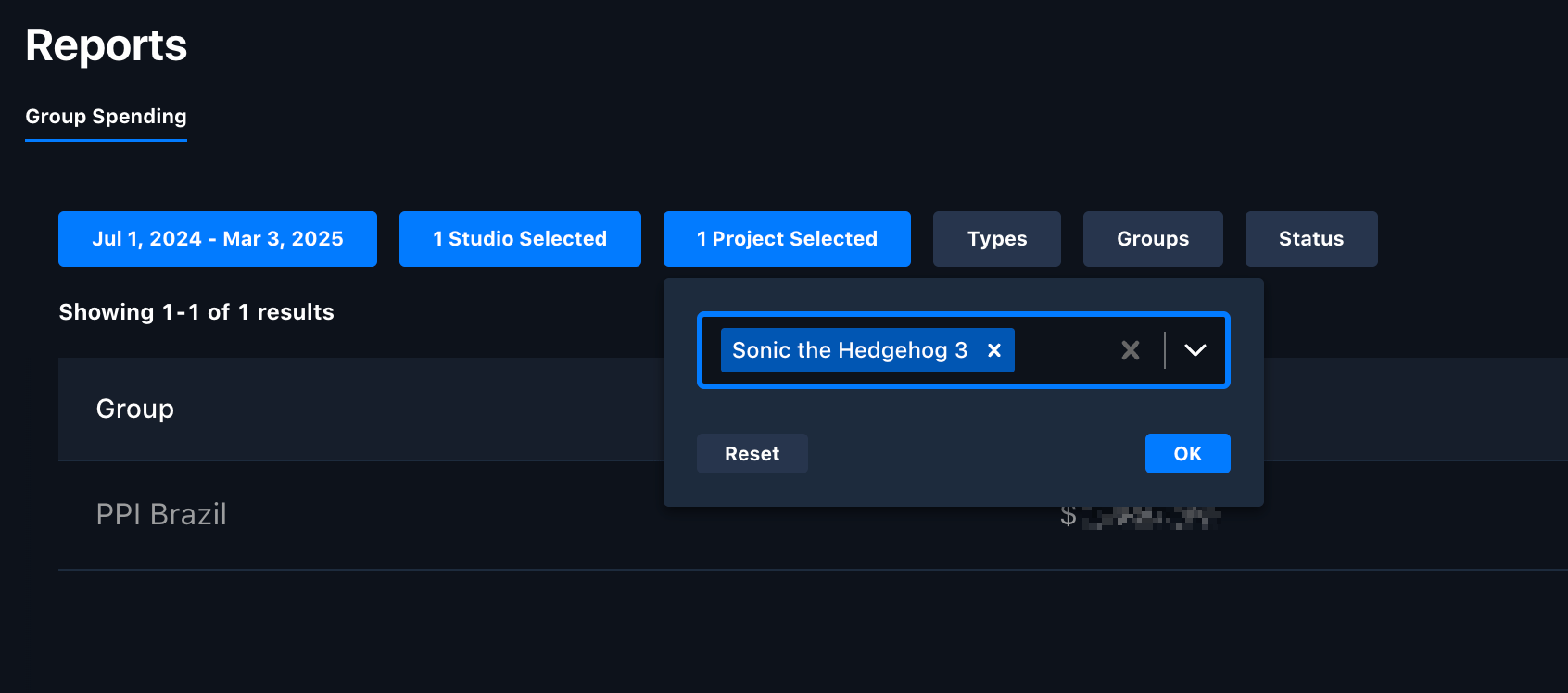
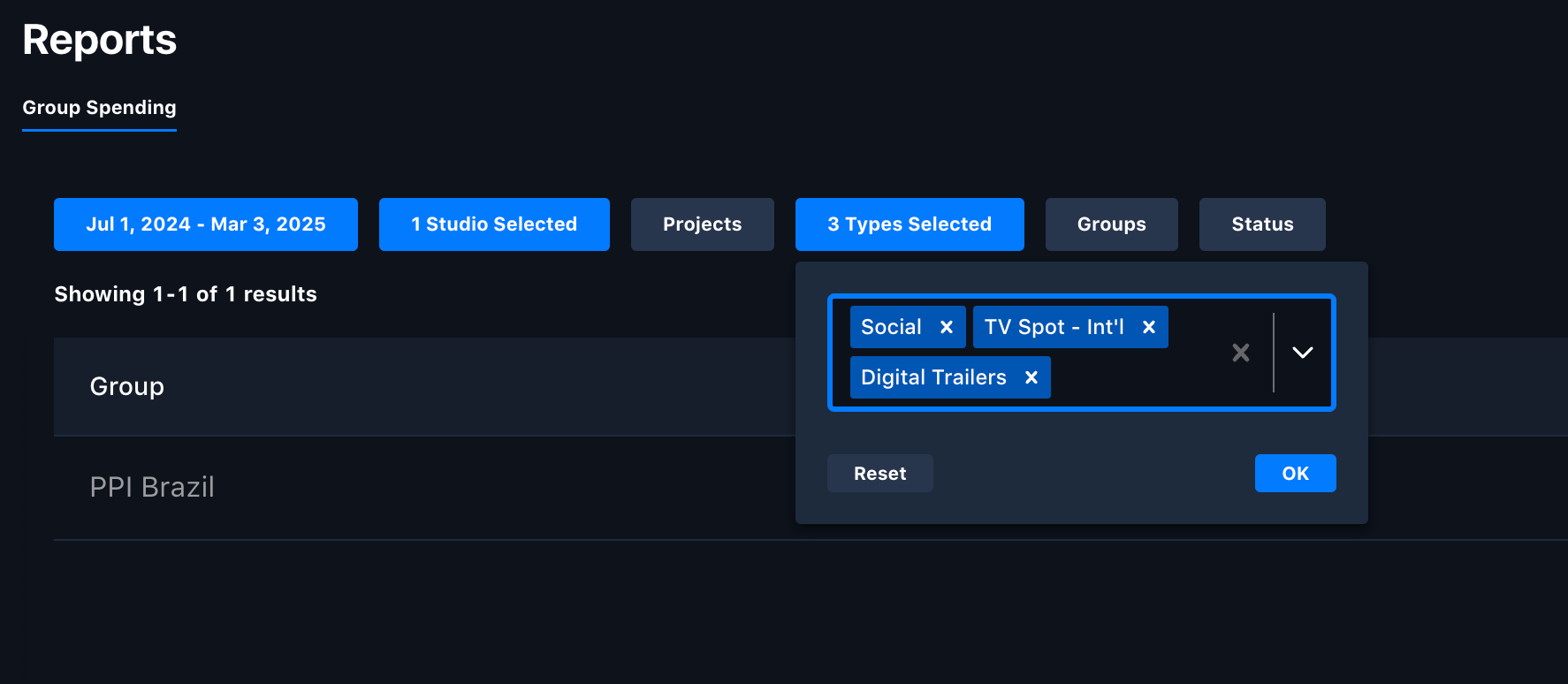
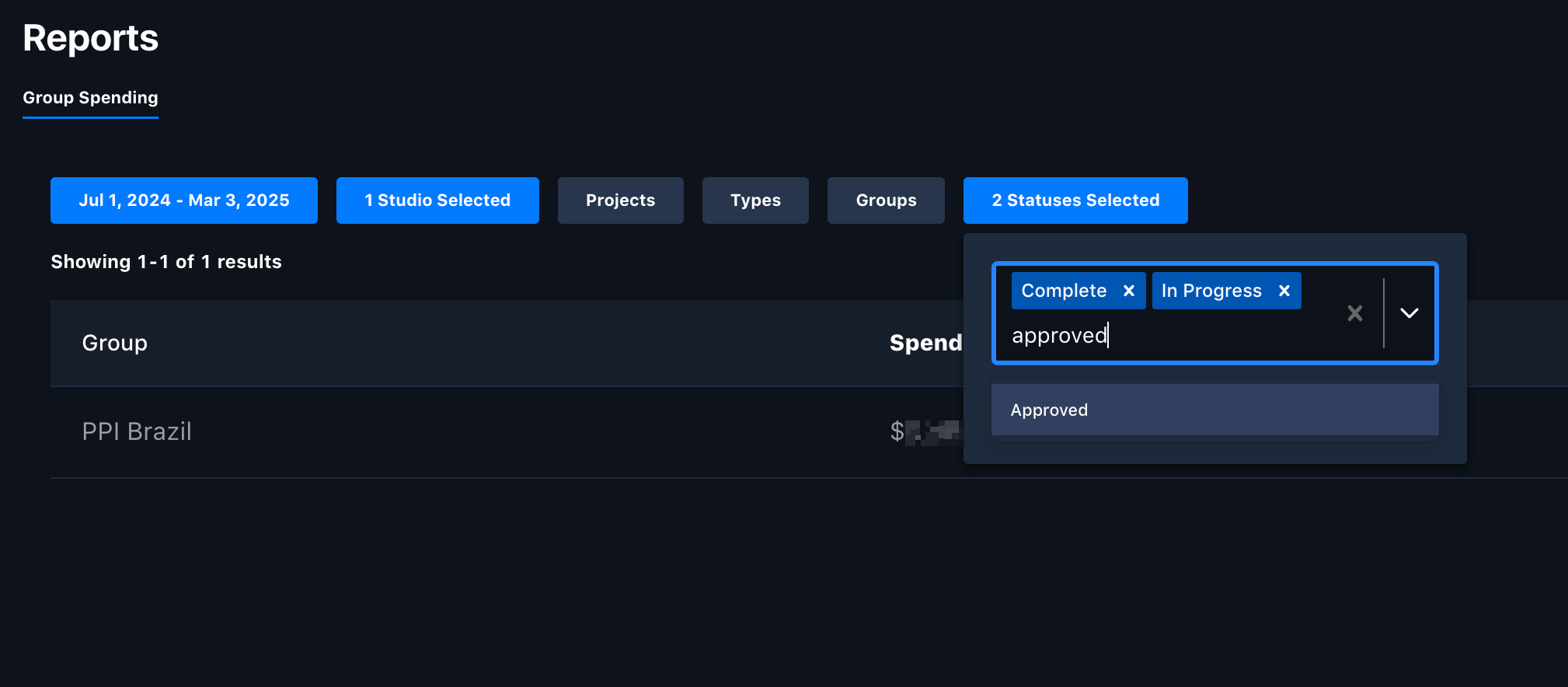
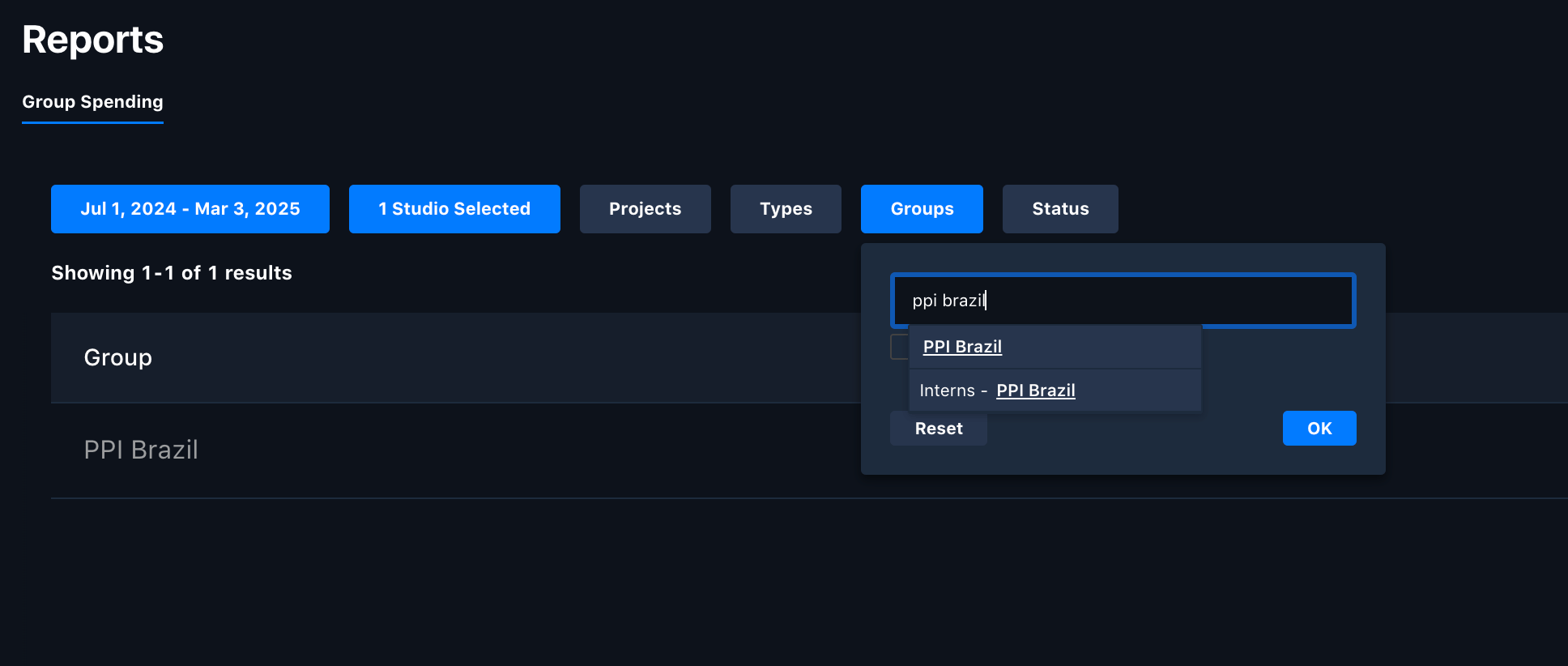
* Filter by **Studio**, **Project**, **Asset Type**, and **Work Request Status**, and by **group** if you have access to more than one.
* Export from the **⋮** menu as **.CSV** or **.PDF**.
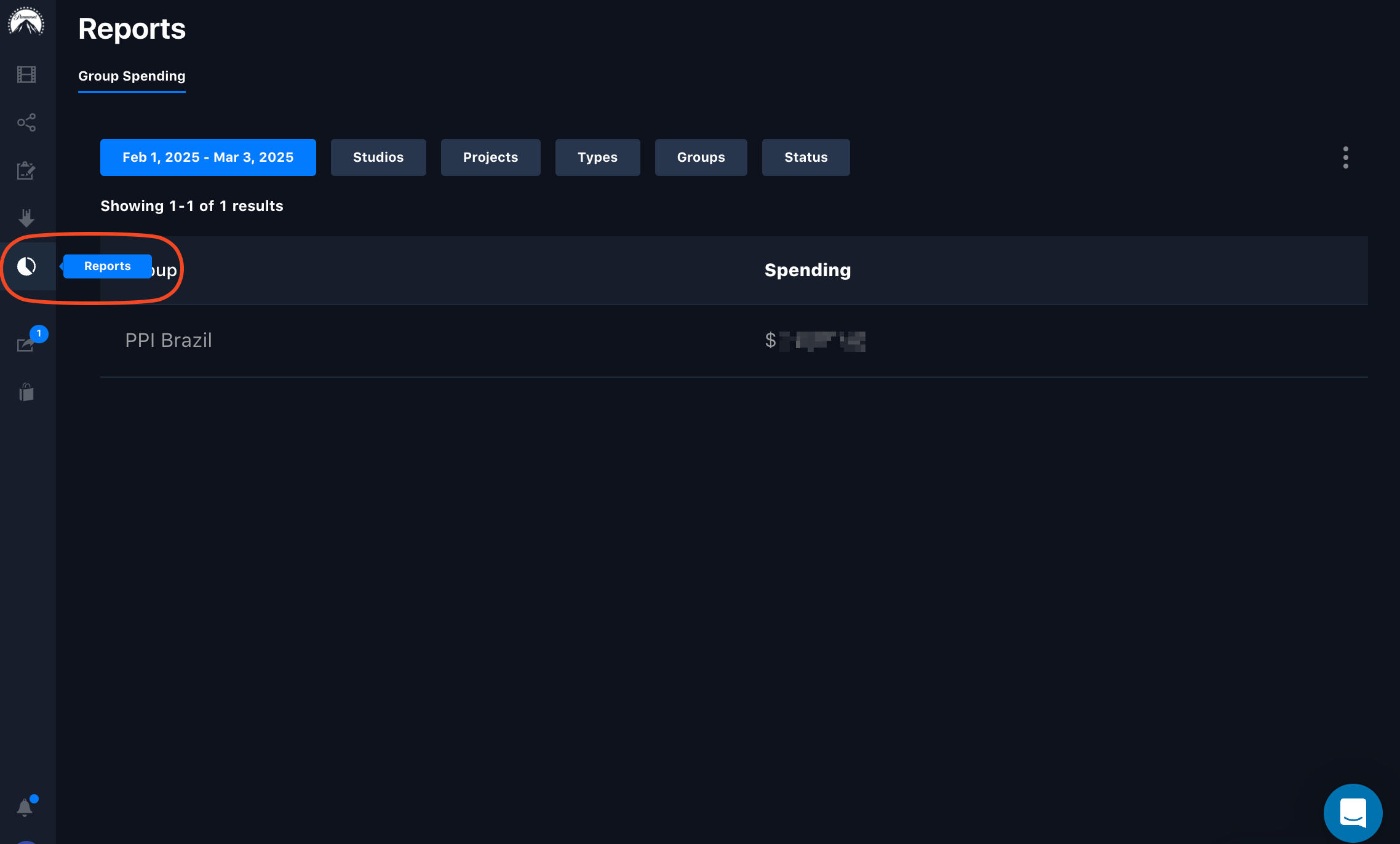
<Frame caption="Opening the Group Spending report.">
  <img src="https://mintcdn.com/pixwel/EzZene0sLkTaATKH/img/guides/group-spending-1.png?fit=max&auto=format&n=EzZene0sLkTaATKH&q=85&s=053c8c73c50eeaab002a37f965c01065" alt="The Group Spending report" width="2276" height="1372" data-path="img/guides/group-spending-1.png" />
</Frame>

<Frame caption="The date range defaults to one full month ending today.">
  <img src="https://mintcdn.com/pixwel/EzZene0sLkTaATKH/img/guides/group-spending-2.png?fit=max&auto=format&n=EzZene0sLkTaATKH&q=85&s=36076be1bb35855596bddd97f3bb77e5" alt="The Group Spending date range" width="1484" height="1122" data-path="img/guides/group-spending-2.png" />
</Frame>

<Frame caption="Filter by studio.">
  <img src="https://mintcdn.com/pixwel/EzZene0sLkTaATKH/img/guides/group-spending-3.png?fit=max&auto=format&n=EzZene0sLkTaATKH&q=85&s=44e00166babe59d018446b631fdc0564" alt="Filtering Group Spending by studio" width="1604" height="802" data-path="img/guides/group-spending-3.png" />
</Frame>

<Frame caption="Filter by project.">
  <img src="https://mintcdn.com/pixwel/EzZene0sLkTaATKH/img/guides/group-spending-4.png?fit=max&auto=format&n=EzZene0sLkTaATKH&q=85&s=8a5ae2a85b748f8d05d6eac4bf789820" alt="Filtering Group Spending by project" width="1692" height="748" data-path="img/guides/group-spending-4.png" />
</Frame>

<Frame caption="Filter by asset type.">
  <img src="https://mintcdn.com/pixwel/EzZene0sLkTaATKH/img/guides/group-spending-5.png?fit=max&auto=format&n=EzZene0sLkTaATKH&q=85&s=c008ce7331ce8eda9722adb7c2e7ccd0" alt="Filtering Group Spending by asset type" width="1774" height="774" data-path="img/guides/group-spending-5.png" />
</Frame>

<Frame caption="Filter by work request status.">
  <img src="https://mintcdn.com/pixwel/EzZene0sLkTaATKH/img/guides/group-spending-6.png?fit=max&auto=format&n=EzZene0sLkTaATKH&q=85&s=e004506f49f26b3f8e565ea01116b6ed" alt="Filtering Group Spending by work request status" width="2018" height="884" data-path="img/guides/group-spending-6.png" />
</Frame>

<Frame caption="Switch between groups you have access to.">
  <img src="https://mintcdn.com/pixwel/EzZene0sLkTaATKH/img/guides/group-spending-7.png?fit=max&auto=format&n=EzZene0sLkTaATKH&q=85&s=d0446a6cfdd660e5145c2c55dee52485" alt="Switching groups in the Group Spending report" width="1936" height="822" data-path="img/guides/group-spending-7.png" />
</Frame>

<Frame caption="Export the spend-per-group results as CSV or PDF.">
  <img src="https://mintcdn.com/pixwel/EzZene0sLkTaATKH/img/guides/group-spending-8.png?fit=max&auto=format&n=EzZene0sLkTaATKH&q=85&s=af6988c92022304c3b5b25b5760d71f4" alt="Exporting the Group Spending report" width="2172" height="764" data-path="img/guides/group-spending-8.png" />
</Frame>

<Info>
  Two studio filters are easy to confuse: **Paramount** covers the major projects released worldwide, while **Paramount-Limited** covers projects released only in specific territories.
</Info>