> ## Documentation Index
> Fetch the complete documentation index at: https://help.pixwel.com/llms.txt
> Use this file to discover all available pages before exploring further.
# Downloading Scripts
> The script formats Pixwel produces for an asset, how to download them, and when they become available after upload.
Most assets come with downloadable **scripts** — the timed, source-language text of the asset. For the concepts behind these files, see [Scripts](/features/projects/scripts).
## What types of scripts are available
| Script | Contents | Format |
| --------------------------- | ------------------------------------------------------------------ | ---------------- |
| **SRT transcript** | Timed dialogue, narration, and graphics. | `.srt` |
| **Graphics SRT transcript** | Timed graphics only. | `.srt` |
| **Continuity script** | Timed dialogue, narration, graphics, and character identification. | `.doc` / `.docx` |
| **Music cue sheet** | The asset's music cues, where available. | document |
A translated `.ass` script format also exists, but it's limited to translated scripts and is only produced through a submitted **subtitled** work order.
 ## How to download a script
Find the spot (asset) you need and open it in asset view.
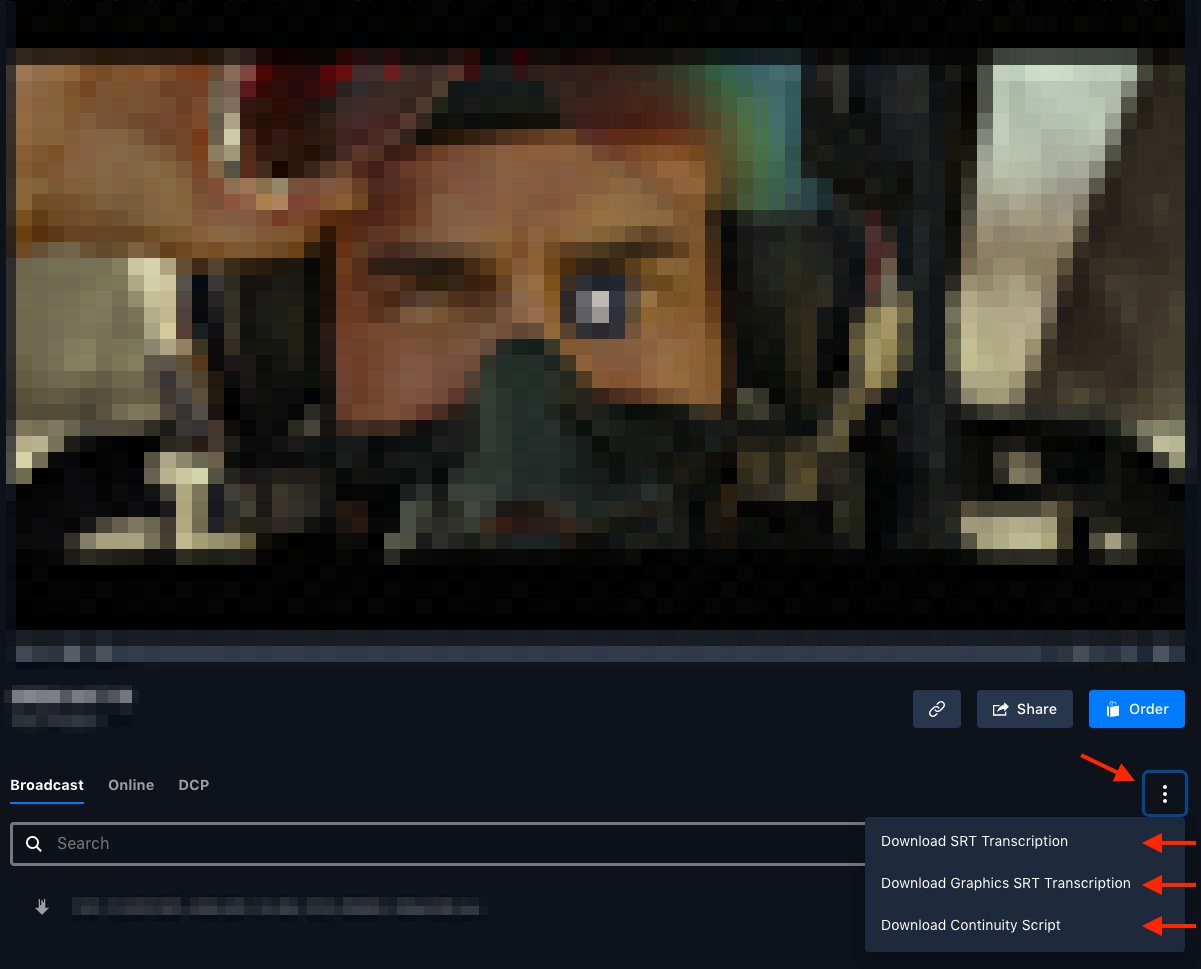
Click the vertical ellipsis menu (**⋮**) beneath the asset's preview window.
Pick the script type(s) you want from the dropdown — SRT, Graphics SRT, continuity script, or music cue sheet.
## How to download a script
Find the spot (asset) you need and open it in asset view.
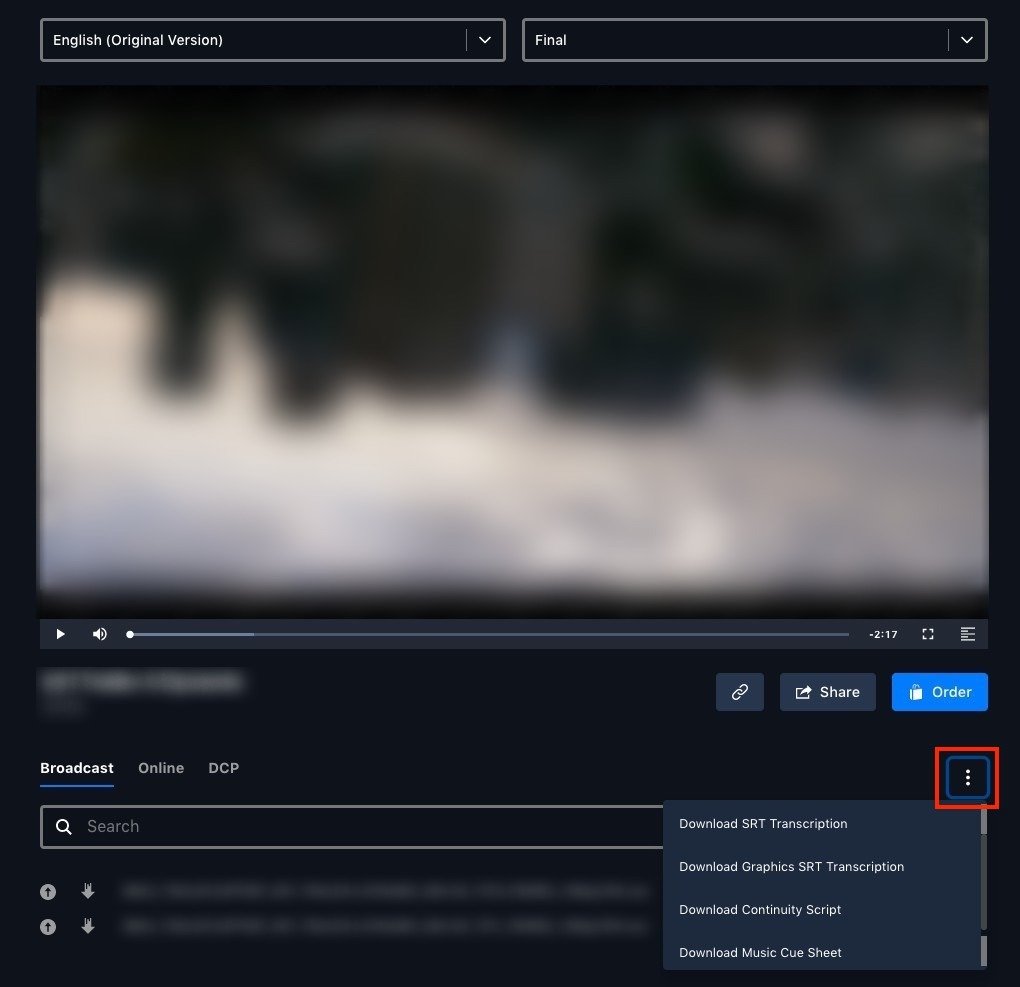
Click the vertical ellipsis menu (**⋮**) beneath the asset's preview window.
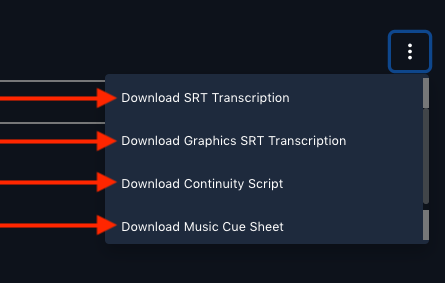
Pick the script type(s) you want from the dropdown — SRT, Graphics SRT, continuity script, or music cue sheet.
 ## When are scripts available
Scripts are generated automatically after an asset is uploaded:
* **`.srt` files** — roughly **four to six hours** after upload.
* **Continuity scripts** — up to **12 hours** after upload, depending on complexity.
## When are scripts available
Scripts are generated automatically after an asset is uploaded:
* **`.srt` files** — roughly **four to six hours** after upload.
* **Continuity scripts** — up to **12 hours** after upload, depending on complexity.