> ## Documentation Index
> Fetch the complete documentation index at: https://help.pixwel.com/llms.txt
> Use this file to discover all available pages before exploring further.
# Sharing Assets
> How to add assets to the Share Queue, build a share with the right access and languages, and find shares sent to you.
A [share](/features/shares) makes selected assets available to specific people. This guide walks through creating one and finding shares others have sent you. For what a share is and the access it controls, see [Shares](/features/shares).
## Accessing shares
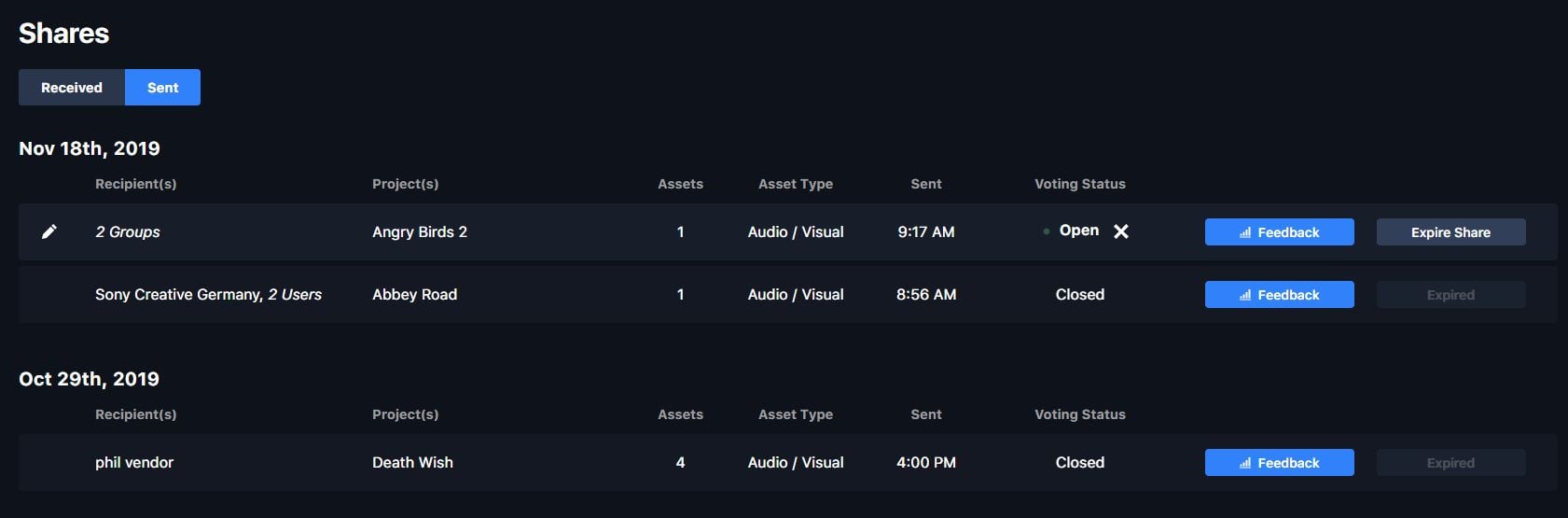
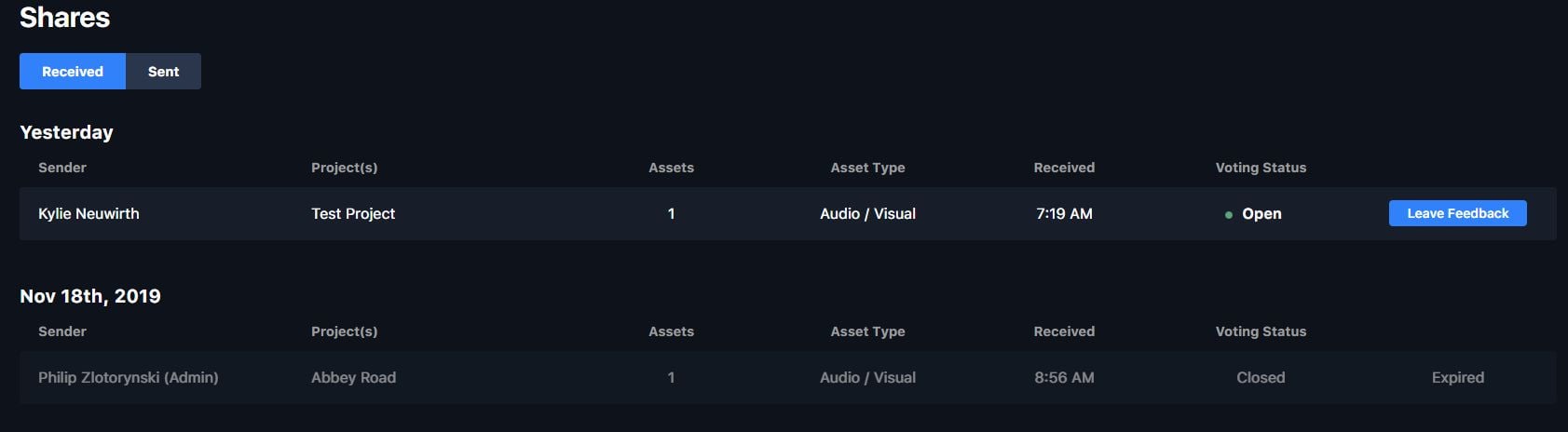
The **Shares Dashboard** icon is in the left navigation bar. Open it to review shares you've **sent** or **received** — received shares can be viewed as playlists.
 ## Adding assets to the Share Queue
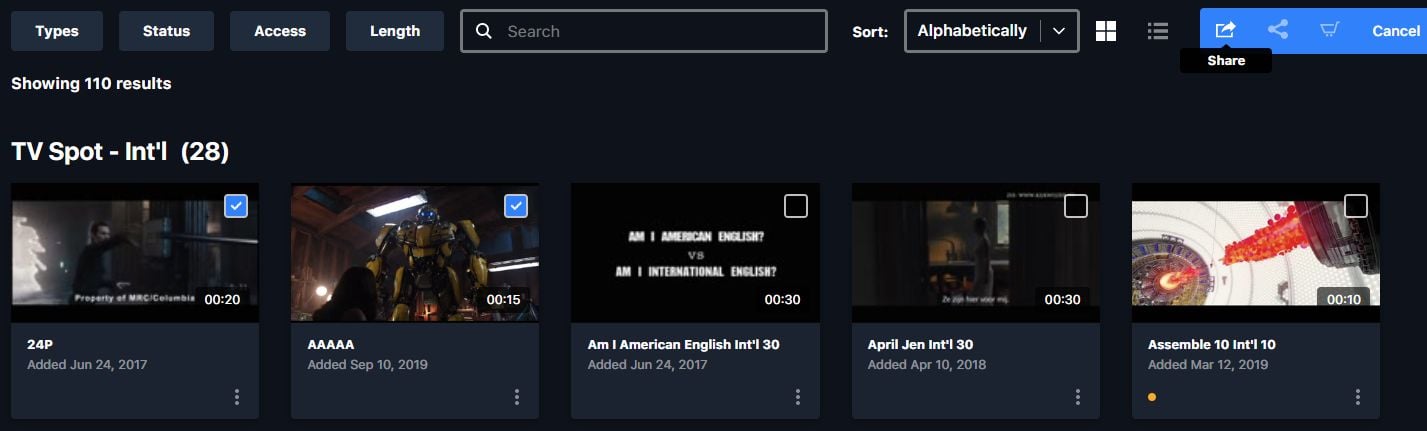
There are three ways to add an [asset](/features/projects/assets) to your **Share Queue**:
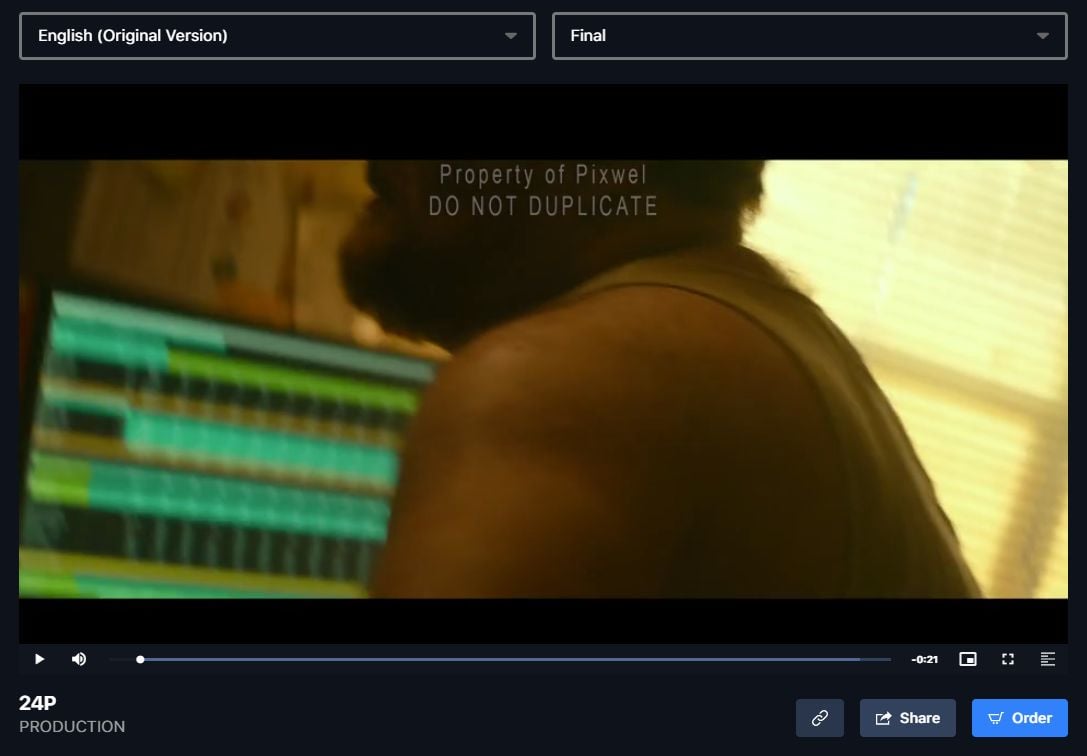
* The **Share** button below the asset preview.
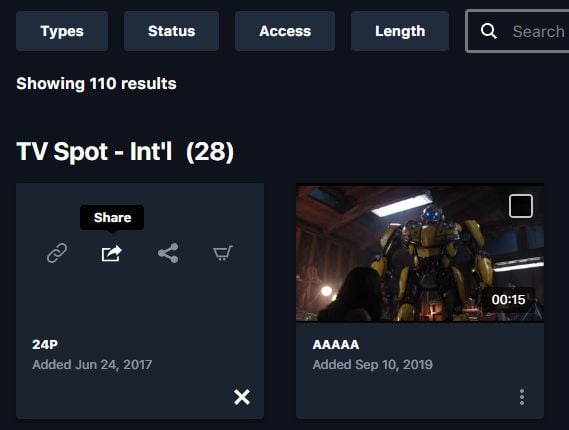
* **Quick actions** on an asset thumbnail.
* **Batch select** on asset thumbnails, to add several at once.
## Adding assets to the Share Queue
There are three ways to add an [asset](/features/projects/assets) to your **Share Queue**:
* The **Share** button below the asset preview.
* **Quick actions** on an asset thumbnail.
* **Batch select** on asset thumbnails, to add several at once.
 ## Creating a share
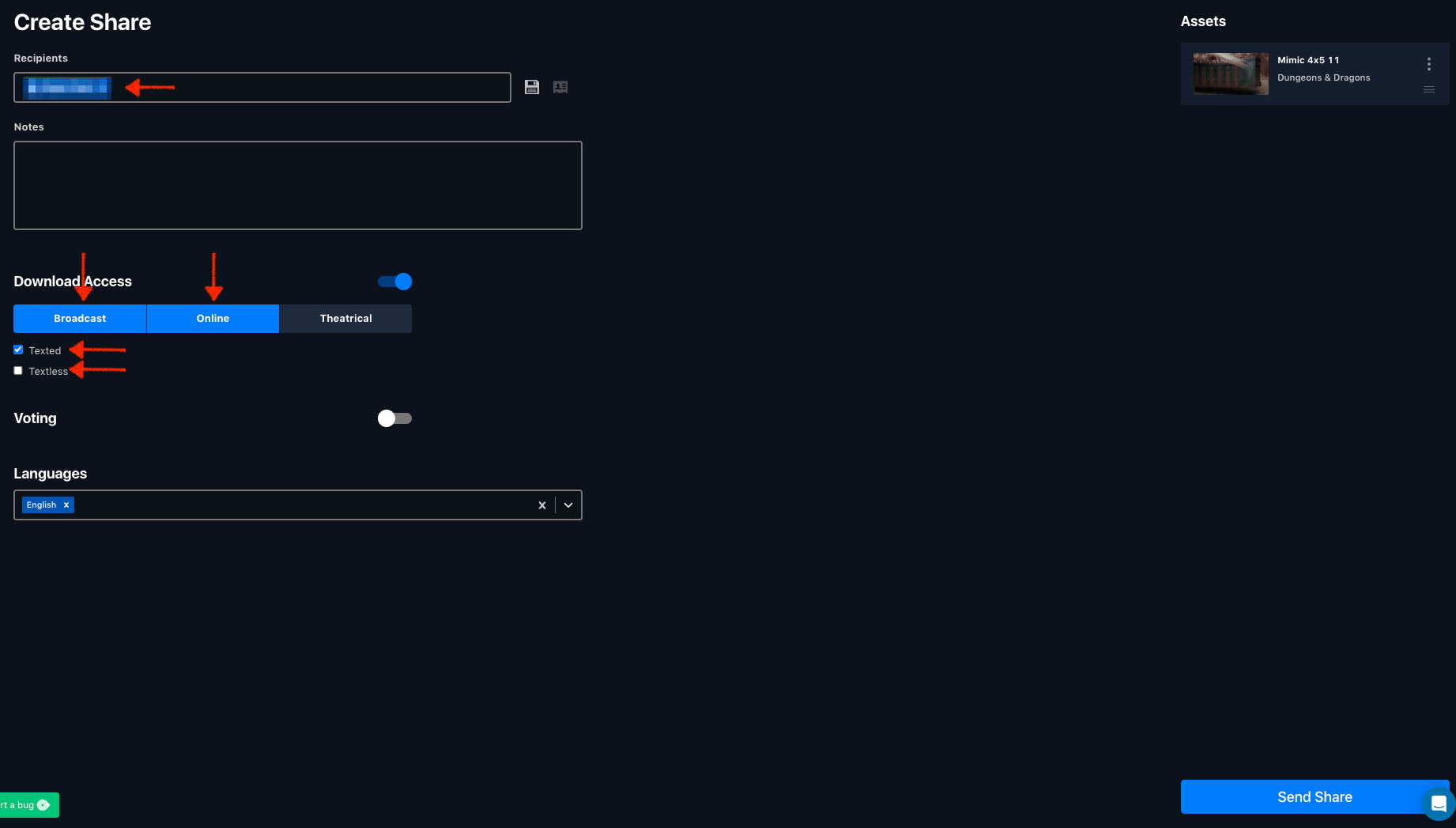
 Open the queue to build the share. You can:
* Add **users or groups** to share with.
* Set **download access**.
* Enable **voting**, if your permissions allow.
* Pick the **languages** to include from the Languages dropdown — you can only share languages you have access to.
* Drag thumbnails to arrange them into a custom **playlist** order.
Open the queue to build the share. You can:
* Add **users or groups** to share with.
* Set **download access**.
* Enable **voting**, if your permissions allow.
* Pick the **languages** to include from the Languages dropdown — you can only share languages you have access to.
* Drag thumbnails to arrange them into a custom **playlist** order.
 You can't share assets, files, or languages outside your own [permissions](/features/user-roles). What you're able to share mirrors what your group can access.
Save frequently used recipients as a [contact list](/guides/getting-started#contact-lists) so you can reuse them on future shares.
## Managing shares
From the **Shares Dashboard** you can edit a **sent** share's recipients, notes, and permissions after it goes out. **Received** shares appear as playlists you can view and act on.
You can't share assets, files, or languages outside your own [permissions](/features/user-roles). What you're able to share mirrors what your group can access.
Save frequently used recipients as a [contact list](/guides/getting-started#contact-lists) so you can reuse them on future shares.
## Managing shares
From the **Shares Dashboard** you can edit a **sent** share's recipients, notes, and permissions after it goes out. **Received** shares appear as playlists you can view and act on.