> ## Documentation Index
> Fetch the complete documentation index at: https://help.pixwel.com/llms.txt
> Use this file to discover all available pages before exploring further.
# Subtitling & Translation
> Pixwel's built-in subtitling tools — Autosub, machine translations, translation memories, translation approvals, and editing subtitle cells.
When you order a **subtitled** localization, Pixwel gives you tools to translate it inside the platform — automatically, from past work, or by hand. This guide covers them. For placing the order itself, see [Placing & managing orders](/guides/placing-orders).
## Autosub
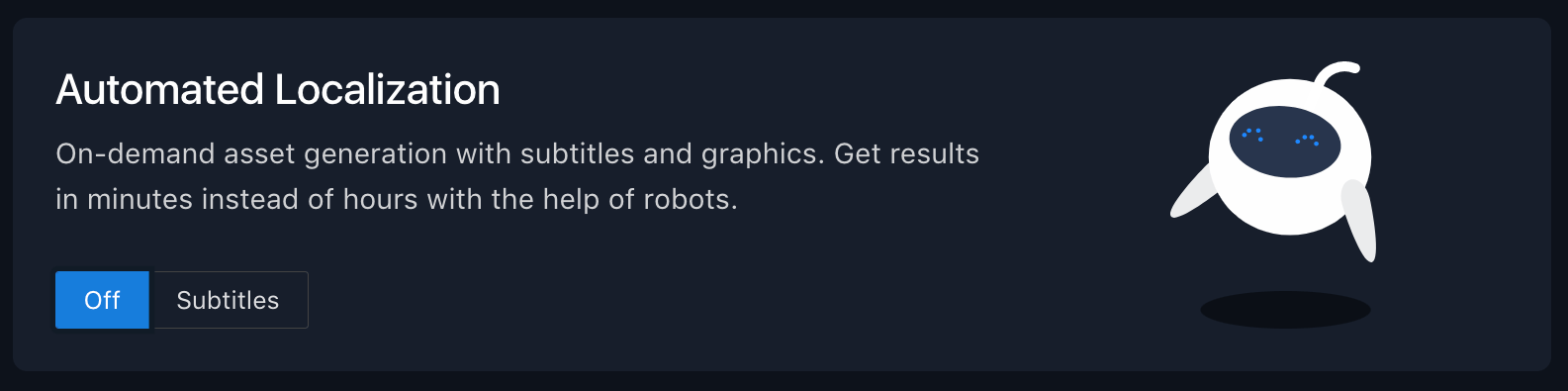
**Autosub** creates final subtitled files in your local language — for online or broadcast — without a vendor, in minutes instead of hours.
Click **Order Localized Version** on an eligible asset.
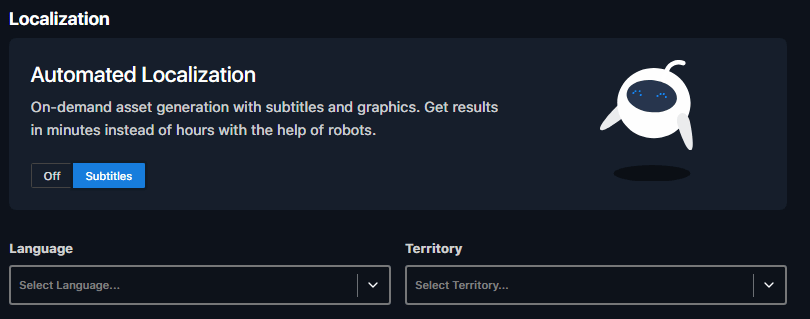
Toggle **Autosub** on in the Order Wizard, if it's available for that asset.
Choose target language, territory, and transcodes (within your permissions).
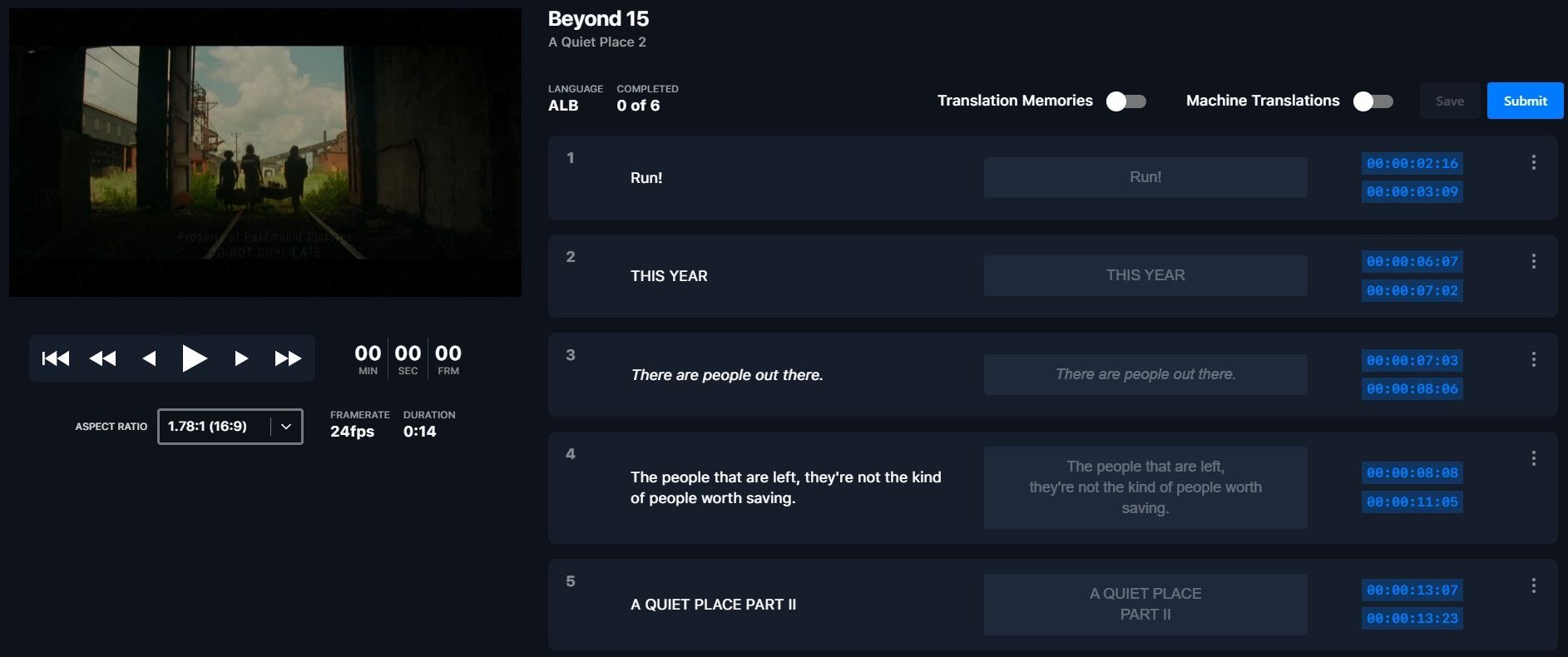
Click **Place Order**, then **Translate Now** to open the Translation Tool and enter your subtitle text.
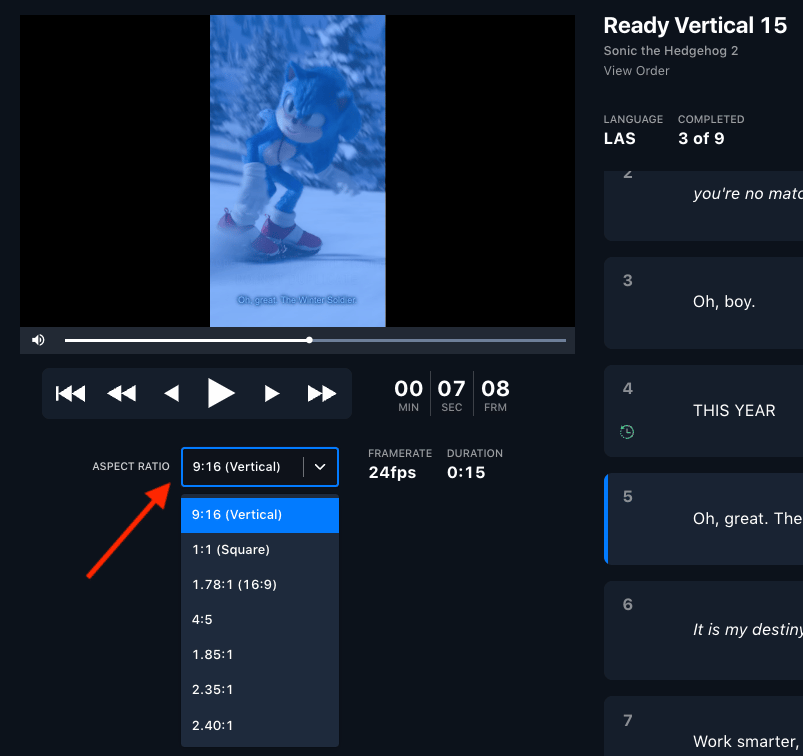
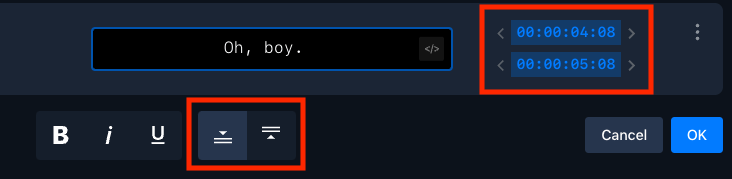
Use the **Aspect Ratio** dropdown to match the asset (16x9, square, 4x5, vertical), adjust timing with the arrow buttons, and reposition subtitles to avoid on-screen graphics.
Submit, then within minutes review the preview, make changes, and approve.
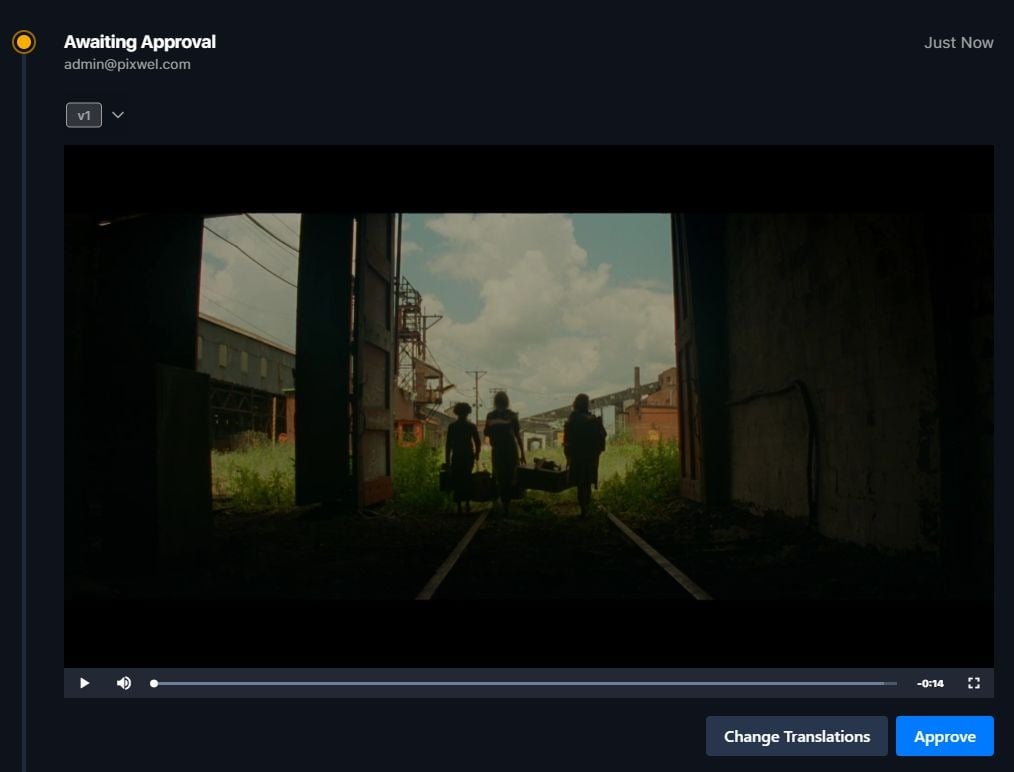 Approved files are ready within minutes, labeled **AUTOSUB** in the filename.
Set the correct language and territory, and make all revisions **before** approving — a cancelled order can't be reopened.
## Machine translations
**Machine translations** auto-translate every cell in the subtitler using AI/ML — a strong starting point for long-form content.
* Toggle the switch **on** to populate translations.
* Always **review** before submitting — translation is subjective.
Approved files are ready within minutes, labeled **AUTOSUB** in the filename.
Set the correct language and territory, and make all revisions **before** approving — a cancelled order can't be reopened.
## Machine translations
**Machine translations** auto-translate every cell in the subtitler using AI/ML — a strong starting point for long-form content.
* Toggle the switch **on** to populate translations.
* Always **review** before submitting — translation is subjective.
 Enable machine translations **before** splitting or merging any cells — splitting or merging **disables** the feature.
## Translation memories
**Translation memories** automatically store translations from previous orders and reuse them — no manual step required.
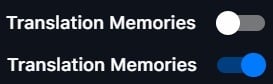
* Toggle **Translation Memories** from gray to blue to pull in stored translations; matches auto-populate in the subtitler.
* A completed longer cut (say 60s) auto-fills its shorter versions (30, 20, 15, 10s).
* Your edits become part of the memory for future projects, and it works with Autosub orders too.
Enable machine translations **before** splitting or merging any cells — splitting or merging **disables** the feature.
## Translation memories
**Translation memories** automatically store translations from previous orders and reuse them — no manual step required.
* Toggle **Translation Memories** from gray to blue to pull in stored translations; matches auto-populate in the subtitler.
* A completed longer cut (say 60s) auto-fills its shorter versions (30, 20, 15, 10s).
* Your edits become part of the memory for future projects, and it works with Autosub orders too.
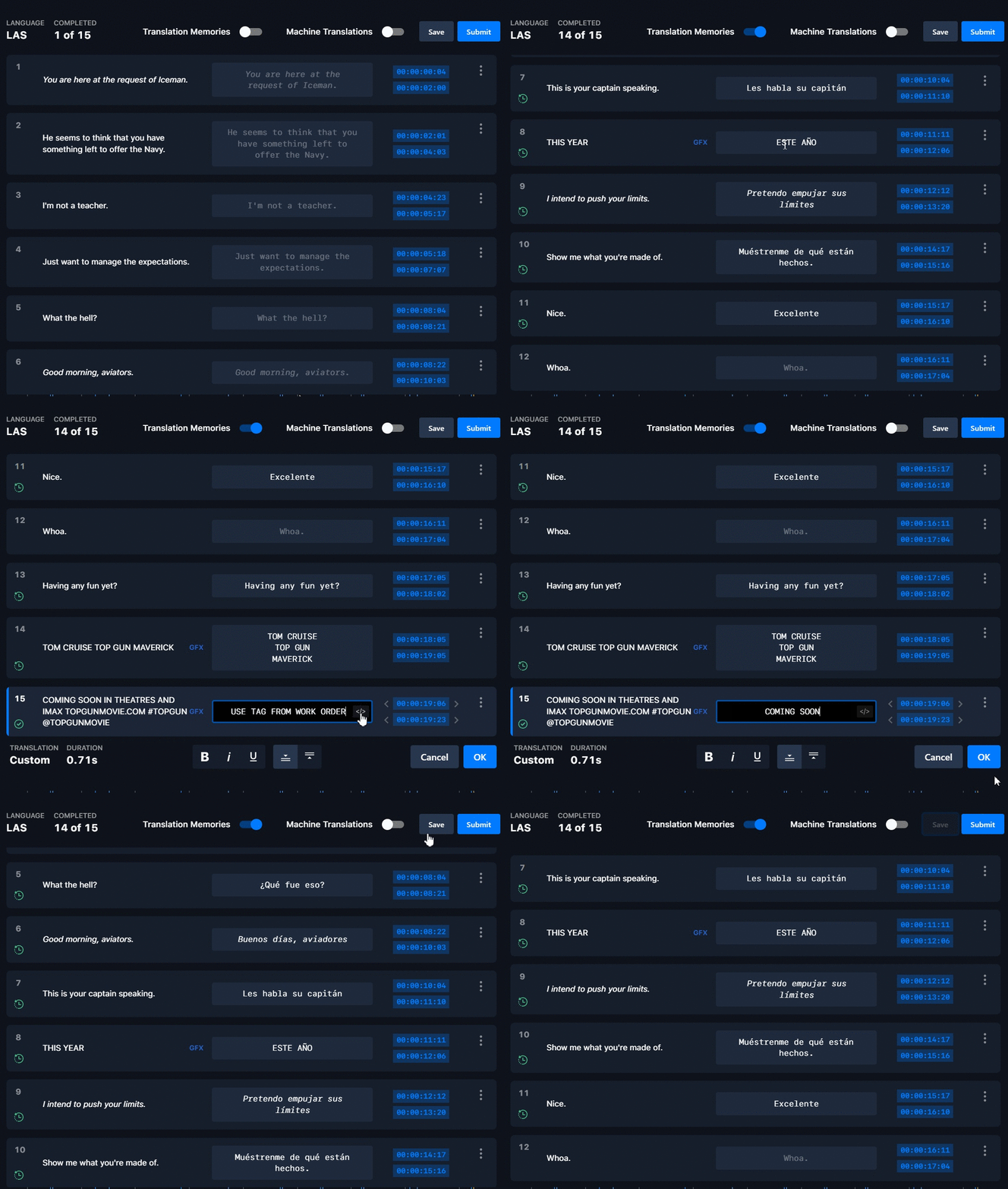 Translation memories only fire on an **exact match**, including punctuation. Truncated or altered lines won't auto-populate — this protects accuracy.
## Translation approvals
**Translation approvals** let you review and approve a third-party translator's work before production proceeds.
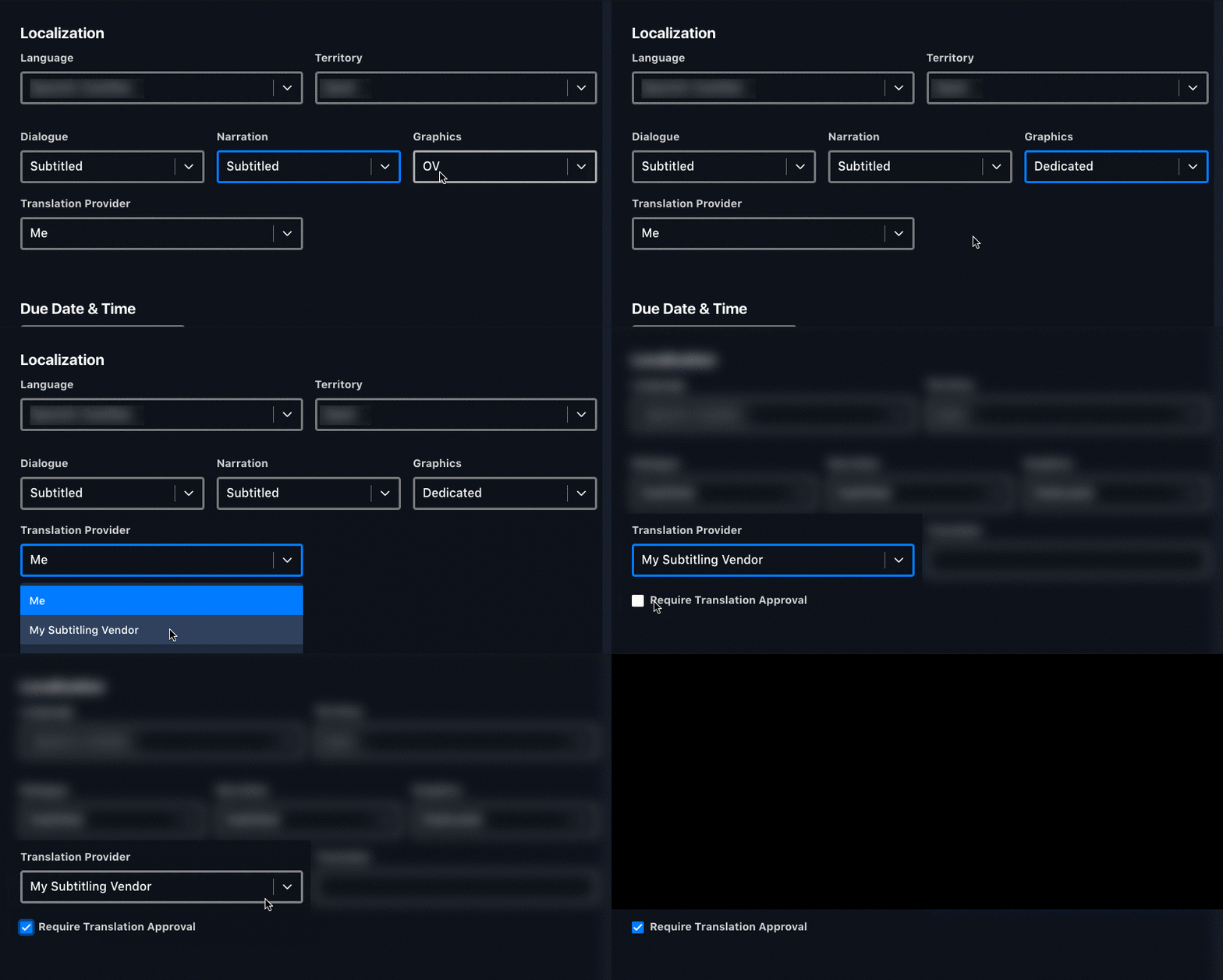
To enable: when ordering, choose **Subtitled** for dialogue/narration/graphics, select **My Subtitled Vendor** as the translation provider, then tick **Require Translation Approval**.
The workflow:
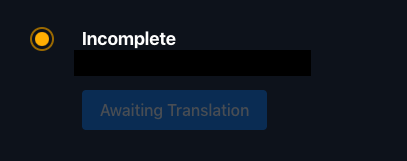
1. **Incomplete – Awaiting Translation** — order placed, waiting on the translator.
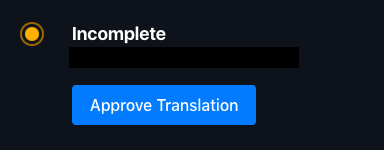
2. **Incomplete – Approve Translation** — the translator has submitted; click the action button to review.
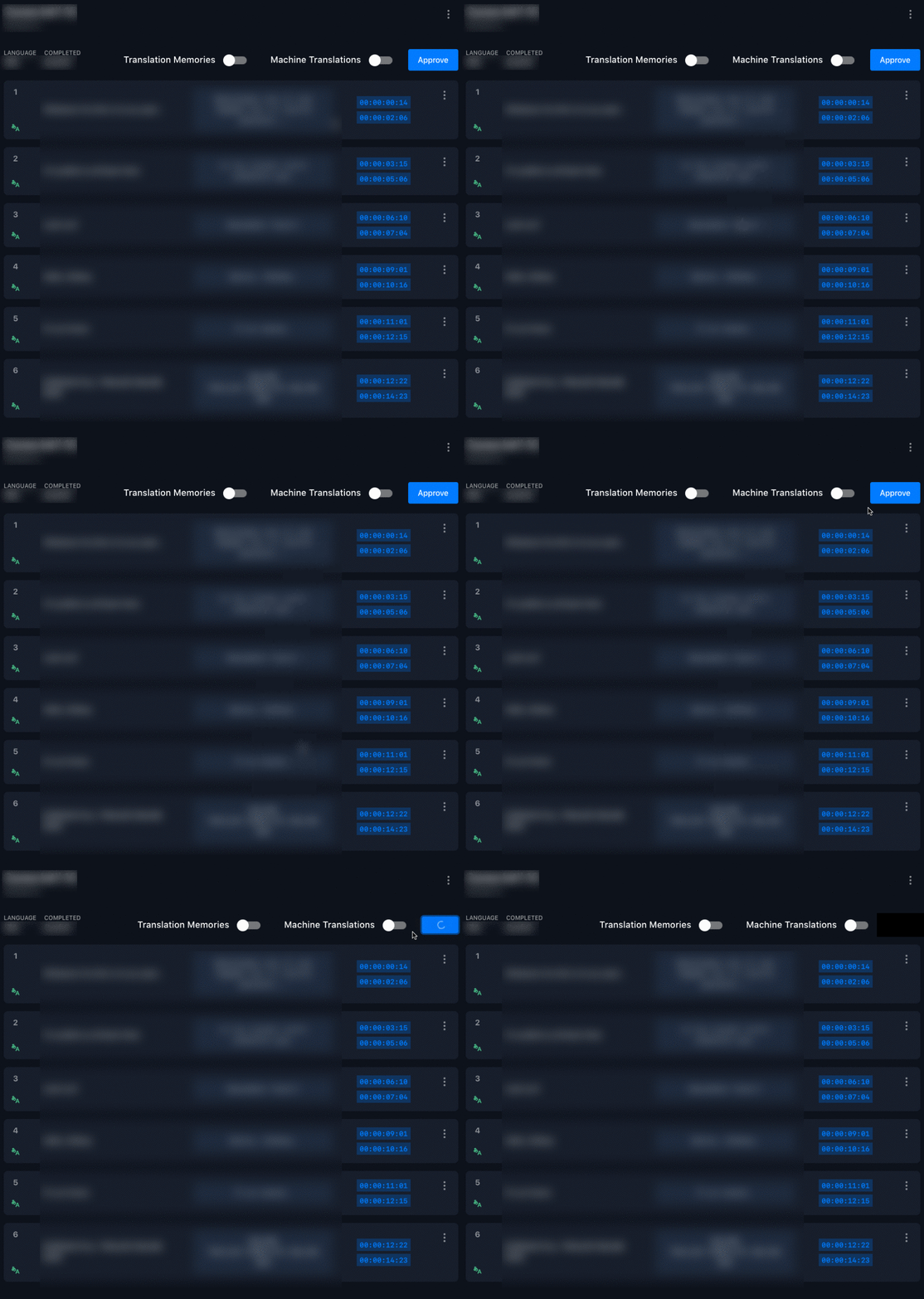
3. **Review** — edit as needed, then **Approve**.
4. The vendor proceeds with the full request.
Translation memories only fire on an **exact match**, including punctuation. Truncated or altered lines won't auto-populate — this protects accuracy.
## Translation approvals
**Translation approvals** let you review and approve a third-party translator's work before production proceeds.
To enable: when ordering, choose **Subtitled** for dialogue/narration/graphics, select **My Subtitled Vendor** as the translation provider, then tick **Require Translation Approval**.
The workflow:
1. **Incomplete – Awaiting Translation** — order placed, waiting on the translator.
2. **Incomplete – Approve Translation** — the translator has submitted; click the action button to review.
3. **Review** — edit as needed, then **Approve**.
4. The vendor proceeds with the full request.
 ## Splitting & merging subtitle cells
From a cell's **⋮** menu in the subtitler:
* **Merge Down** — combine the cell with the next into one.
* **Split** — divide a cell into two equal-length cells.
* **Reset to OV** — undo a split or merge.
## Splitting & merging subtitle cells
From a cell's **⋮** menu in the subtitler:
* **Merge Down** — combine the cell with the next into one.
* **Split** — divide a cell into two equal-length cells.
* **Reset to OV** — undo a split or merge.
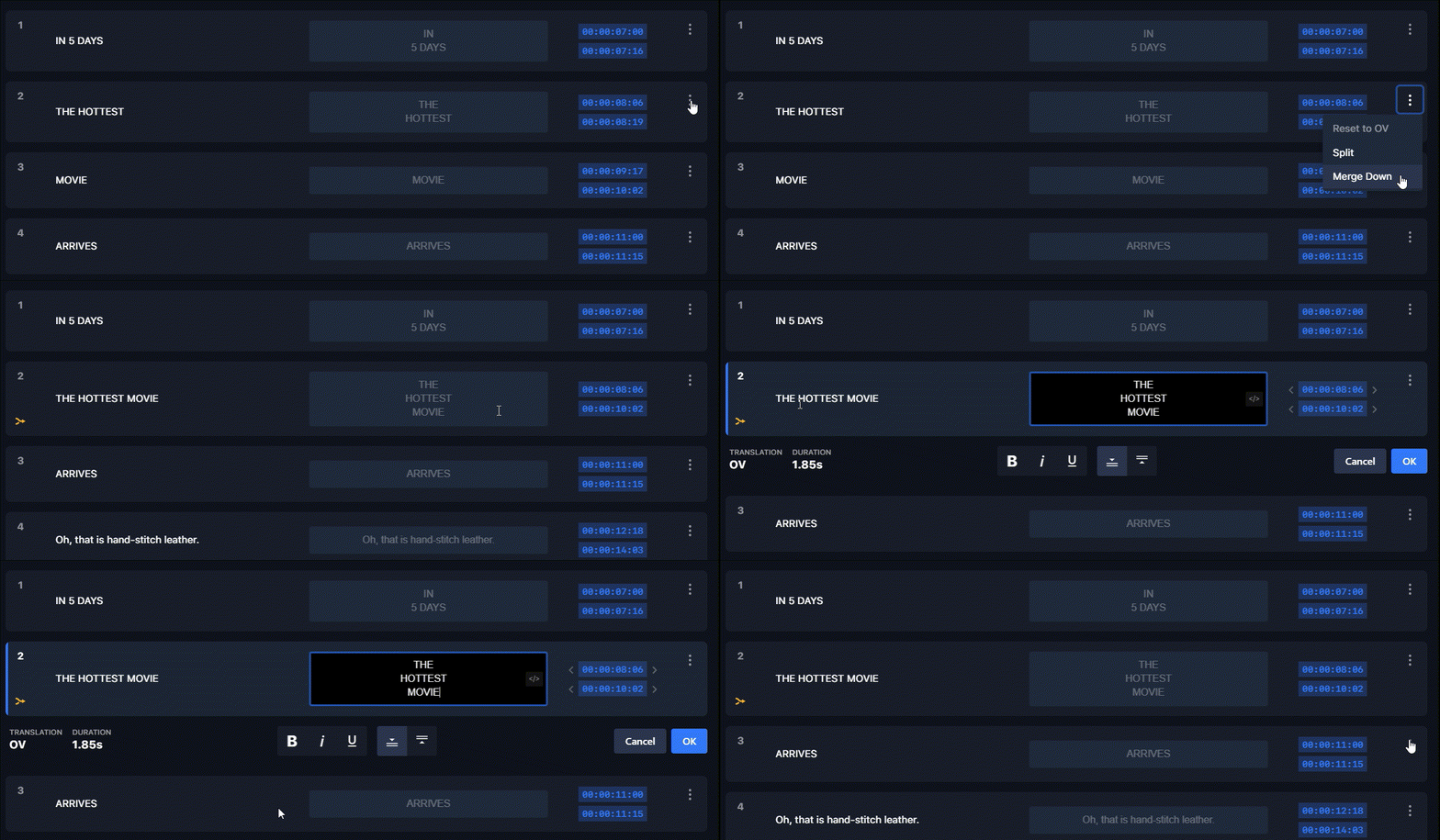
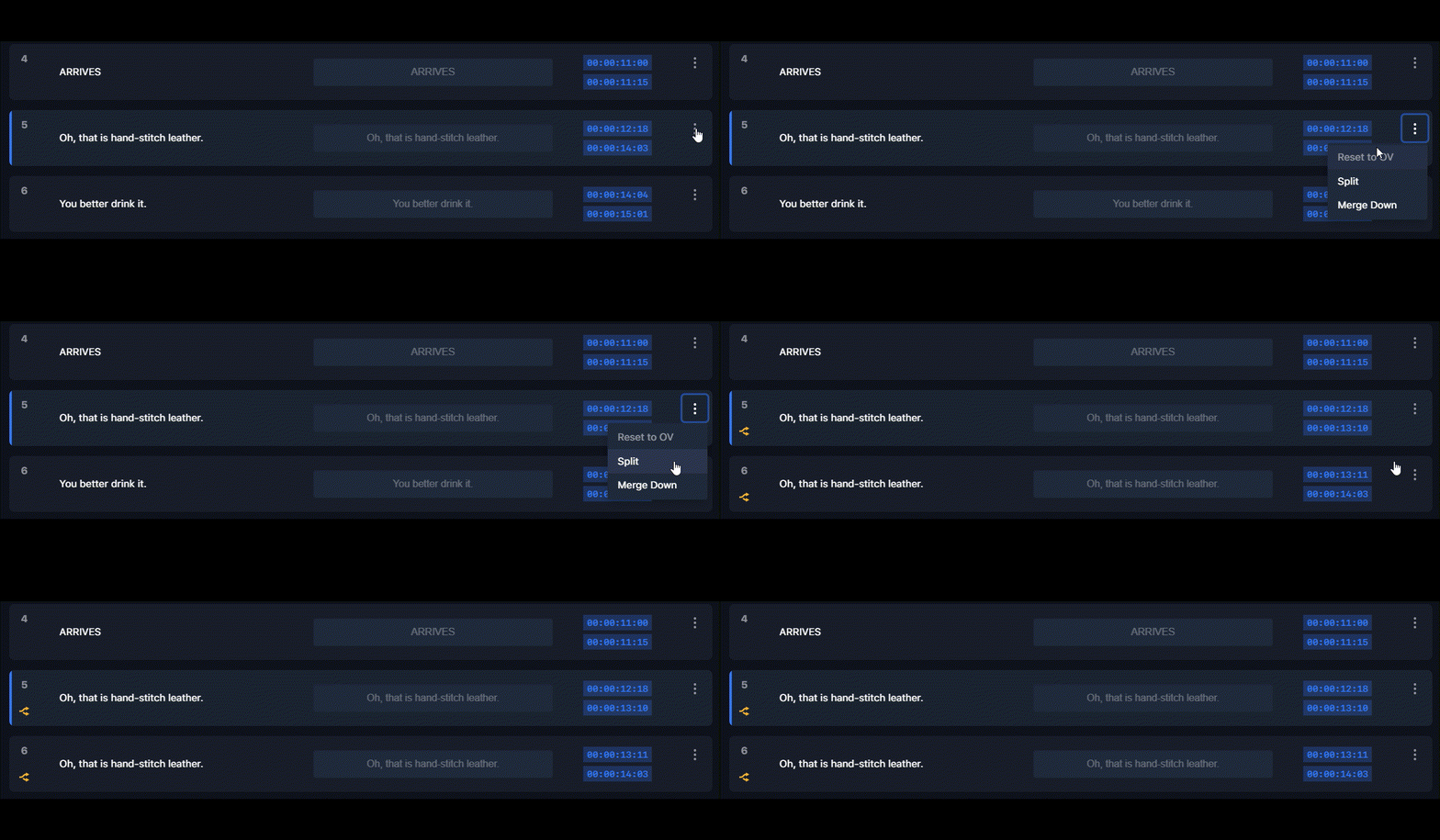 Splitting or merging **disables machine translations and translation memories** — enable those first if you need them. You also can't chain operations: split and merge actions can't be combined.