

Accessing shares
The Shares Dashboard icon is in the left navigation bar. Open it to review shares you’ve sent or received — received shares can be viewed as playlists.
The Shares Dashboard icon in the left navigation bar.
Adding assets to the Share Queue
There are three ways to add an asset to your Share Queue:- The Share button below the asset preview.
- Quick actions on an asset thumbnail.
- Batch select on asset thumbnails, to add several at once.
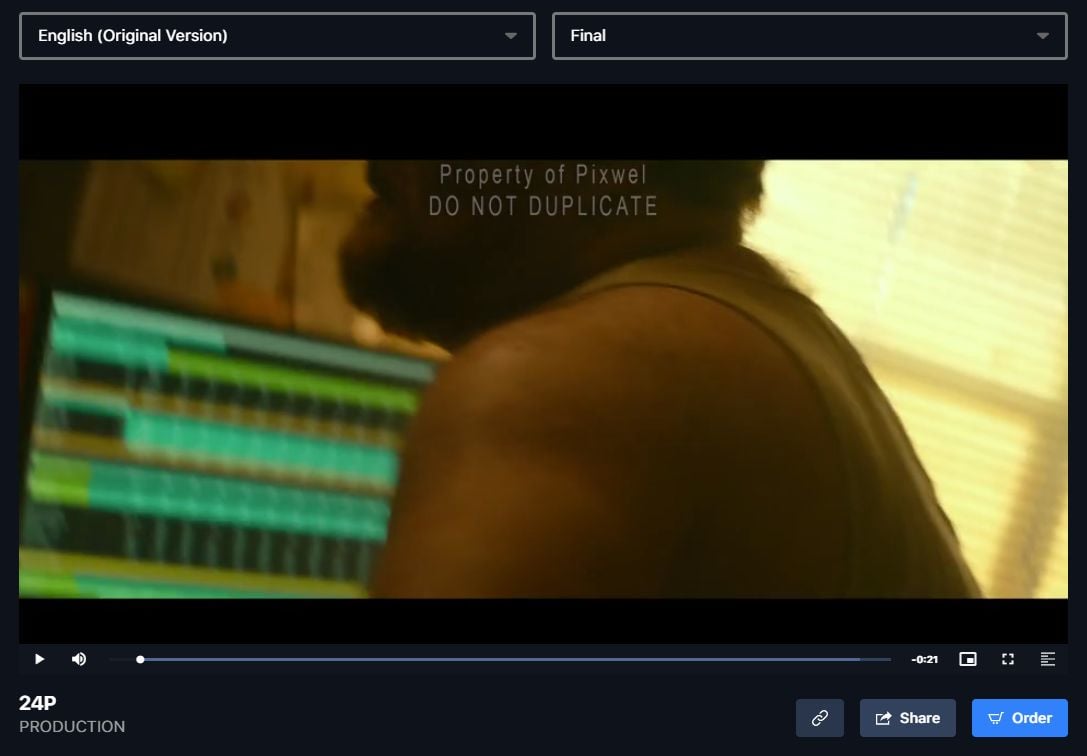
The Share button below an asset's preview.
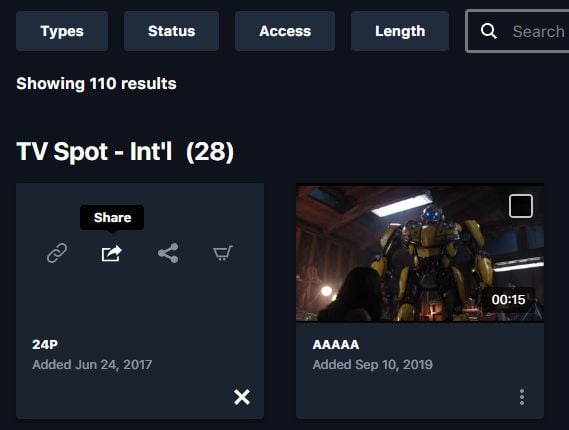
The Share quick action on an asset thumbnail.
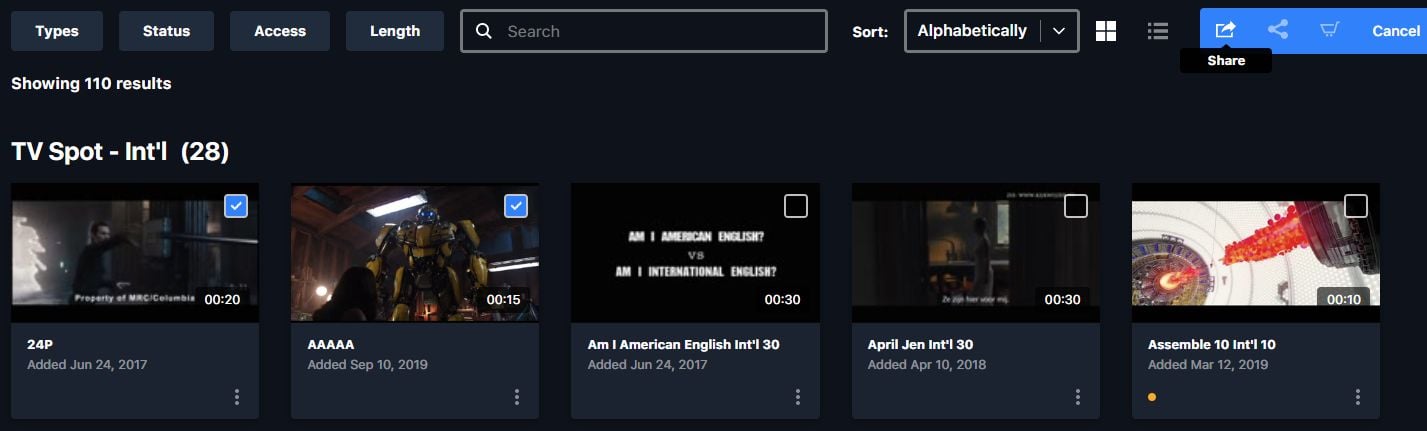
Batch-selecting assets, then Share from the toolbar to add several at once.
Creating a share

The Share Queue button shows how many assets you've queued — open it to build the share.
- Add users or groups to share with.
- Set download access.
- Enable voting, if your permissions allow.
- Pick the languages to include from the Languages dropdown — you can only share languages you have access to.
- Drag thumbnails to arrange them into a custom playlist order.
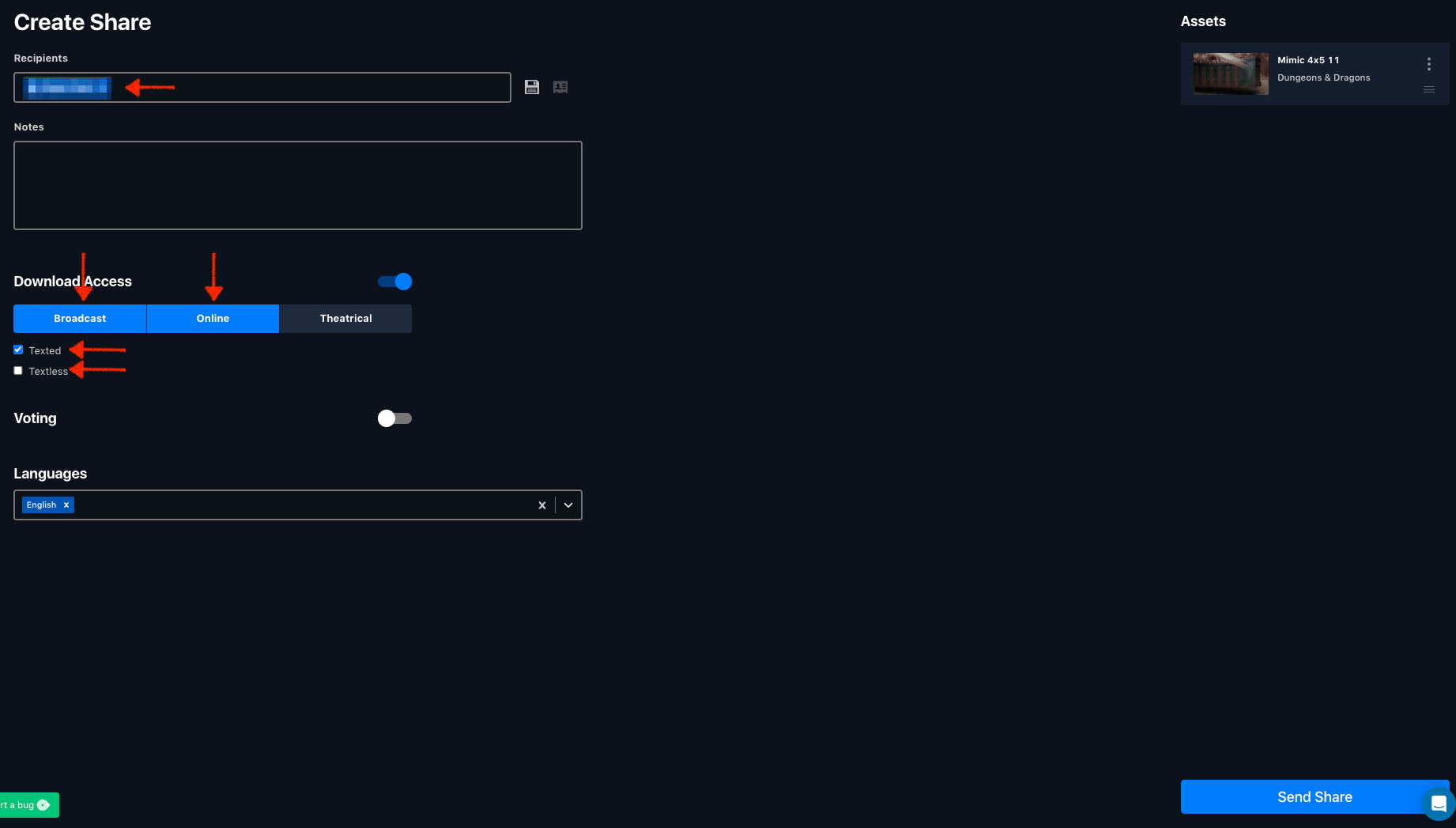
The Create Share form: add recipients, set download access (Broadcast / Online / Theatrical, texted or textless), toggle voting, and pick the languages to include, then Send Share.
You can’t share assets, files, or languages outside your own permissions. What you’re able to share mirrors what your group can access.
Managing shares
From the Shares Dashboard you can edit a sent share’s recipients, notes, and permissions after it goes out. Received shares appear as playlists you can view and act on.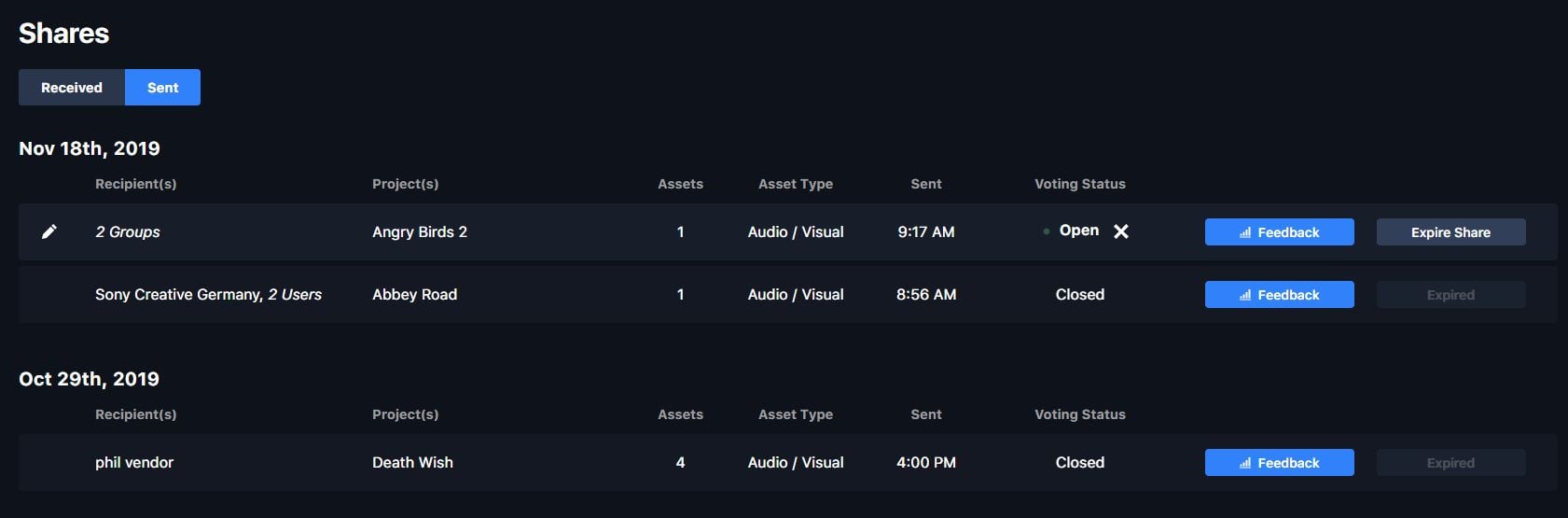
The Shares dashboard, Sent view: each share's recipients, assets, and voting status, with edit, expire, and feedback actions.
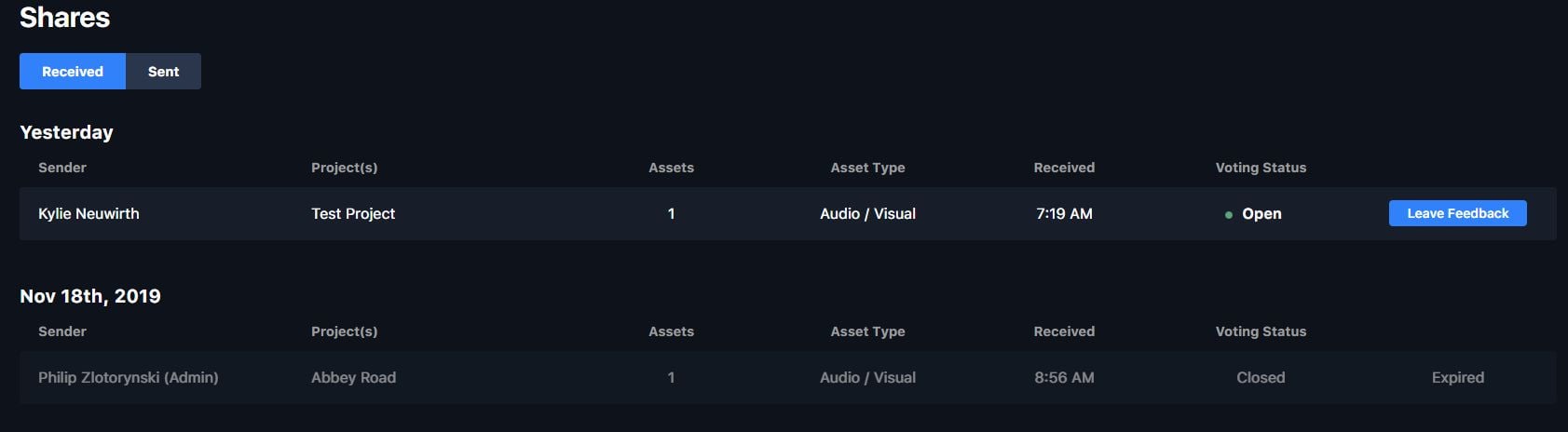
The Received view: shares others have sent you, shown as playlists you can view and leave feedback on.