

Autosub
Autosub creates final subtitled files in your local language — for online or broadcast — without a vendor, in minutes instead of hours.Start an order
Enable Autosub
Set language & transcodes
Translate
Place subtitles
Submit, review, approve
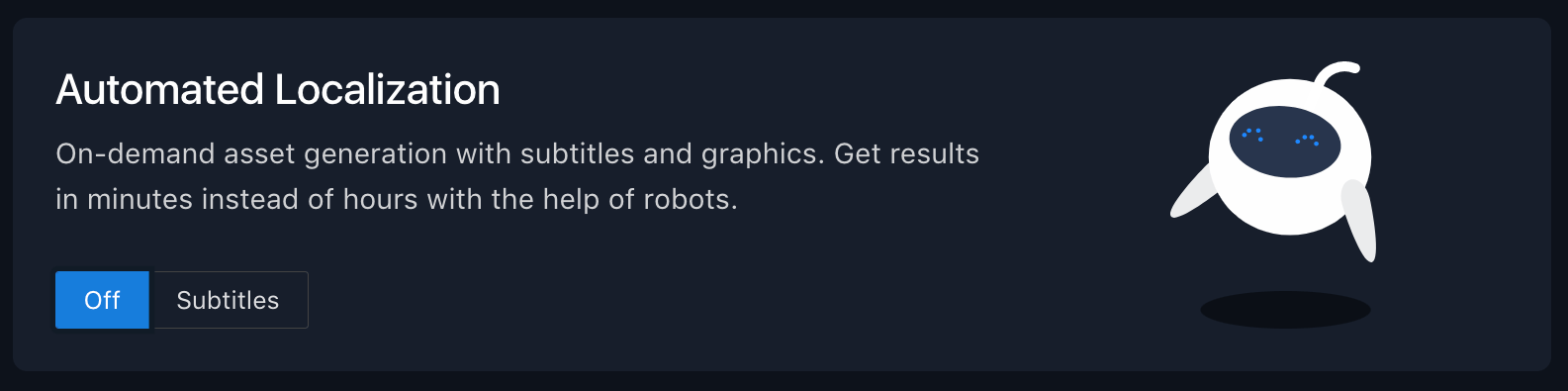
Start by clicking Order Localized Version on an eligible asset.
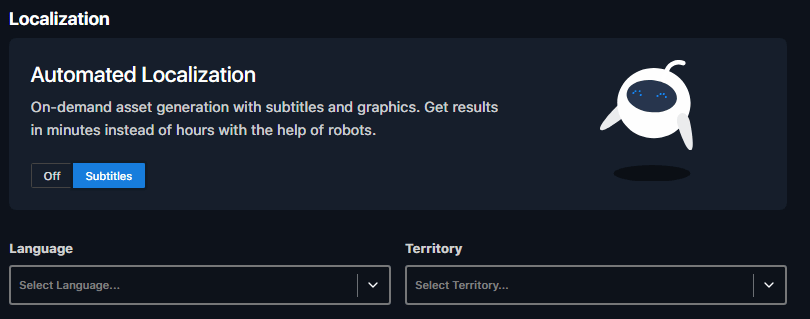
Toggle Autosub on in the Order Wizard, where available.
Choose the target language, territory, and transcodes within your permissions.
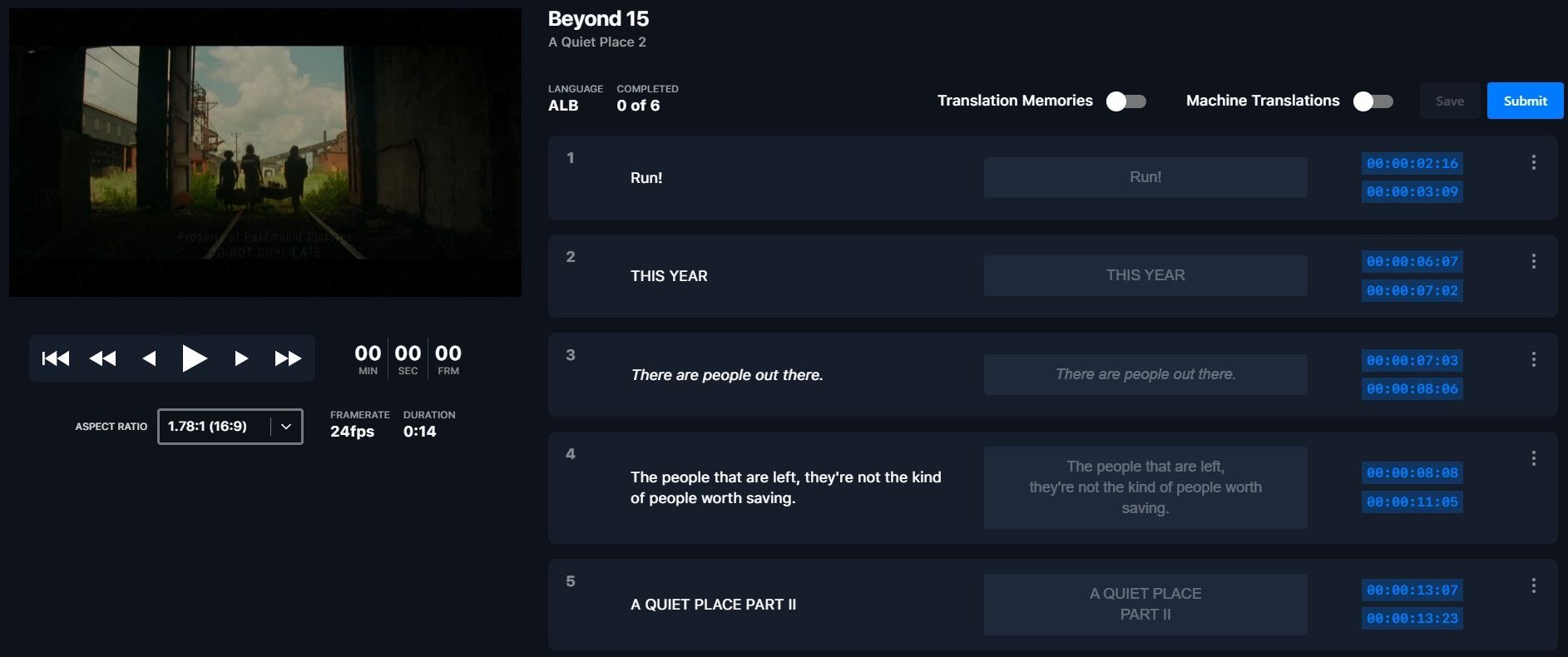
Place the order, then Translate Now to open the Translation Tool and enter your subtitle text.
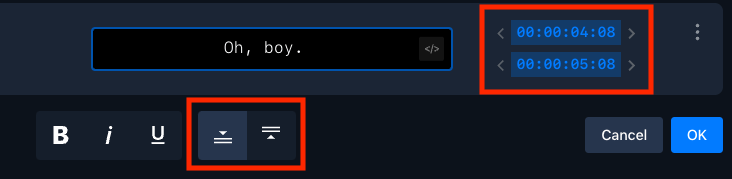
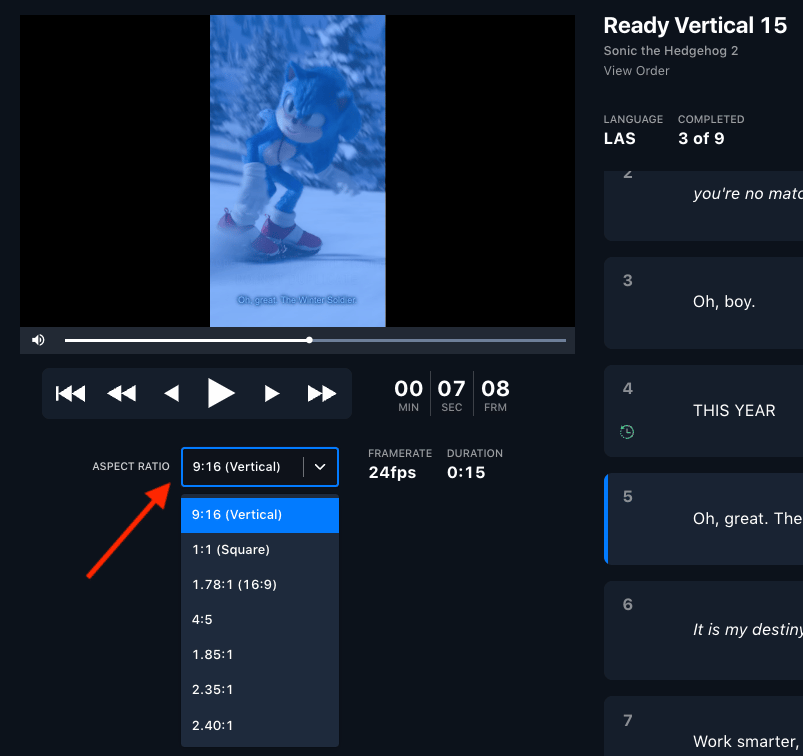
Match the aspect ratio, adjust timing, and reposition subtitles to avoid on-screen graphics.
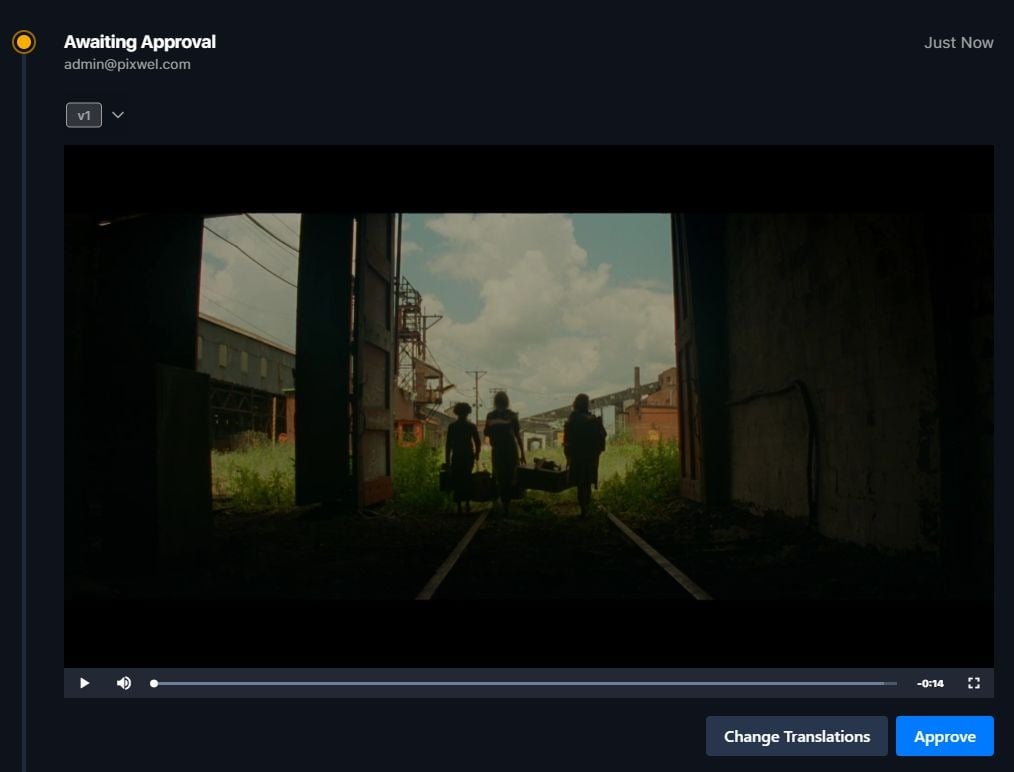
Review the preview, make any changes, and approve.
Machine translations
Machine translations auto-translate every cell in the subtitler using AI/ML — a strong starting point for long-form content.- Toggle the switch on to populate translations.
- Always review before submitting — translation is subjective.

Toggle machine translations on to auto-populate every cell in the subtitler.
Translation memories
Translation memories automatically store translations from previous orders and reuse them — no manual step required.- Toggle Translation Memories from gray to blue to pull in stored translations; matches auto-populate in the subtitler.
- A completed longer cut (say 60s) auto-fills its shorter versions (30, 20, 15, 10s).
- Your edits become part of the memory for future projects, and it works with Autosub orders too.
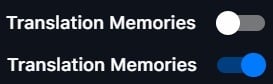
Toggle Translation Memories from gray to blue to pull in stored translations.
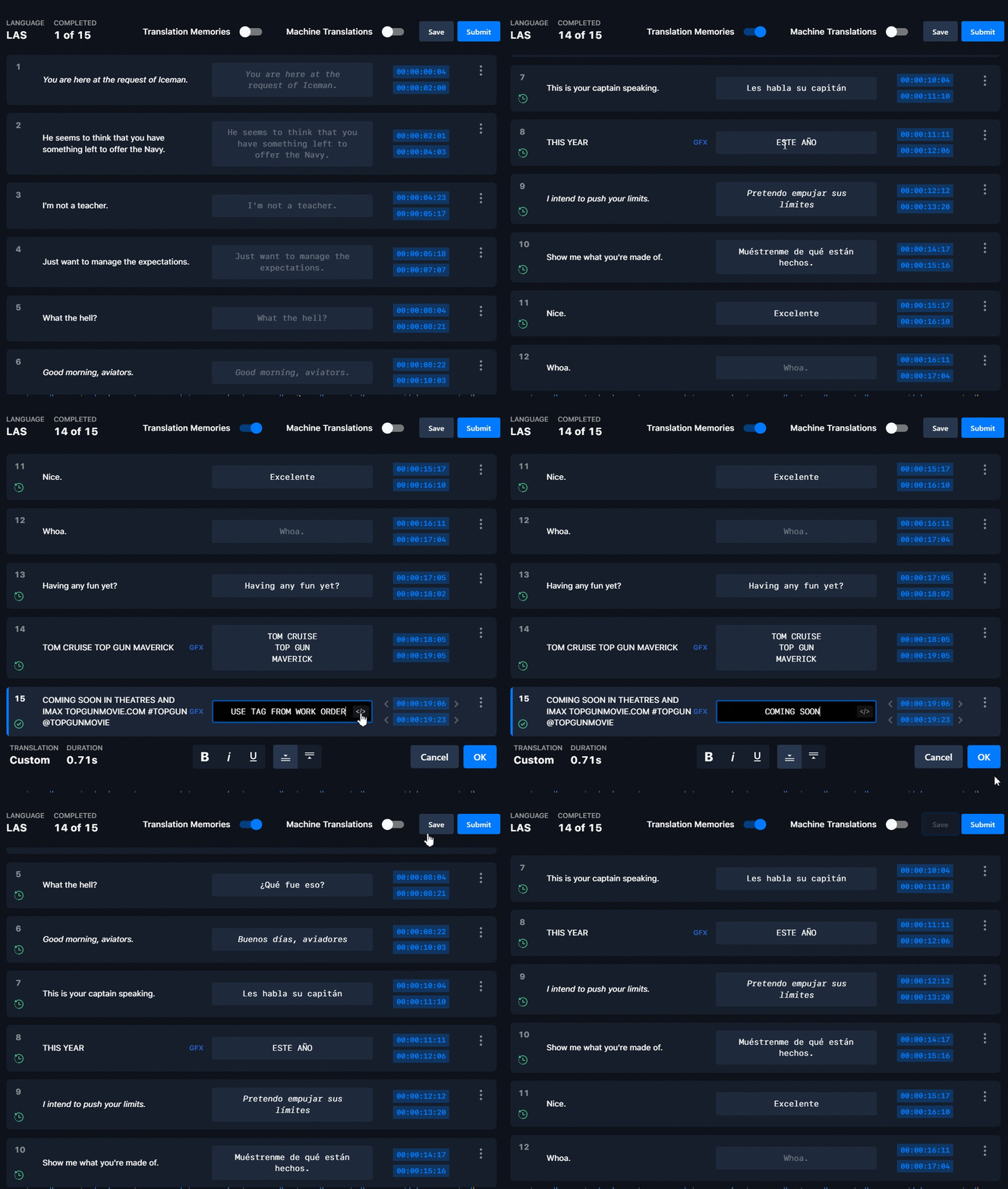
Matches auto-populate in the subtitler — a completed longer cut fills its shorter versions.
Translation approvals
Translation approvals let you review and approve a third-party translator’s work before production proceeds. To enable: when ordering, choose Subtitled for dialogue/narration/graphics, select My Subtitled Vendor as the translation provider, then tick Require Translation Approval. The workflow:- Incomplete – Awaiting Translation — order placed, waiting on the translator.
- Incomplete – Approve Translation — the translator has submitted; click the action button to review.
- Review — edit as needed, then Approve.
- The vendor proceeds with the full request.
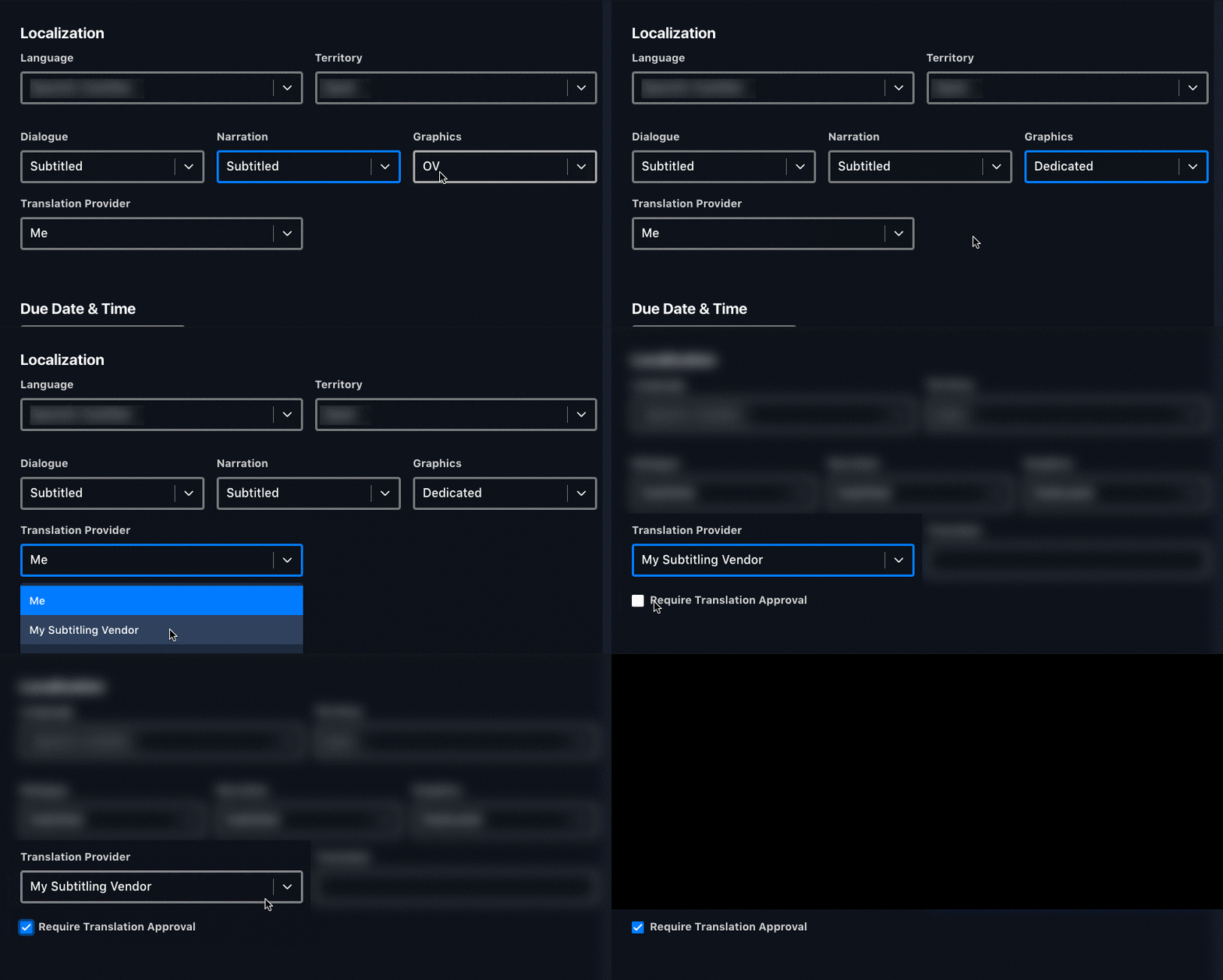
Requiring translation approval when ordering a subtitled localization.
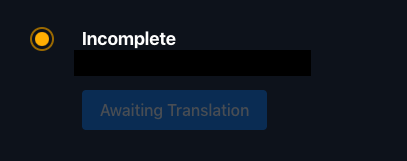
The order waits at Awaiting Translation until the translator submits.
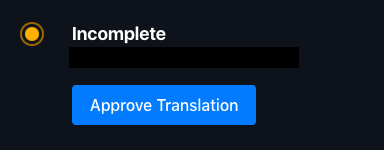
When the translator submits, the action button changes to Approve Translation.
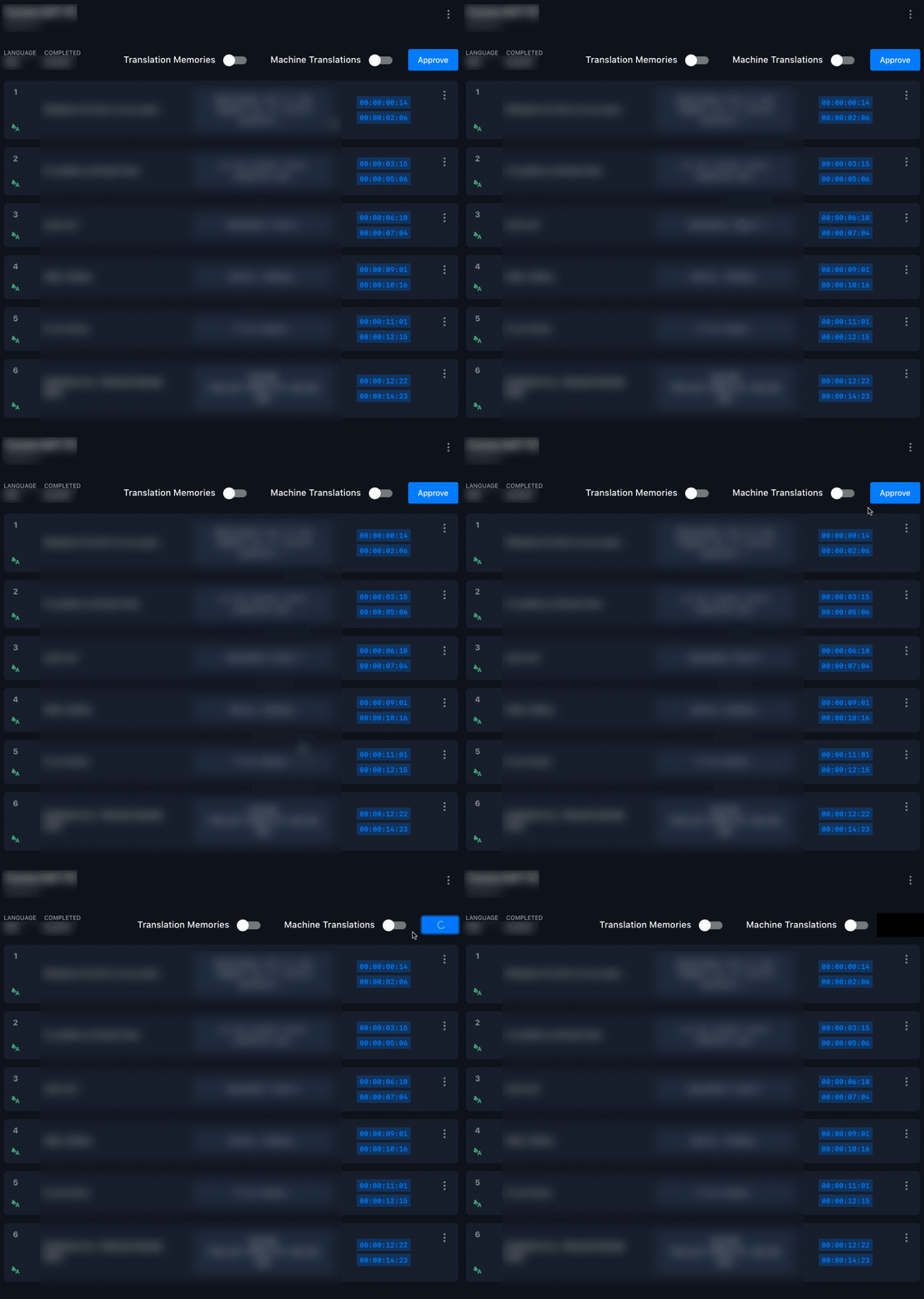
Review and edit the translation, then approve — the vendor proceeds with the full request.
Splitting & merging subtitle cells
From a cell’s ⋮ menu in the subtitler:- Merge Down — combine the cell with the next into one.
- Split — divide a cell into two equal-length cells.
- Reset to OV — undo a split or merge.
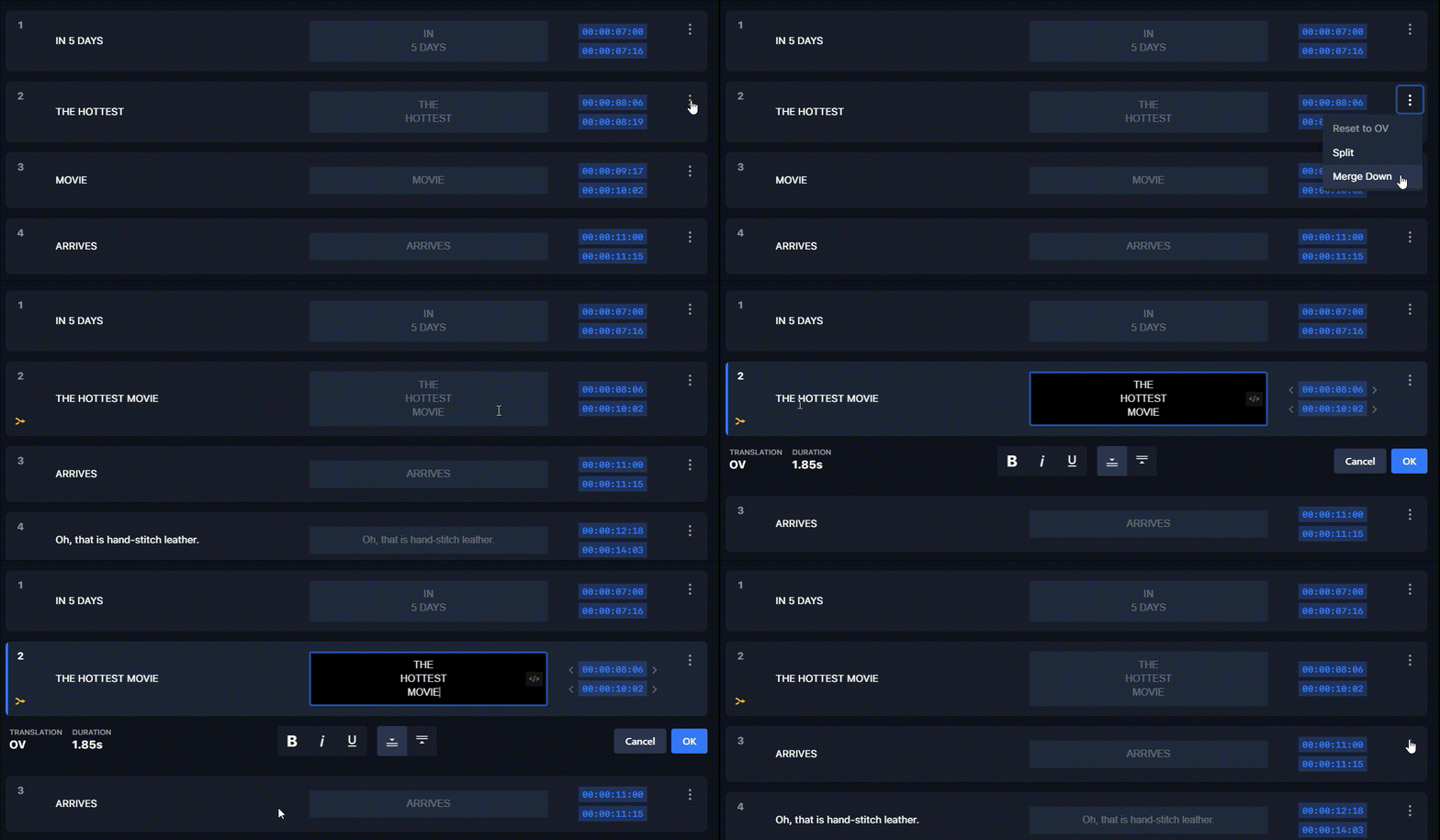
Merge Down combines a cell with the next one.
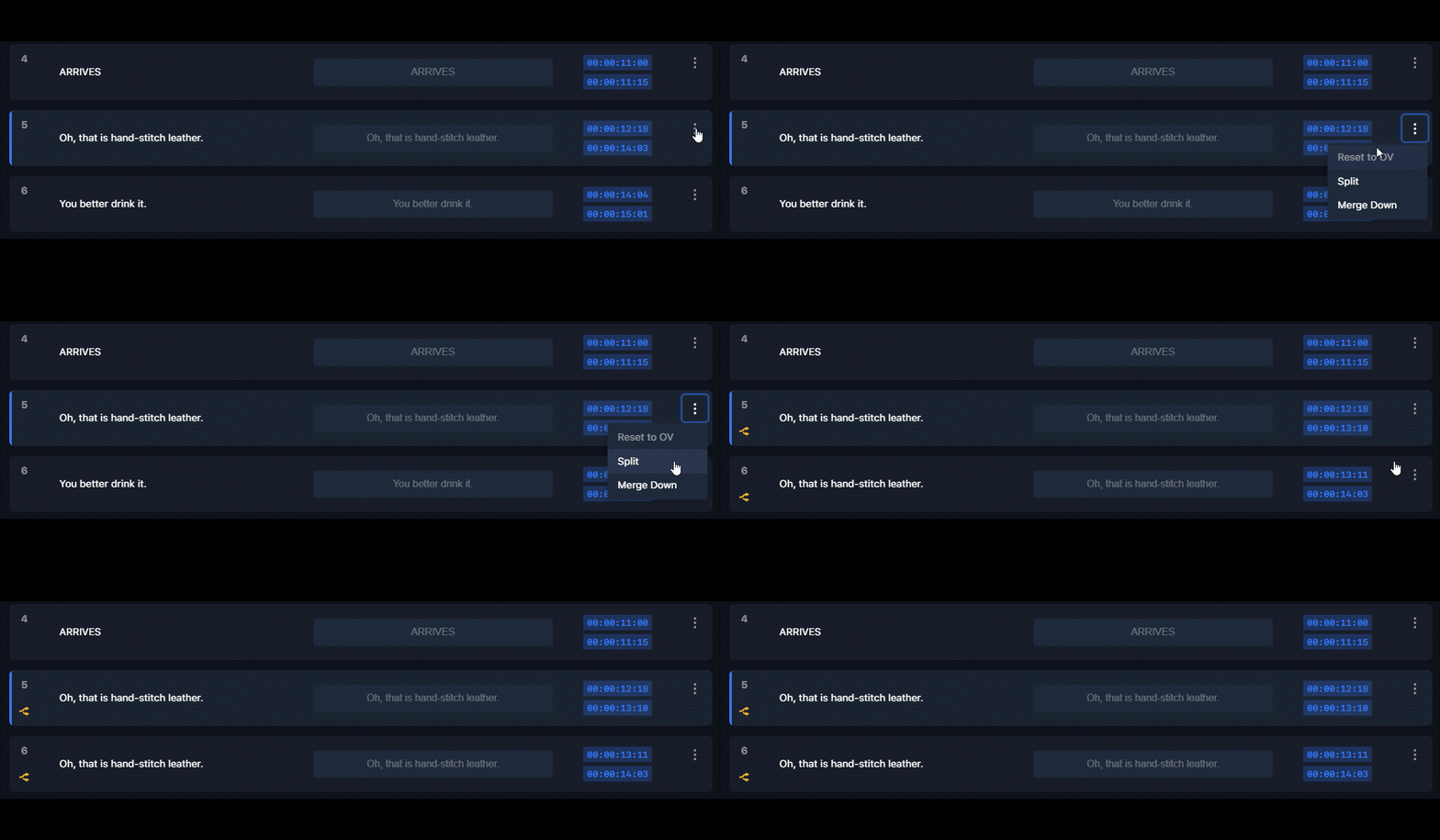
Split divides a cell into two equal-length cells.