

Placing an order
Add to the Order Queue
Fill in the Order Wizard
Choose deliverables
Place the order
Click Order Localized Version at the bottom-right of the preview to add the asset to your Order Queue.

The Order Queue opens in the notification bar — add as many assets as you need before processing them together.
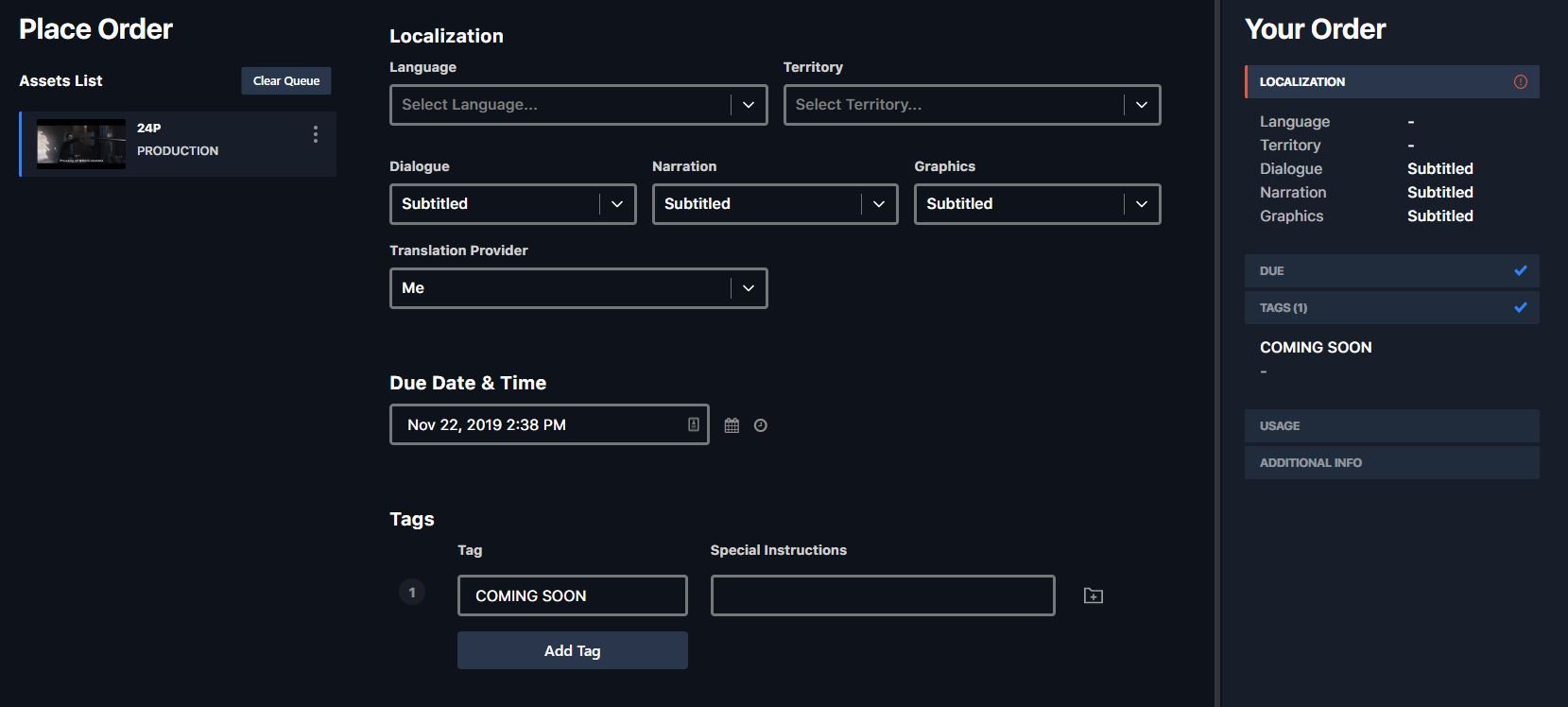
The Order Wizard: set language and territory, the dialogue / narration / graphics options, deadline, and tags.
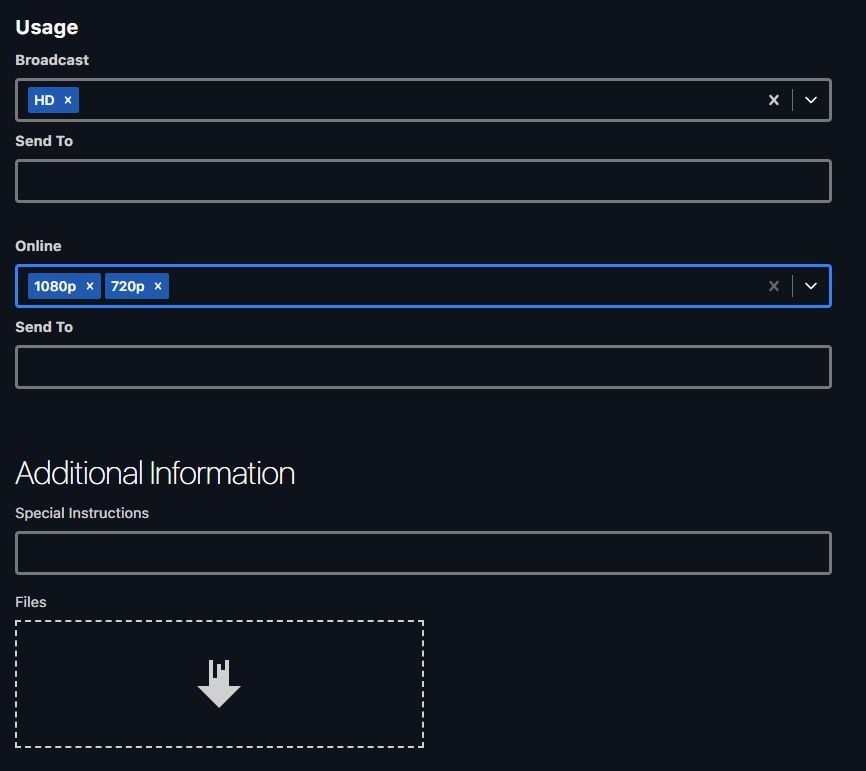
Choose the deliverable file formats you need.
Add any outside recipients in the Send To field.
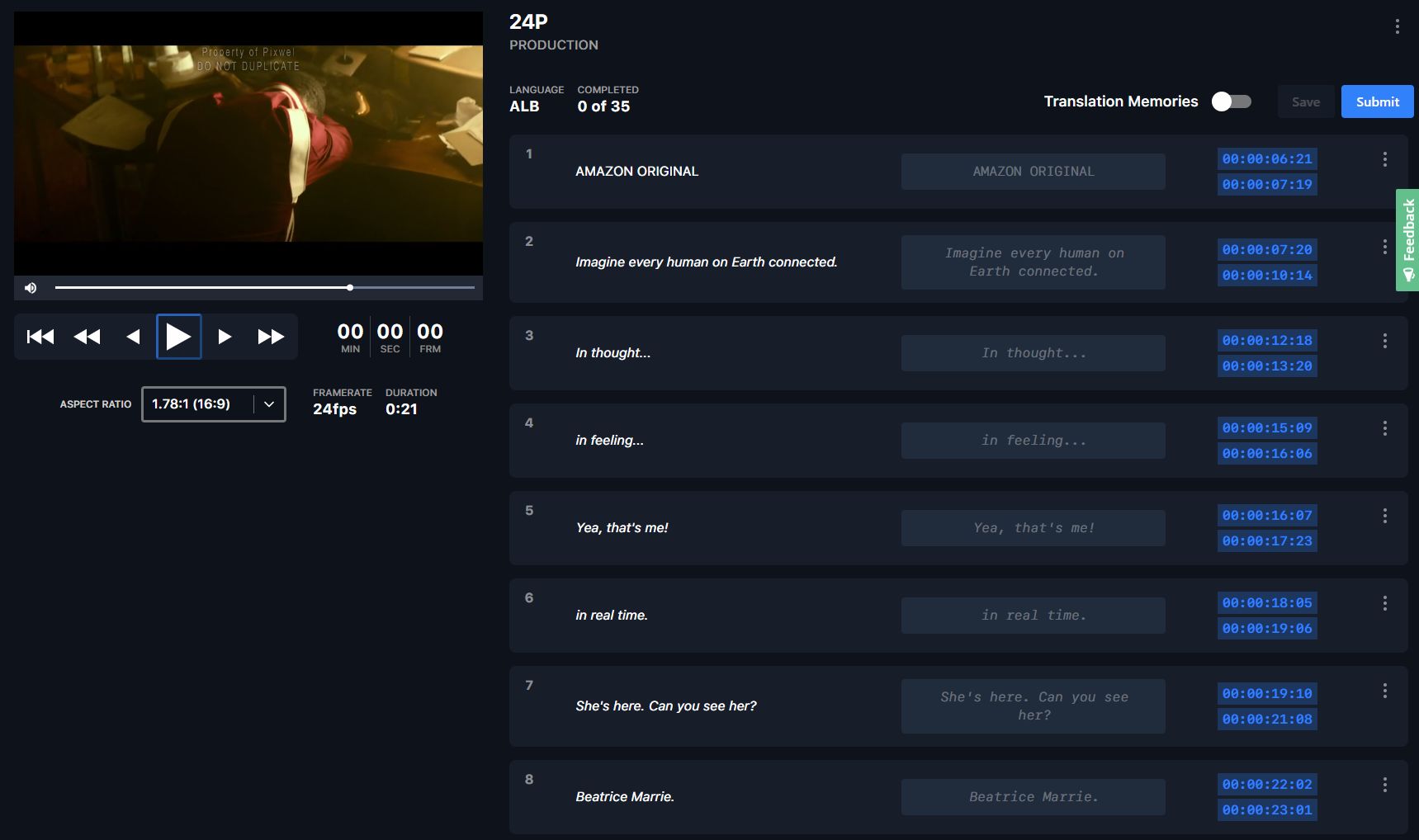
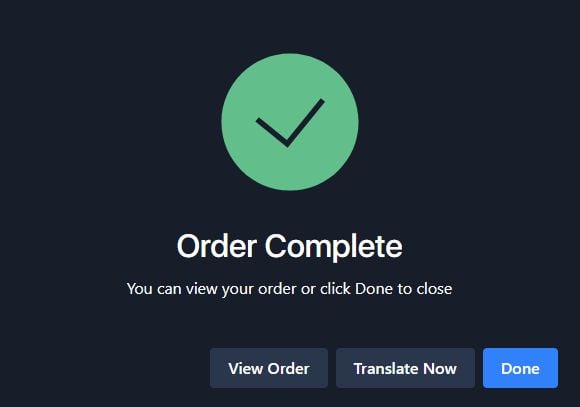
Review everything and click Place Order.
Choosing encodes
Pick deliverables by clicking a category and selecting one or more files — only what you select gets created.Tags
Every order needs at least one tag — even for a single version. Tag names are built into the final file names, so deliverables are easy to identify.- Type the tag name in the Tags section and click Add Tag.
- Create one tag for every version you need (for example a
COMING SOONtag). - Edit or add tags after submission from the Tags tab of the work request.
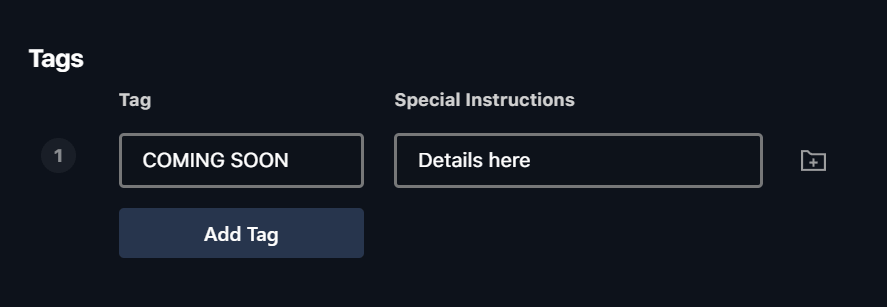
Type a tag name in the Tags section and click Add Tag.
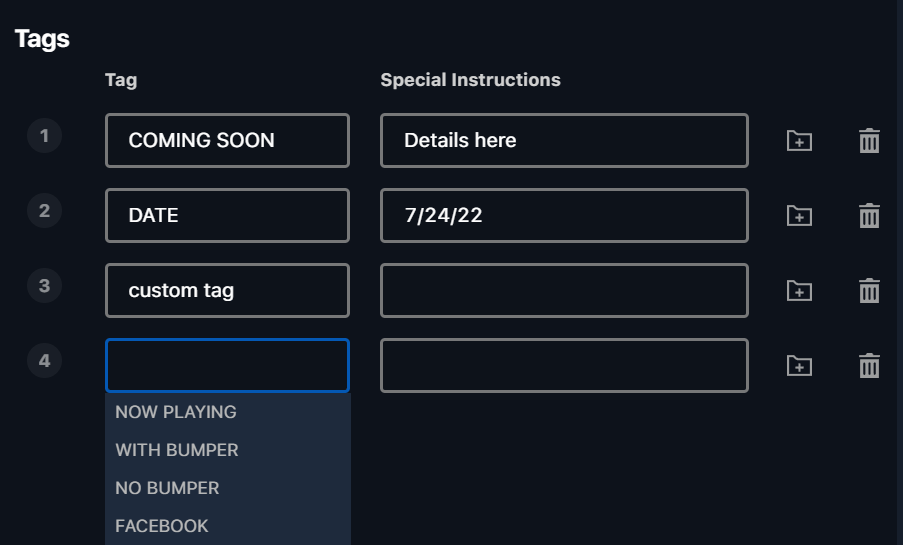
Create one tag for every version you need.
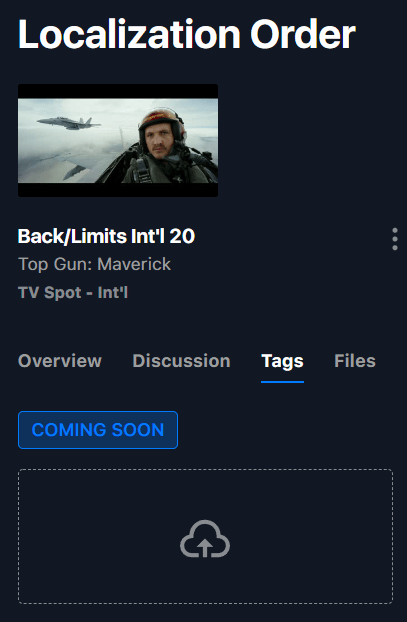
Tag names are built into the final file names, so deliverables are easy to identify.
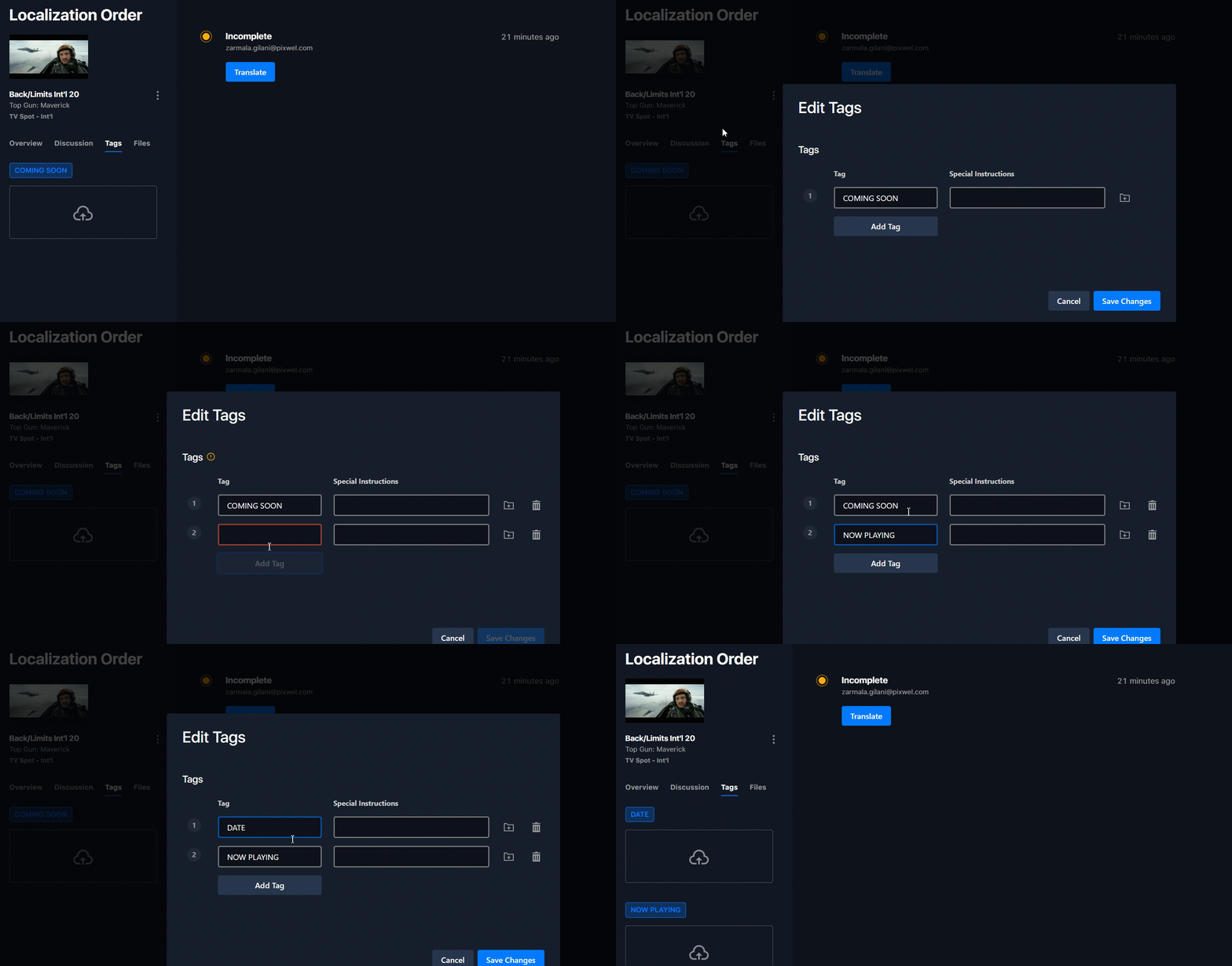
Edit or add tags after submission from the Tags tab of the work request.
Dedicated / Localized
Choosing Dedicated / Localized (rather than subtitled or OV) means a fully localized deliverable:- Dialogue & narration are dubbed into the target language.
- Graphics are completely replaced with your translation and given full graphic treatment — not just an overlay.

Choosing Dedicated / Localized for dialogue, narration, or graphics in the order.

Dedicated / Localized means dubbed dialogue and narration and fully replaced graphics.
Special transcodes and split audio
- Special transcode (outside standard deliverables) — describe it in special instructions and attach a spec sheet in the work request’s file upload section (resolution, bars/end card, max size, format, duration, frame rate). If no spec sheet exists, give as much detail as possible.
- Localized split audio (dubbed dialogue/narration stems) — Pixwel doesn’t host these; request them from your localization vendor directly.
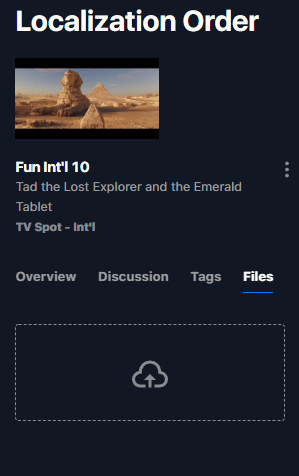
Describe a special transcode in special instructions and attach a spec sheet in the work request's file upload section.
Leaving notes and comments
Two places to give feedback:- Discussion tab — general comments between you and the vendor. Click New Comment, then Submit. (Not for offline-approval notes.)
- Offline review — from the timeline view, click New Comment for a revision. Add a text comment, or click Request Change, pause the preview, and drag across the frame to highlight an area before submitting. Annotations are saved alongside the content and are clickable.
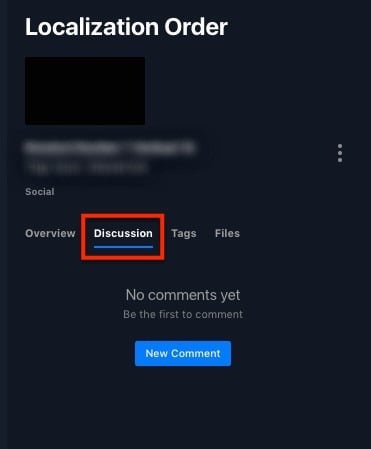
The Discussion tab — general comments between you and the vendor.
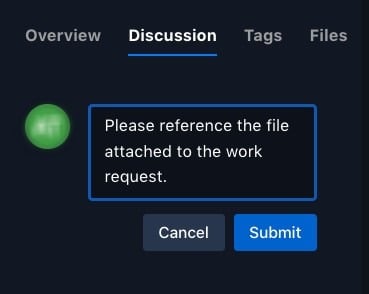
Offline review — add a comment on a revision from the timeline view.
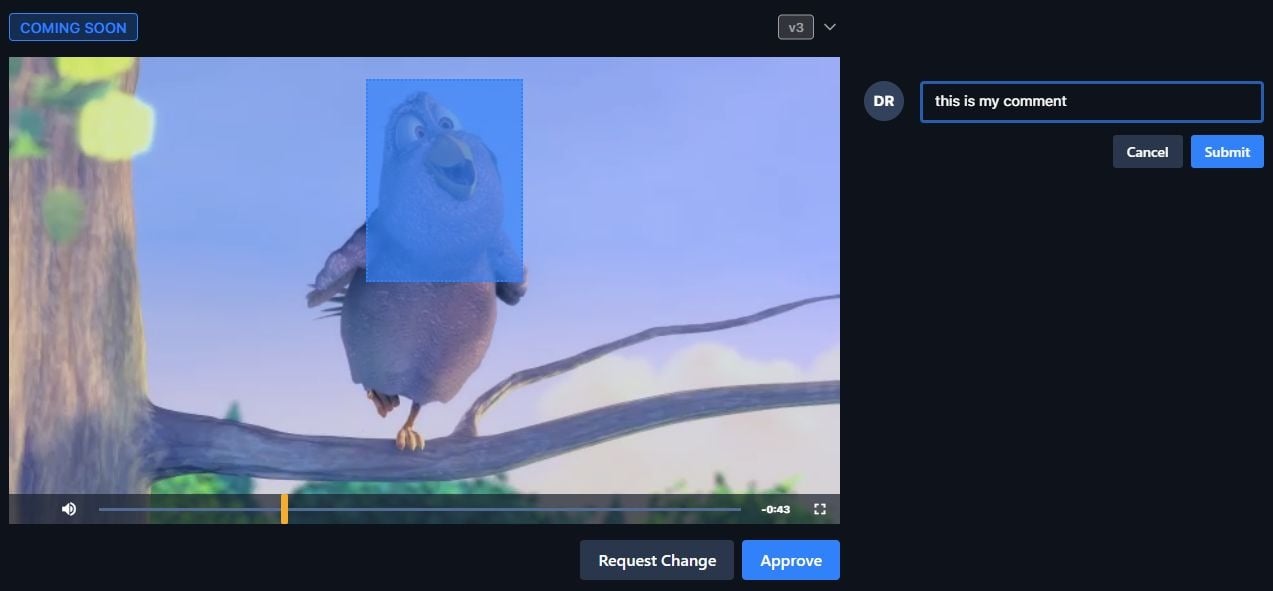
Click Request Change, pause the preview, and drag across the frame to highlight an area.
Managing your orders
Open Manage Work Requests from the side toolbar. By default it shows the last 30 days; switch between your own and My Group(s) requests, filter by project/asset type/status, adjust the date range, and search. Opening an order gives you four tabs:
Open Manage Work Requests from the side toolbar.
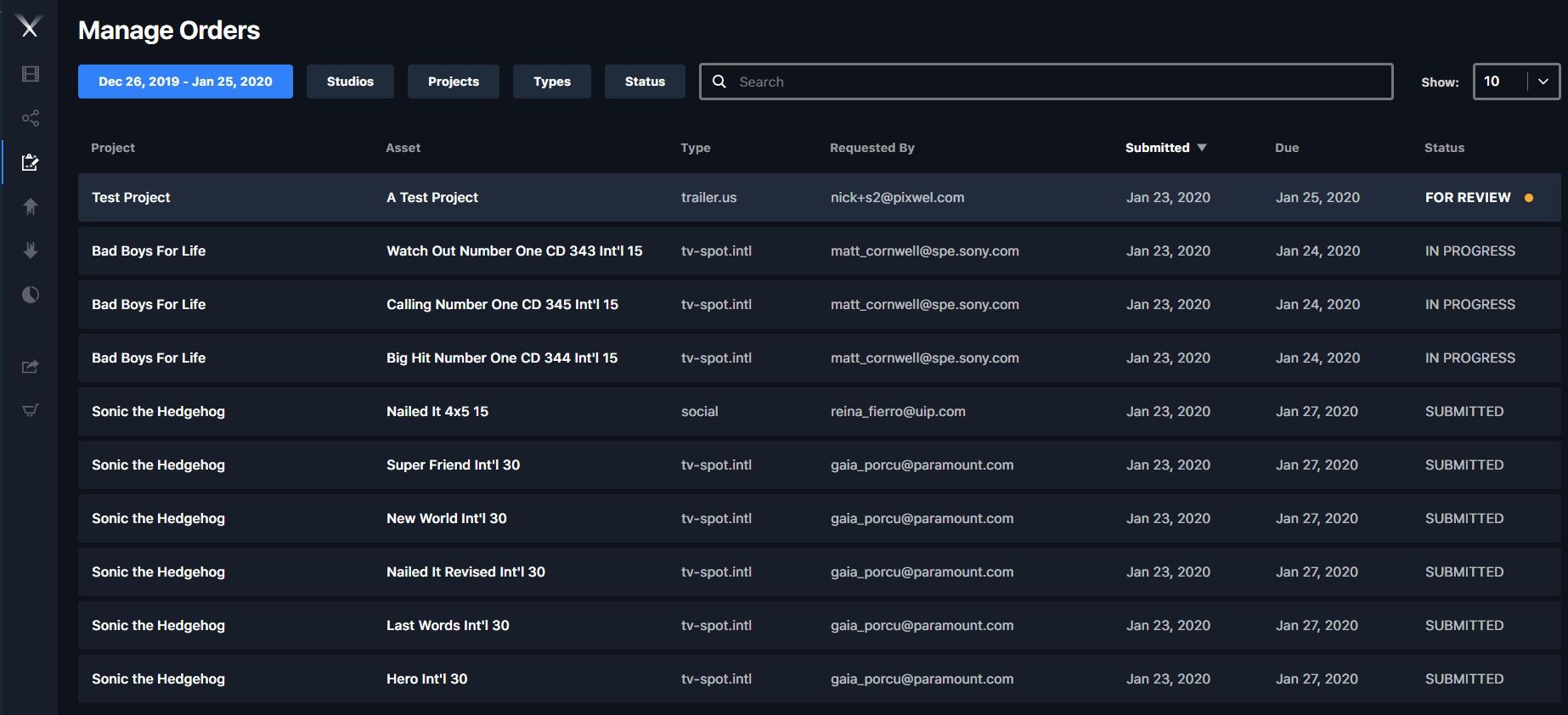
The work request list, showing the last 30 days by default.

Switch between your own and My Group(s) requests.
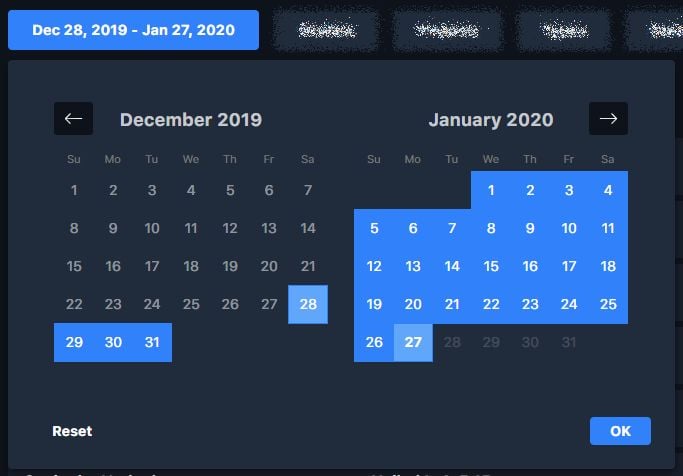
Filter by project, asset type, and status, adjust the date range, and search.

The Overview tab — all order details.
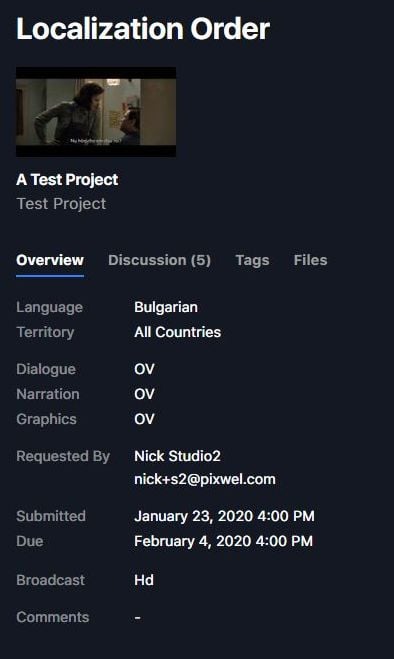
The Discussion tab — general comments with the vendor.
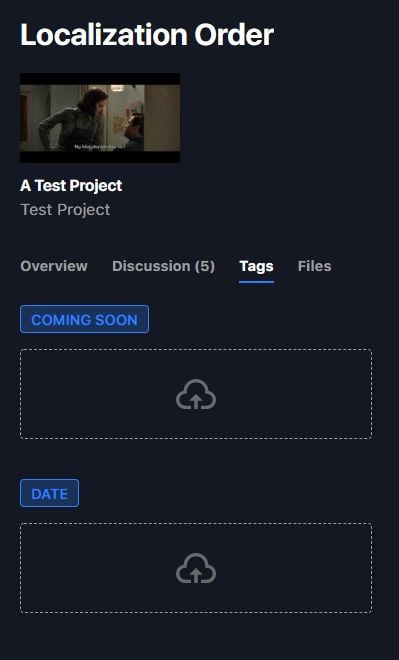
The Tags tab — upload files for individual tags.
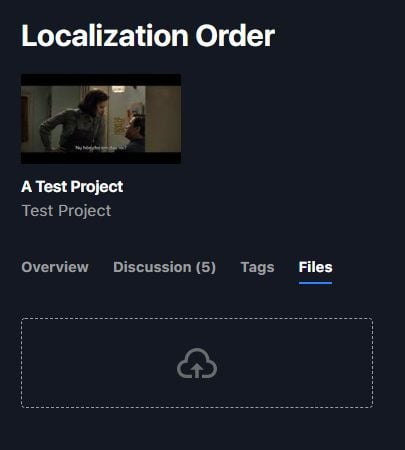
The Files tab — upload vendor resources not tied to a specific tag.
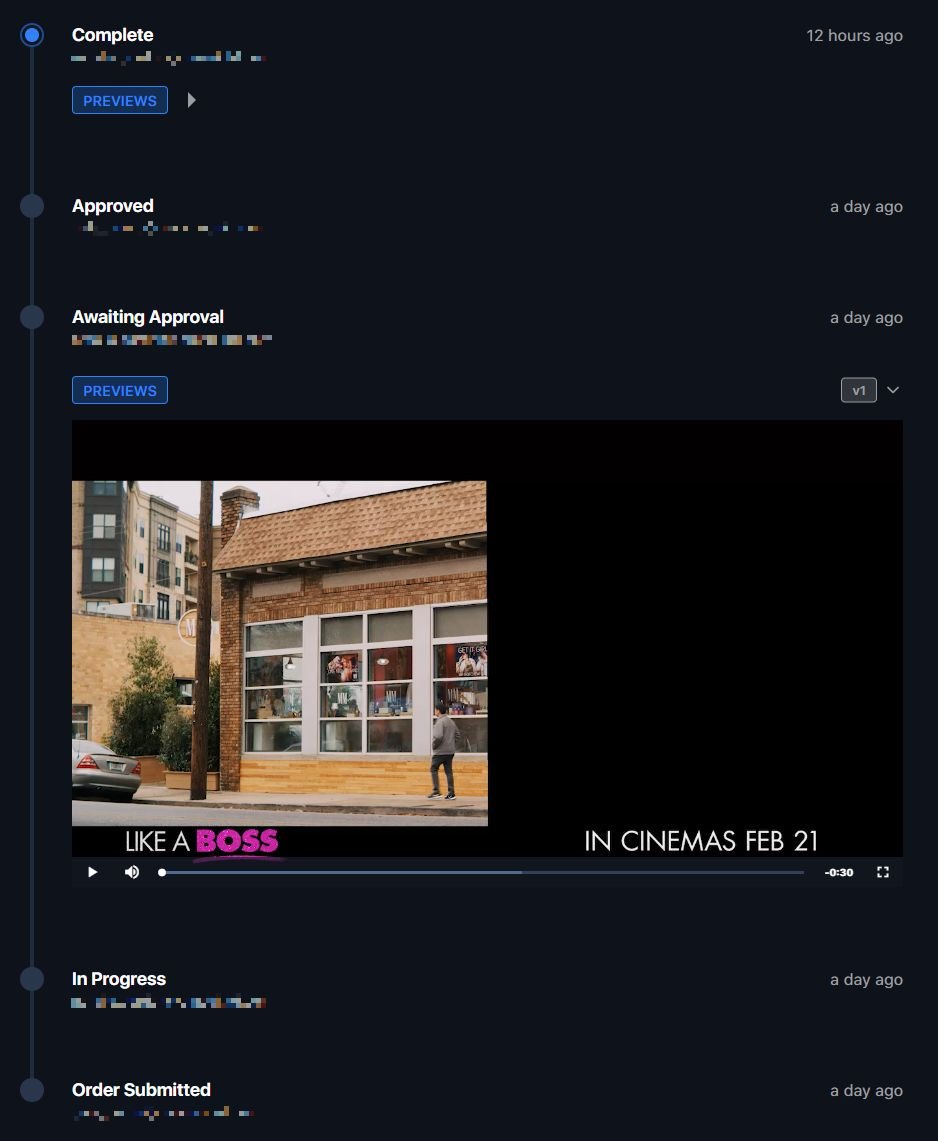
A timeline shows production status.
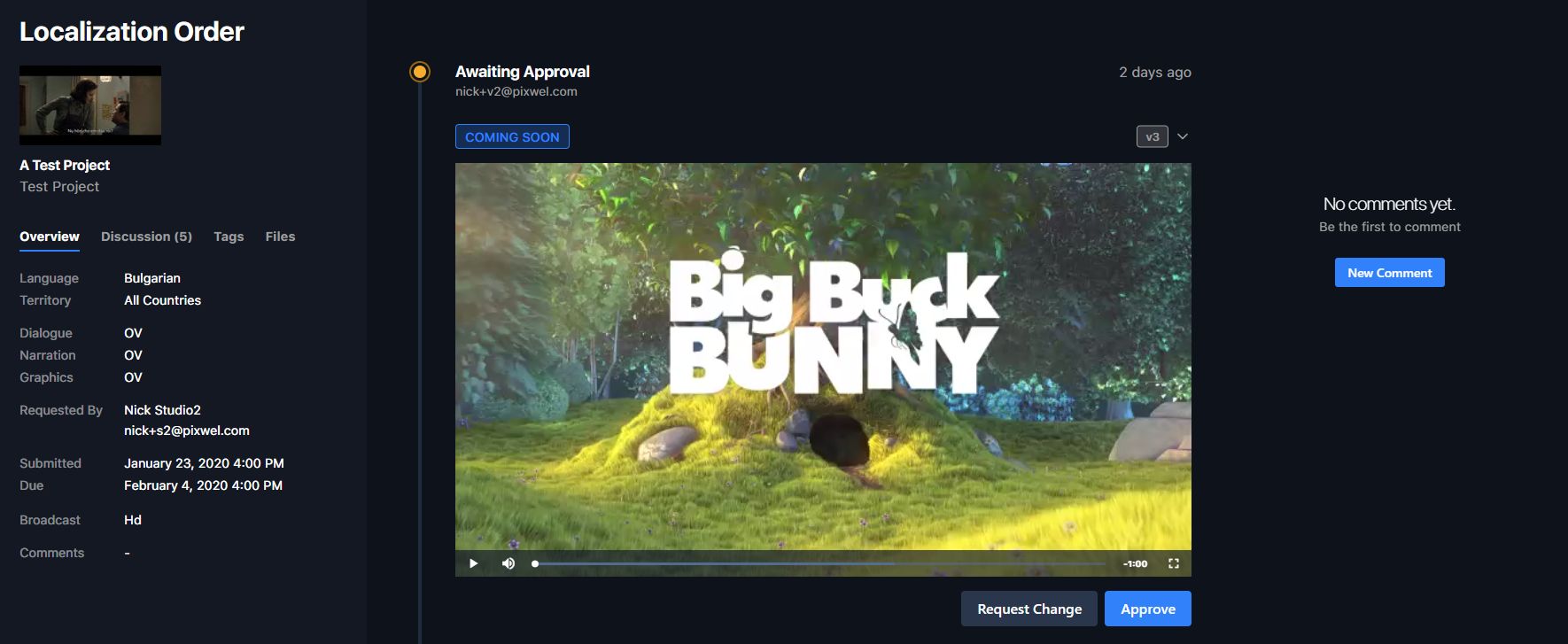
At Awaiting Approval, preview each offline.
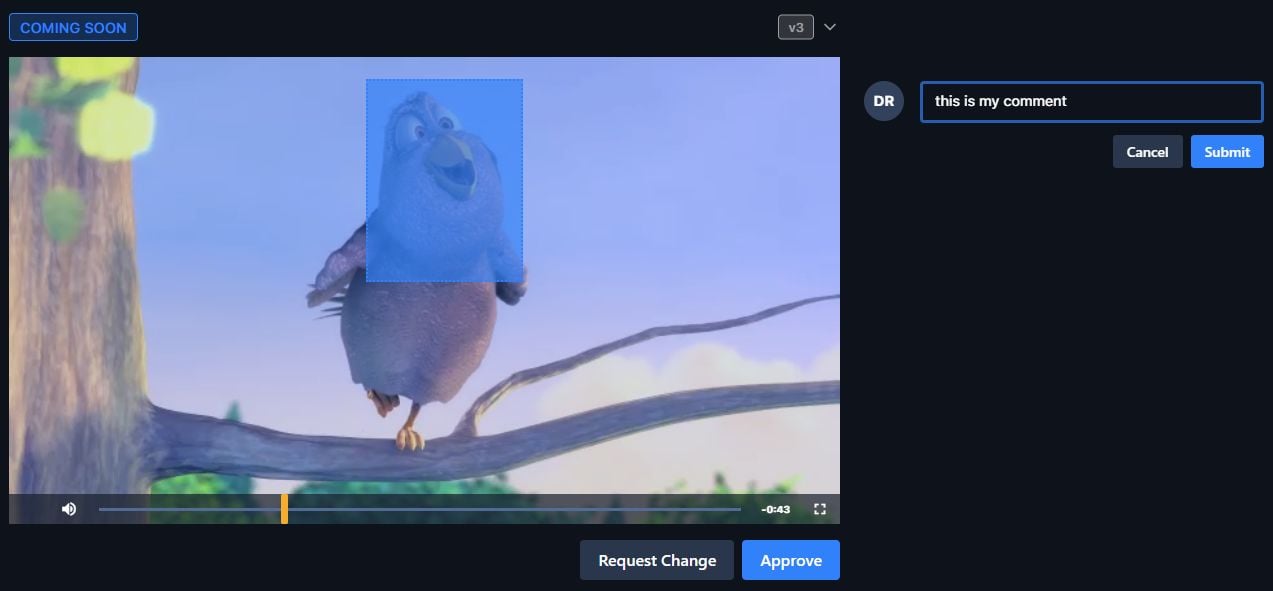
Approve the preview or leave a comment.
Order statuses
A work request moves through these statuses (see also Work Requests):Updating an existing order
Edit an order from the ⋮ menu next to the spot’s thumbnail in the work request. What you can change depends on status: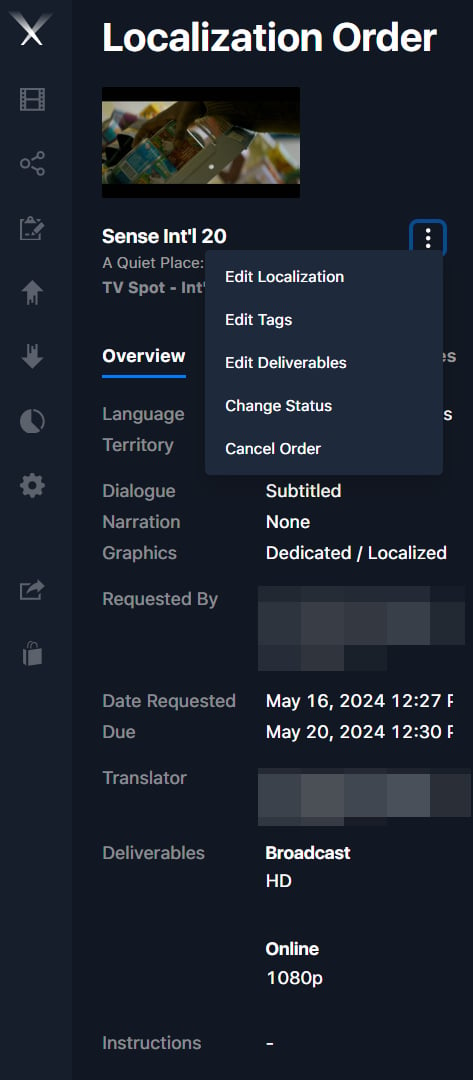
Edit an order from the ⋮ menu next to the spot's thumbnail.