

In-app notifications
Click the bell icon above your user profile to open the Notifications panel. Notifications are organized into tabs:- Orders — updates on your work requests.
- Embargoes — when an embargoed file’s restriction changes.
- General — other updates, such as asset uploads.
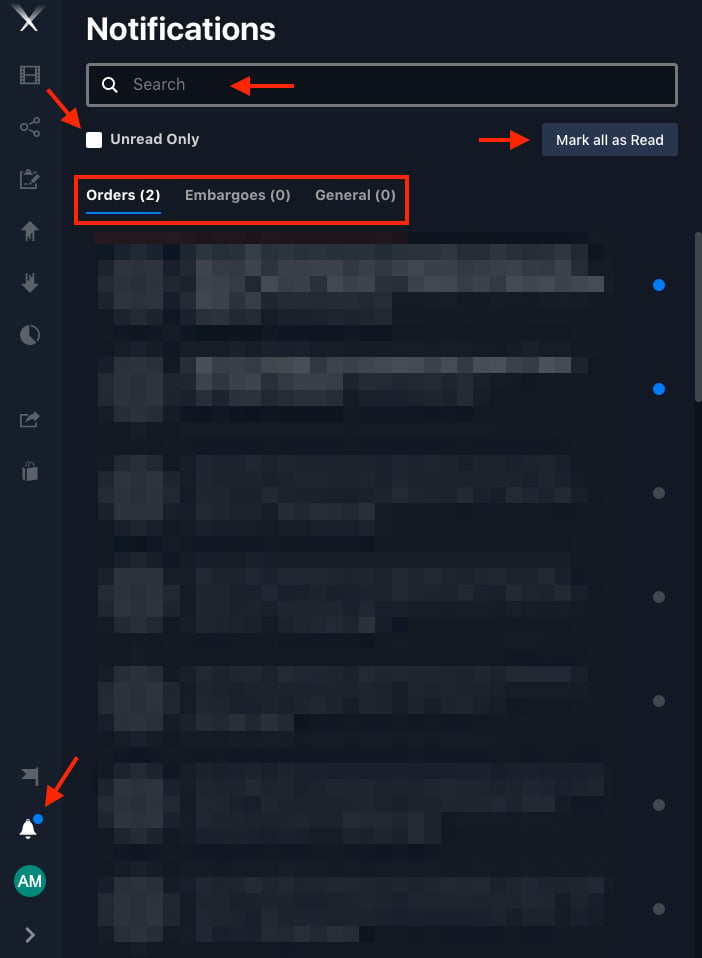
The Notifications panel — Orders, Embargoes, and General tabs, with search, Unread Only, and Mark all as Read.
Email notifications
Email notifications tell you by email whenever a project or work order is updated, or a share is received.1
Open Preferences
Click your user profile at the bottom-left, then the settings gear (⚙️) to open Preferences.
2
Go to Notifications
Open the Notifications tab and tick Email Notifications.
3
Set frequency
Choose how often you want emails from the dropdown.
4
Save
Click Save Preferences.
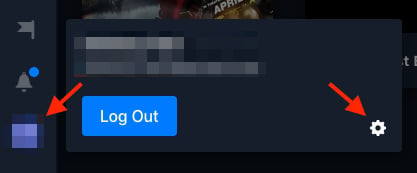
Open your user profile at the bottom-left, then the settings gear to reach Preferences.
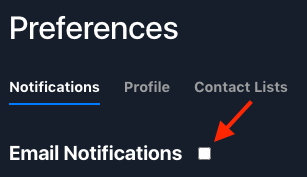
In Preferences, open the Notifications tab and tick Email Notifications.
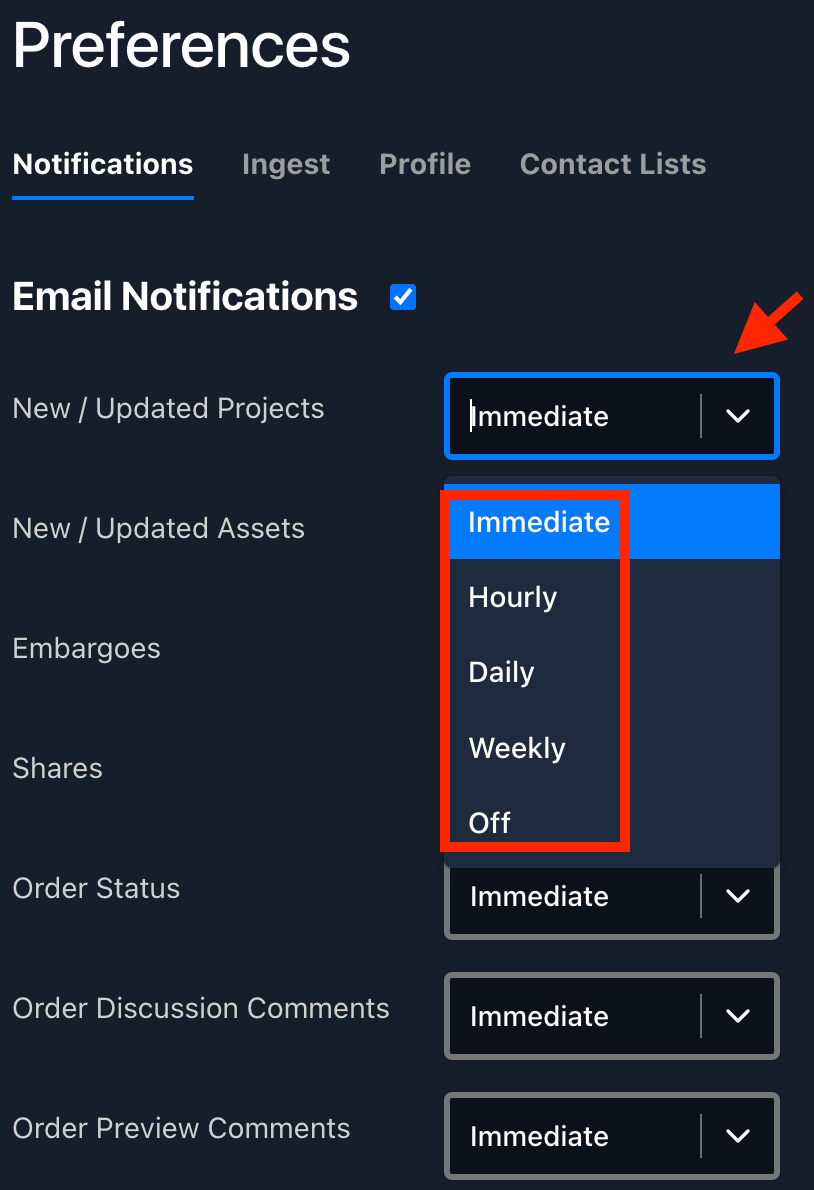
Set how often each kind of email arrives — Immediate, Hourly, Daily, Weekly, or Off.