

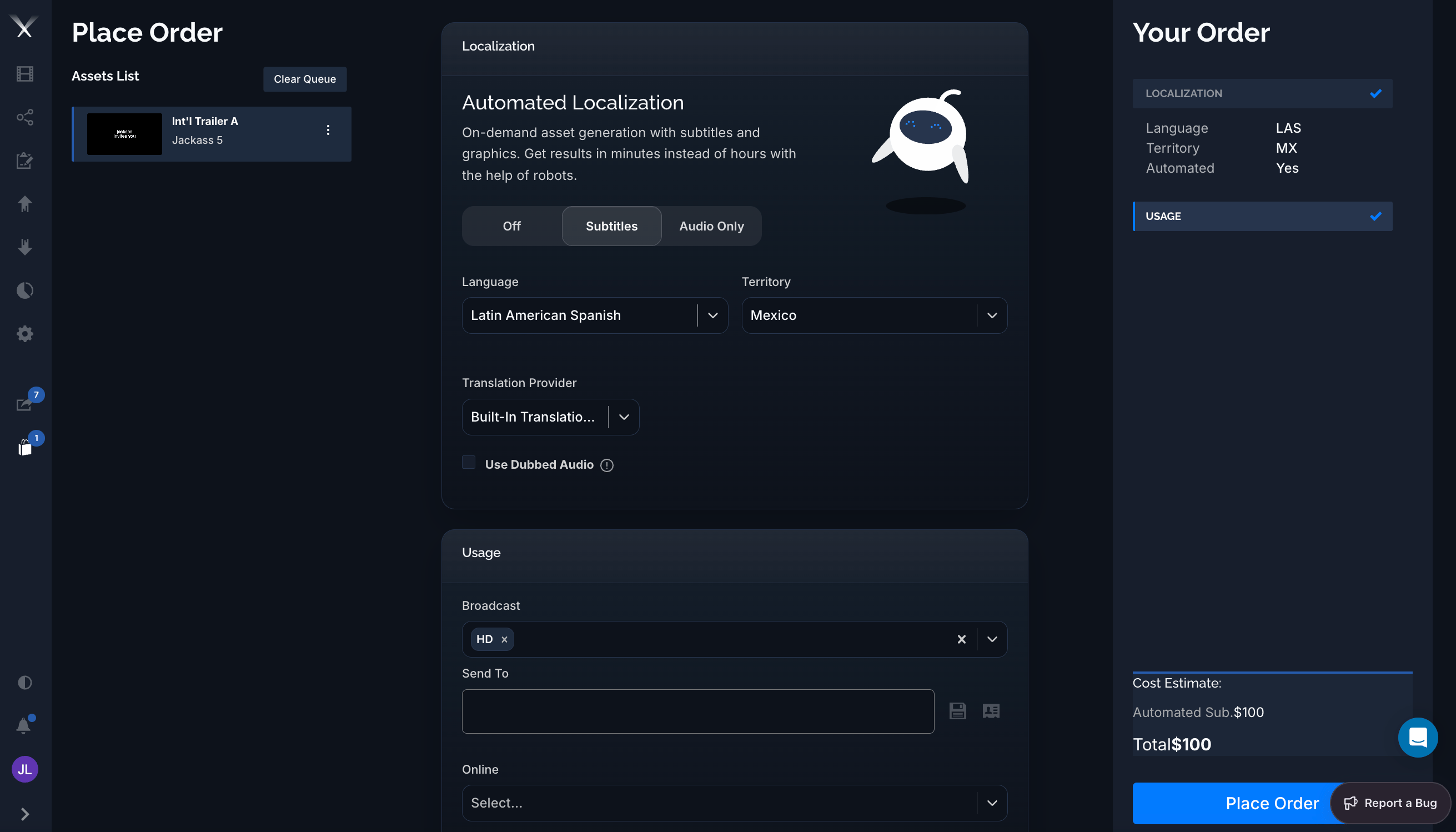
Automated Localization on the Place Order page: choose Subtitles or Audio Only, pick the language and territory, and the order summary shows Automated: Yes.
When to use it
Reach for Automated Localization when you need a localized version fast and the source has the text it needs (a transcription or script). It’s ideal for quick subtitled cuts and turnarounds where a full vendor pass would be slower than necessary. For complex creative work — full dubbing, hand-crafted graphics — a standard vendor work request is still the right call.Setting it up
In the Localization panel of an order, the Automated Localization toggle offers up to five modes. Which ones appear depends on what the asset supports — see Automated graphics and Availability:
Then choose:
- Language — the target language (for example Latin American Spanish).
- Territory — the destination territory (for example Mexico).
- Translation Provider — how the translation is produced:
- Built-In Translation Tool — Pixwel’s machine translation, applied instantly so the whole order can complete automatically.
- My Subtitling Vendor — send the translation to your own subtitling vendor by email instead of using machine translation.
- Usage — pick the deliverable formats just like any order (for example Broadcast HD, Online). See Usage.
Use Dubbed Audio (Audio Only) lets you upload a dubbed
.wav to replace the original audio. The uploaded audio must match the timing of the original version on the platform — that’s what the warning icon is flagging. This option appears only when your account has audio mixing enabled.Automated graphics
Automation isn’t limited to subtitles — Pixwel can rebuild an asset’s on-screen graphics (titles, lower-thirds, end cards, and other text) in the target language and burn them into the deliverable. Two modes use it: Graphics (graphics only, dialogue left as OV) and Subtitles + Graphics (graphics plus subtitles). In DNG terms, graphics automation sets the order’s Graphics to Dedicated / Localized — a full localized graphic treatment, not just an overlay — while the subtitled modes set dialogue, narration, and graphics to Subtitled. The Graphics and Subtitles + Graphics modes only appear when the asset is set up for graphics automation:- The asset has an auto-graphics script — the Auto Graphics (AutoGfx) transcription generated from its graphics project.
- The asset has a graphics layout file that defines where each graphic sits, so the localized text can be placed correctly.
- The target language supports graphics — automation covers most languages, but a few combined-language codes don’t, and the graphics modes are hidden for those.
What it costs
Automated orders are priced per language, not per file. The Your Order summary marks the order Automated: Yes and shows the charge on a line labeled Automated Sub. in the Cost Estimate (for example$100). Unlike standard orders, automated orders don’t incur per-file encoding charges. Your actual rates come from your studio’s billing configuration.
What you get
When the order runs, Pixwel produces the localized deliverables automatically and delivers them straight to the asset — typically a Broadcast (ProRes) and/or Online (H.264) version for the usages you selected. Automated output is labeledAUTOSUB in the file name so you can tell it apart from vendor-produced deliverables. Because there’s no vendor queue, results are usually ready in minutes, and a due date isn’t required.
Availability
Automated Localization appears only when:- Your group has autosubs access for the asset (granted by an administrator on the Permissions tab, and scoped by source, country, and language).
- The asset has a transcription or script to translate from (it’s not available for print assets).
- For the Graphics and Subtitles + Graphics modes, the asset also has its auto-graphics setup and the target language supports graphics — see Automated graphics.
- For Audio Only and Use Dubbed Audio, your account has audio mixing enabled.